How to Update a Rand McNally GPS Navigator
The Short Answer
Most Rand McNally GPS navigators are updated with Rand McNally Dock, the company's free desktop program for Windows and Mac. You install Dock on a computer, connect the navigator with its USB cable, sign in or register the device, and let Dock download and install any available map and software updates. Some newer models can also update over Wi-Fi directly from the device's settings menu. Which method you can use, and whether map updates are included at no charge, depends on your model and the terms that came with it, so check your device's documentation or Rand McNally's official support pages before you start.
Two terms are useful here. A map update replaces the stored road data, including new roads, changed routes and points of interest. A software or firmware update changes the program that runs the navigator, which can fix bugs or add features. Dock typically offers both, and you may need to install them in separate passes.
Before You Start
Updating a portable navigator is a desk task, not a roadside one. Do it at home or in a parked vehicle, never while driving.
Your Rand McNally navigator and its original or a known-good USB data cable (some charge-only cables will not transfer data); A Windows or Mac computer with administrator rights to install software; A stable, reasonably fast internet connection, since map files are large; Enough free space on the computer for the download, and enough free storage on the navigator for the new maps; Your device's model name and serial number, usually found in the device's settings or on a label on the back; A Rand McNally account, or the details needed to create one and register the device; The navigator charged, and ideally kept on external power during the update
Updating With Rand McNally Dock on a Computer
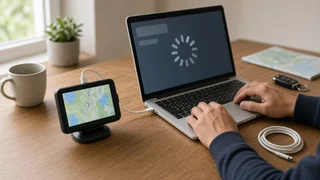
1) Download Rand McNally Dock from Rand McNally's official support site and install it. Avoid third-party download sites, which may bundle unwanted software. 2) Open Dock and sign in, or create an account if you do not have one. 3) Turn the navigator on and connect it to the computer with the USB cable. Plug directly into a computer port rather than an unpowered hub. 4) Wait for Dock to recognize the device. If prompted, register the navigator to your account. 5) Let Dock check for updates. It will list any available software and map updates for your model. 6) Start the update. If a software update and a map update are both offered, install them in the order Dock presents them. 7) Leave everything alone until Dock reports that the update is complete. Do not unplug the cable, close Dock, let the computer sleep or switch off the navigator during this time. Interrupting a write to the device can leave it unable to start. 8) When Dock confirms completion, safely eject or disconnect the navigator as the program instructs, then restart the device.
Large map updates can take a long time to download and install. If progress appears to stall, give it time before intervening; restarting mid-install is the most common way to create a bigger problem.
Updating Over Wi-Fi on Supported Models
Some newer Rand McNally navigators can download updates without a computer. If your model supports this, the option will appear in the device's settings menu. Exact menu names vary by model, so treat the steps below as a general outline and follow your device's on-screen prompts.
1) Park the vehicle or bring the navigator indoors, and connect it to a power source. 2) Open the settings menu and connect the device to a trusted Wi-Fi network. Avoid public networks that require a browser sign-in page, as the device may not be able to complete it. 3) Look for an option to check for or install updates and select it. 4) Confirm any prompts and keep the device powered and within range of the network until it reports that the update is finished. 5) Restart the navigator if it does not restart on its own.
If your device has no Wi-Fi update option, use the Dock method instead.
How to Confirm the Update Worked
Run Dock again with the device connected; it should report that no further updates are available. Check the map and software version shown in the navigator's settings or device information screen and compare it with what Dock listed as current. Search for a recently built road or a new business in your area to see whether it now appears. Plan a short test route while parked to make sure routing and satellite positioning work normally.
When to Stop and Get Help
Dock does not detect the navigator: try a different USB cable and port, restart both the computer and the device, and make sure Dock is the latest version. The device reports insufficient storage: do not force the install. Follow Dock's prompts for removing optional content or using a memory card if your model supports one. An update was interrupted and the navigator will not start normally: do not keep power-cycling it. Reconnect it to Dock to see whether recovery is offered, and contact Rand McNally support if it is not. Dock says no updates are available or that maps require purchase: your device may be outside its included update period, or the model may no longer be supported. Confirm with Rand McNally support before buying anything. You are trying to update a navigation system built into the vehicle's dashboard: that is a factory infotainment system, not a Rand McNally portable unit, and it follows the vehicle manufacturer's update process, often through a dealer.
What This Guide Cannot Confirm
No model-specific evidence was available for this guide, so it does not state which Rand McNally models support Wi-Fi updates, whether a particular device includes free lifetime map updates or requires a paid plan, current update prices, download sizes or installation times, or which older models are no longer supported. Those details vary by model and purchase terms. Check your device's manual or Rand McNally's official support resources for your specific model before relying on any of them.