How to Update Your Garmin GPS Navigator Software
The Short Answer
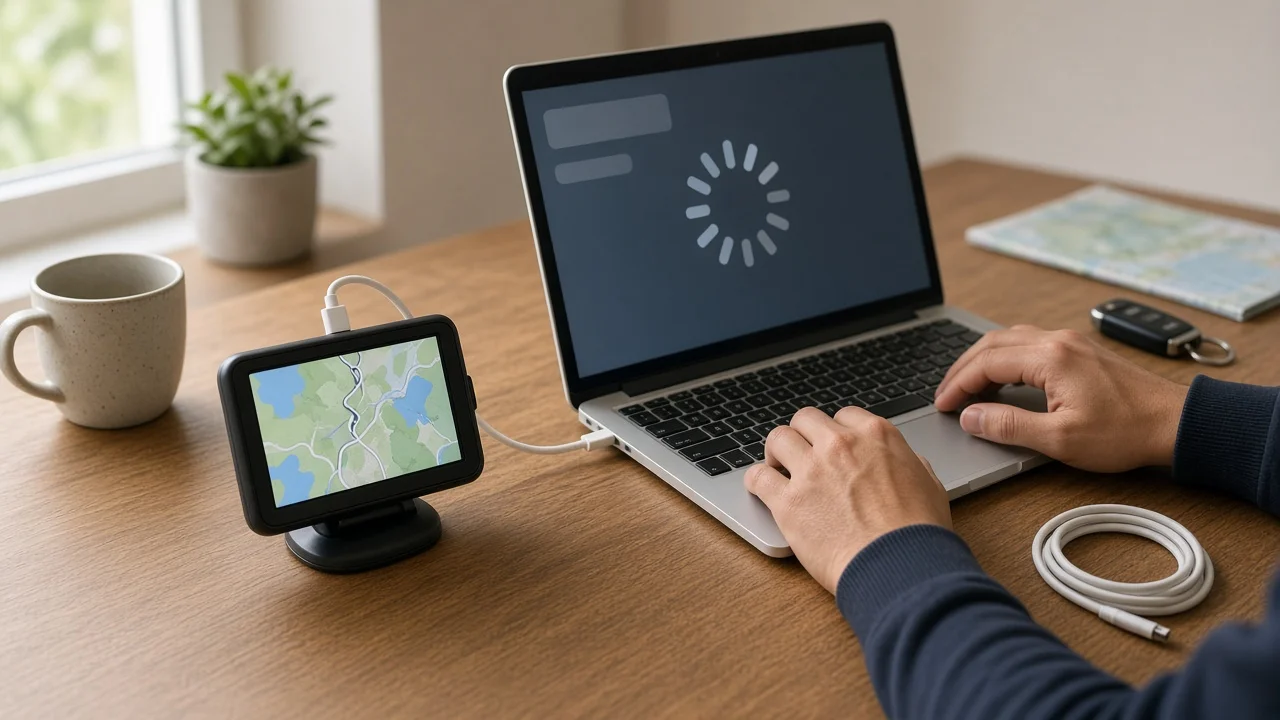
Most portable Garmin car navigators are updated in one of two ways. The first is to connect the device to a Windows or Mac computer with a USB cable and use Garmin Express, Garmin's free desktop application for installing software and map updates. The second is to update directly over Wi-Fi from the device's settings menu, which is available only on models with built-in Wi-Fi. Either way, the process checks for new device software (often called firmware, the internal program that runs the navigator) and new map data, then downloads and installs them.
Several conditions change what you will see. Software updates are generally free, but whether new maps are included depends on the map coverage that came with or was purchased for your unit. Older discontinued models may no longer receive updates. A Garmin-branded navigation system built into a car's dashboard is a different case. Its software and maps are usually supplied through the vehicle manufacturer or dealer, not through the steps below.
Before You Start
Gather the following before beginning an update:
Your Garmin navigator, charged or connected to power. The USB cable that came with the device, or another cable that carries data. Some cables only charge and will not let the computer detect the device. A computer with an internet connection and Garmin Express installed, if you are updating by computer. A reliable Wi-Fi network, if your model supports Wi-Fi updates. Enough free storage on the device. Map updates can be large, and some units need a compatible microSD card to hold a full update. Your Garmin account sign-in details, since Garmin Express asks you to register the device to an account.
Updates can take a long time, depending on the size of the update and your connection speed. Plan to leave the device connected and undisturbed until the process finishes. No specific download sizes or durations are given here, because they vary by model and by update.
Method 1: Update Using Garmin Express on a Computer
1) Install Garmin Express on your computer using Garmin's official download, then open the application. 2) Connect the navigator to the computer with the USB cable. Use a port directly on the computer instead of an unpowered hub. If you are using a laptop, plug it into mains power so the battery does not run out during the update. 3) In Garmin Express, choose to add a device. The application should detect the navigator. If it does not, try another data-capable cable or USB port, and make sure the navigator is switched on. 4) Sign in to or create a Garmin account and register the device when prompted. 5) Garmin Express checks for available updates and lists software and map updates separately. Select the updates you want, or choose to install all of them. 6) If the application reports that there is not enough space, follow its prompts. These usually offer to install a smaller map region or ask you to insert a microSD card. 7) Wait for the download and installation to finish. Do not unplug the cable, close the application or let the computer sleep during this stage. Interrupting an update can leave the device unable to start properly. 8) When Garmin Express shows that the device is up to date, use your computer's safe-eject function and then disconnect the navigator.
Method 2: Update Over Wi-Fi on Supported Models
1) Park the vehicle, or take the navigator indoors. Do not set up or start an update while driving. 2) Connect the navigator to external power. Many models need to be plugged in before they will begin a Wi-Fi update. 3) Open the device's settings menu and connect to a Wi-Fi network. Use a private network you trust instead of a public hotspot. 4) Open the update option in settings. It is often labeled Updates or listed under the device information section. The exact menu names and locations vary by model and software version. 5) Select to install the available software and map updates. 6) Keep the device powered and within Wi-Fi range until installation completes. The navigator may restart one or more times during the process.
How to Confirm the Update Worked
After updating, turn on the navigator and look in its settings for an About or device information screen. This screen typically lists the current software version and the installed map version. Compare these with what Garmin Express or the Wi-Fi update screen showed as the latest versions. You can also run the update check a second time. If it reports that no further updates are available, the process completed. Finally, enter a familiar destination to confirm that routing works normally.
When to Stop and Get Help
Stop and contact Garmin support in these situations:
The device repeatedly fails to install an update. The device will not start after an update. Garmin Express reports that the device is not supported. The device does not show up in Garmin Express on any computer or cable you try.
Avoid unofficial map files or third-party update tools. They can cause errors and may affect support for the device.
If your Garmin navigation is built into the vehicle's infotainment system, check the owner's manual for that model year and market, or ask a dealer. The update method, cost and compatibility for factory-installed systems depend on the vehicle and are not covered by the portable-device steps above.
What This Guide Cannot Confirm
No model-specific evidence was available for this guide. It does not state current software version numbers, update file sizes, installation times, map pricing, or which individual models still receive updates. Menu names and steps differ between Garmin product lines and software versions. Check the manual for your specific device and the prompts shown in Garmin Express as the authoritative instructions for your unit.