How to Update Garmin dēzl Maps and Software
The short answer
Garmin dēzl truck navigators get map and software updates in one of two ways. Every dēzl model can be updated through Garmin Express, Garmin's free desktop application for Windows and Mac, with the device connected by USB cable. Many newer dēzl models, including units in the dēzl OTR series, can also download updates directly over a Wi-Fi network without a computer. Which method you can use depends on your model and its generation, so check whether your unit has a Wi-Fi settings menu before you start.
One qualification matters: whether you get new maps at no extra cost depends on the map coverage that came with your device. Many dēzl units are sold with map updates included for the useful life of the device, but older or discontinued models may stop receiving updates once Garmin ends support for them. Garmin Express will show you what updates, if any, are available for your specific unit.
What an update actually changes
A dēzl update usually involves two separate things that are often delivered together.
Map updates: refreshed road data, including new roads, changed intersections, address points and points of interest. On a truck navigator, map data also feeds the truck-specific routing, such as restrictions related to vehicle height, weight, length and hazardous materials, where that data is available. Software (firmware) updates: changes to the device's operating software. These can fix bugs, improve stability and performance, adjust the interface, or add or refine features. Auxiliary content: depending on the model, updates may also refresh items such as voice files, points-of-interest databases or other bundled content.
Because truck routing relies on accurate road attributes, keeping a dēzl current is more consequential than updating a typical car navigator. Outdated data can mean missed restrictions or routes that no longer reflect the road network. Even so, no map dataset is complete, and posted signs and road conditions always take precedence over the device's guidance.
Before you start
Set aside time. Full map updates are large files, and downloading and installing them can take a long while, especially on a slower internet connection. Use a stable, fast internet connection. Avoid metered or cellular hotspot connections for full map downloads. Have a Garmin account ready. Garmin Express asks you to sign in or create an account and register the device. Keep the dēzl powered. For computer updates it draws power over USB; for Wi-Fi updates, connect it to external power rather than relying on the battery alone. Check storage space. If internal memory is too full for a map update, you may need to remove unneeded content or insert a compatible microSD card, depending on your model. Use a data-capable USB cable. Some cables only carry power and will not let the computer recognize the device.
Method 1: Updating with Garmin Express on a computer
This is the universal method and the one to use if your dēzl lacks Wi-Fi or if a Wi-Fi update fails.
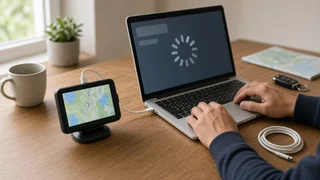
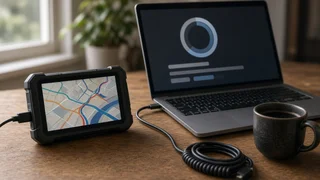
1) Download and install Garmin Express on a Windows or Mac computer from Garmin's official website. 2) Open Garmin Express and sign in to your Garmin account, or create one. 3) Connect the dēzl to the computer with a USB data cable. The device should switch to a computer-connection mode. 4) Choose the option to add a device and follow the prompts so Garmin Express finds and registers your dēzl. 5) Review the available updates. Garmin Express lists map updates and software updates separately. 6) Select install for the updates you want, or choose to install all. 7) Leave the device connected and the computer awake until Garmin Express reports that everything is complete. Do not unplug the device mid-update. 8) Safely eject the dēzl from the computer, then disconnect it and power it on to confirm it starts normally.
If the computer's sleep or power-saving settings are aggressive, adjust them temporarily so the machine does not go to sleep during a long map installation.
Method 2: Updating over Wi-Fi on supported models
Wi-Fi updates are convenient for drivers who rarely sit at a computer. Exact menu names vary by model and software version, but the general process looks like this.
1) Connect the dēzl to external power using its vehicle power cable or a suitable USB power source. 2) Open the device's settings and go to the Wi-Fi or wireless networks menu. 3) Choose your network and enter its password. A home or depot network is generally a better choice than a public hotspot that may require a sign-in page. 4) Open the updates section in settings, or respond to an update notification if the device shows one. 5) Select the map and software updates you want to install and start the download. 6) Keep the device powered and within range of the network until it finishes and restarts if required.
Some dēzl models can download updates in the background and install them when the device is idle or next restarted. Large map updates over Wi-Fi may take considerably longer than through a computer, so an overnight update at home is often the most practical approach.
Which method to choose
Situation | Recommended method; Your dēzl has no Wi-Fi settings menu | Garmin Express on a computer; You have reliable Wi-Fi where the truck or device sits | Wi-Fi update on the device; Wi-Fi update repeatedly stalls or fails | Garmin Express on a computer; You need to install a large map update quickly | Garmin Express on a fast computer connection; You want to free up space or manage installed content | Garmin Express on a computer
Troubleshooting common update problems
Most update failures come down to connection, storage or power issues rather than a fault with the device.
Computer does not recognize the dēzl: try a different USB cable that supports data, use a different USB port connected directly to the computer rather than through a hub, and restart both the computer and the device. Not enough space: Garmin Express may offer to install part of a map set or prompt you to remove content. On models with a card slot, adding a microSD card can provide room for map data. Download stalls or is very slow: pause other heavy internet use, switch to a wired or stronger connection, and let Garmin Express resume rather than restarting from scratch. Wi-Fi update will not start: confirm the device is on external power, check that the network does not require a browser sign-in page, and move closer to the router. Update interrupted: reconnect the device and run Garmin Express again; it will usually detect the incomplete update and offer to finish it. No updates shown: the device may already be current, or the model may no longer receive updates. Confirm the device is registered to your account in Garmin Express.
How often to update
Garmin releases new map data periodically, and software updates arrive on their own schedule. A reasonable habit is to check for updates every few months, or before a long trip into an unfamiliar region. Updating your truck profile settings at the same time, including vehicle dimensions, weight and any hazardous materials class, ensures the refreshed map data is applied to your actual rig.
Bottom line
To update a Garmin dēzl, connect it to Garmin Express on a computer, or use the built-in Wi-Fi update feature if your model has one. Garmin Express is the dependable fallback for any dēzl and the better tool for large map installs and storage management, while Wi-Fi updates trade speed for convenience. Before relying on new routing, confirm the update completed and review your truck profile so the navigator plans routes around the vehicle you are actually driving.