How to Update a Garmin dēzl 570: Maps and Software Step by Step
The Short Answer
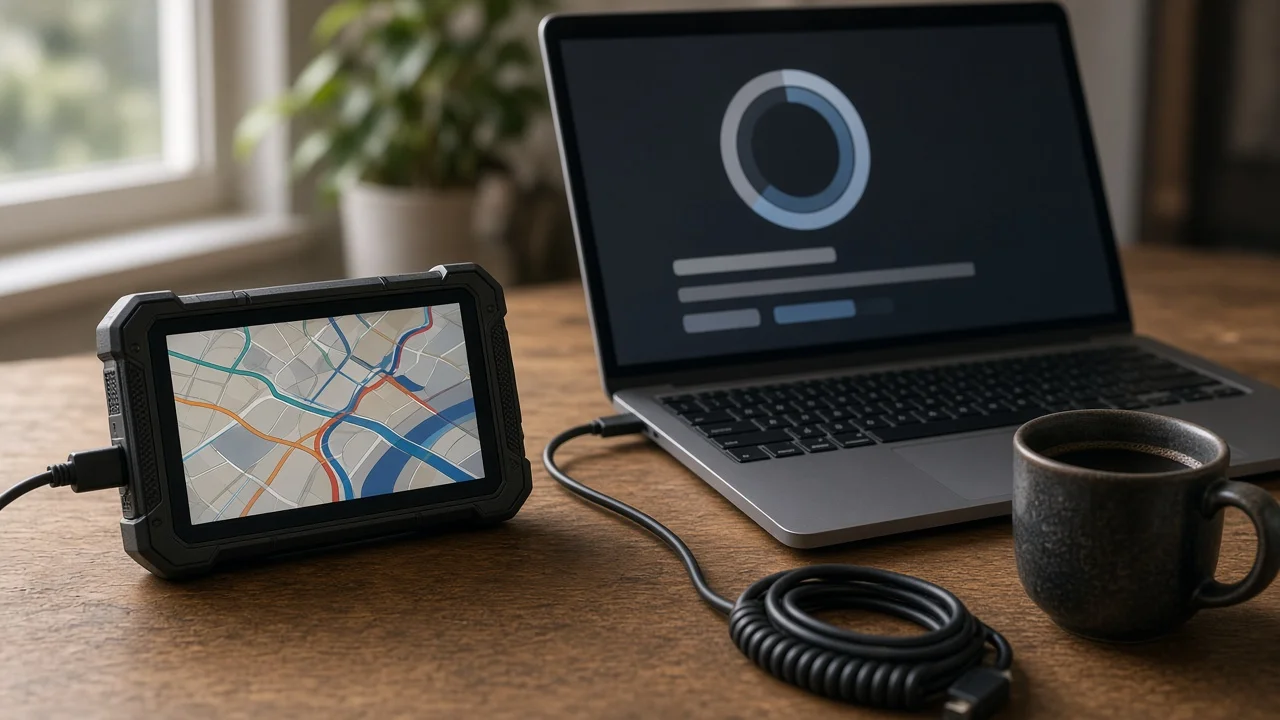
To update a Garmin dēzl 570, connect it to a Windows or Mac computer with a USB data cable and use Garmin Express, Garmin's free desktop program for managing its devices. Garmin Express finds available software updates (the device's operating firmware) and map updates (the road and truck-routing data), then downloads and installs them. Software and map updates are separate, and Garmin Express can handle both in the same session.
Whether you receive free map updates depends on how your unit was sold. Models with "LM" or "LMT" in the name, such as the dēzl 570LMT, were sold with lifetime maps. Lifetime maps cover updates for as long as Garmin continues to support that device and its map data. Units without that entitlement may need a paid map update if one is still offered. The dēzl 570 is an older model, and no confirmed information was available on whether Garmin still releases new maps for it. Garmin Express shows what is actually available for your specific device once it is connected.
What You Need Before You Start
A Windows or Mac computer with a stable internet connection. Map files are large, so avoid metered or unreliable connections. A USB data cable that fits your dēzl 570. Use the original cable if you have it. Charge-only cables will not let the computer detect the device. Free storage space on the computer for downloads. A Garmin account. You can create one during setup in Garmin Express. A charged GPS unit. It will also draw power from the computer while connected. Optionally, a compatible microSD card if the device's internal memory turns out to be too small for a full map update. Time. A large map update can take a long while to download and install.
Step-by-Step: Updating the dēzl 570
Do the update parked, with the device removed from the vehicle and connected to a computer. Never try to manage updates or menus while driving.
1) Install Garmin Express
Download Garmin Express from Garmin's official support site and install it on your computer. Avoid third-party download sites, which may bundle unwanted software.
2) Prepare the Computer
Plug the computer into power if it is a laptop. Set it so it will not go to sleep during the update, because sleep can interrupt the transfer. Close other programs that use a lot of bandwidth or disk activity.
3) Connect the dēzl 570
Connect the GPS to the computer with the USB data cable, plugging directly into a port on the computer rather than an unpowered hub. The device should switch to a connected mode and show that it is linked to a computer. If nothing happens, try another USB port or another data cable.
4) Add the Device in Garmin Express
Open Garmin Express and choose the option to add a device. The program should detect the dēzl 570. Sign in to your Garmin account, or create one, and register the device when prompted. Registration links the unit to your account and to any map entitlement it carries.
5) Review Available Updates
Garmin Express lists any available software and map updates. Install software updates when they are offered, because they can be needed for the device to work correctly with newer map data. If you see no map update, the device may already be current. It may also lack a map entitlement, or it may no longer receive new map releases.
6) Install the Updates
Start the installation and let Garmin Express finish without interruption. Do not unplug the cable, shut down the computer or press buttons on the GPS while files are being written. If the transfer is interrupted, the map data can be left incomplete or corrupted. If an interruption does happen, reconnect the device and run Garmin Express again so it can repair or reinstall the update.
7) Handle Storage Warnings
If Garmin Express reports that the device does not have enough internal memory, follow the options it offers. Depending on your device and map product, these may include installing part of the map to a microSD card in the GPS or choosing which map regions to install. If you leave out a region, you will not be able to route through it, so choose based on where you actually drive.
8) Disconnect Safely
When Garmin Express reports that the installation is complete, eject the device using your computer's safe-removal function before unplugging the cable. The GPS may restart and take a few moments to load the new data on its first power-up.
How to Confirm the Update Worked
Reconnect the device and open Garmin Express. It should show no pending updates for the dēzl 570. On the GPS, look in the settings menu for the device information or "About" screen. Check that the software version and map version match what Garmin Express installed. Menu names can vary by software version. Check your truck profile settings, such as vehicle dimensions and weight. Accurate values matter because truck routing uses them to avoid restricted roads, low clearances and weight limits. Re-enter them if anything looks wrong. Confirm that your saved locations are still present. Plan a test route to a familiar destination and confirm the device calculates it normally.
Common Problems and What to Do
Device not detected: Try a different USB port and a known data cable. Restart both the computer and the GPS, and make sure Garmin Express itself is up to date. No map update offered: Check whether your unit is an LM or LMT model. If it is not, it has no free lifetime map entitlement. If it is, Garmin may have ended map releases for this model, which only Garmin can confirm. Update fails or stalls: Check your internet connection and free disk space on the computer, then run the update again from Garmin Express. Device will not start normally after an update: Reconnect it to Garmin Express and let the program repair it. If that does not work, contact Garmin product support instead of trying unofficial fixes.
Limits of This Guide
This guide covers the standard Garmin Express update process for the dēzl 570. No confirmed current information was available on map release schedules, update file sizes, pricing for map purchases or how long Garmin will continue supporting this model. For those details, rely on what Garmin Express shows for your registered device or contact Garmin support directly. Garmin's own instructions take precedence if they differ from anything here.