How to Update a Garmin nüvi 50LM: Maps and Software Step by Step
The Short Answer
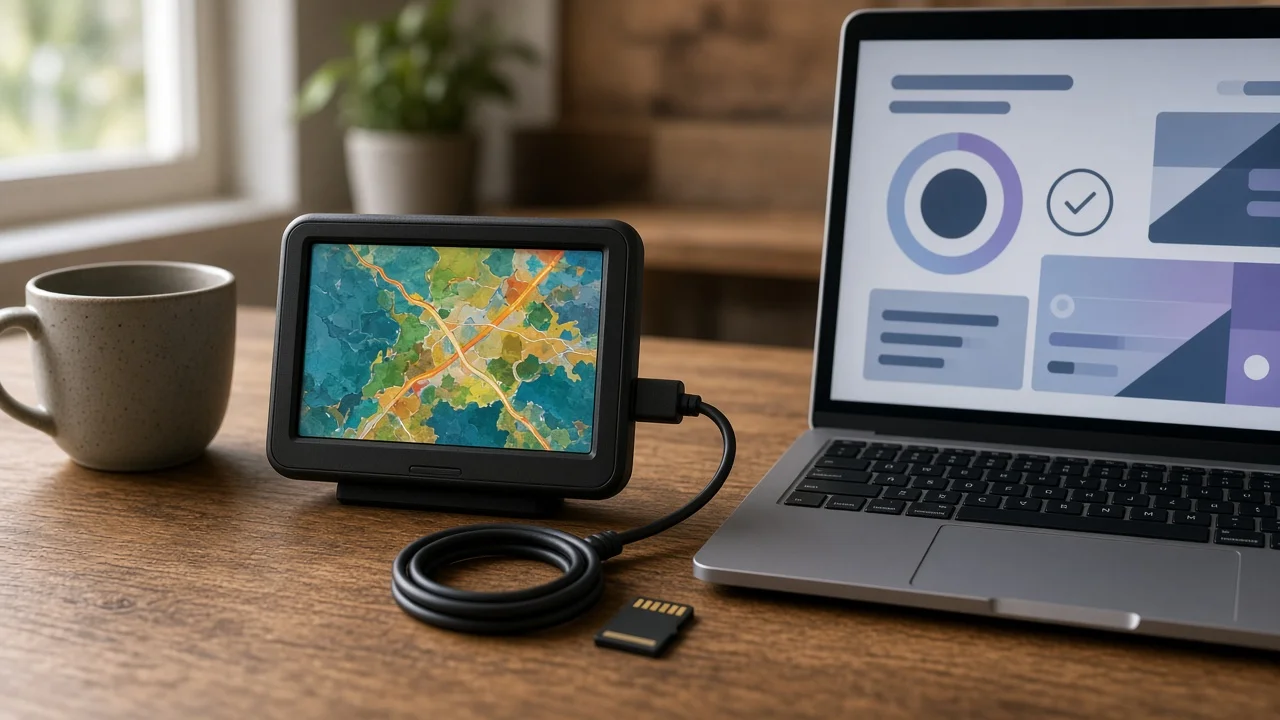
You update a Garmin nüvi 50LM by connecting it to a Windows or Mac computer with a USB cable and running Garmin Express, Garmin's free desktop program for managing its devices. Garmin Express checks for map updates and device software (firmware) updates, downloads them and installs them on the unit. The device cannot download updates by itself because it has no Wi-Fi or cellular connection.
The "LM" in the model name stands for lifetime maps. It means map updates are included at no extra charge for the supported life of the device, as Garmin defines it. It does not guarantee updates forever. Garmin has ended map support for some older navigators, and this guide could not confirm whether the nüvi 50LM is still supported. Garmin Express will show whether updates are available for your unit. If it reports none, check with Garmin support.
What You Need Before Starting
The nüvi 50LM with enough battery charge to power on, or kept connected to the computer for the whole update. A USB data cable that fits the device. Some cables only charge and do not carry data, so the computer will not detect the device through them. A Windows or Mac computer with Garmin Express installed. Download the installer from Garmin's official support site. A stable, reasonably fast internet connection. Map files are large and can take a long time to download. A Garmin account, which Garmin Express asks you to create or sign into when you register the device. Optionally, a microSD card if the device's internal memory is too small for the full map. Garmin Express tells you if extra storage is needed.
Step-by-Step: Updating Maps and Software
1) Install Garmin Express on your computer and open it. 2) Turn on the nüvi 50LM and connect it to the computer with the USB cable. Do this at a desk, not in a moving vehicle. The device should switch to a computer-connection screen. 3) In Garmin Express, choose the option to add a device. The program should detect the nüvi 50LM. If it does not, try a different USB port or cable, then restart the device and the program. 4) Sign in to or create your Garmin account and register the device when prompted. 5) Accept Garmin Express's offer to back up the device if it appears. A backup protects saved locations (Favorites) in case something goes wrong. 6) Review the updates listed for the device. These may include a map update, a software update, or both. Choose to install all of them, or select them individually. 7) Leave the device connected and the computer awake until Garmin Express reports that every update is finished. Turn off sleep mode if needed. Do not unplug the cable, close the program or power off the device during installation. An interrupted update can leave the device unable to start properly. 8) When Garmin Express confirms that the installation is complete, safely eject the device from the computer before unplugging the cable.
If There Isn't Enough Space for the Map
Full map updates sometimes need more memory than older navigators have free. Garmin Express detects this and usually offers one of two solutions:
Install the map to a microSD card inserted in the device. Install only the regions you choose instead of the entire map.
Follow the prompts Garmin Express gives for your unit. Don't delete files from the device by hand to free space. Removing the wrong file can disable the maps or the software.
How to Confirm the Update Worked
First, reconnect the device to Garmin Express. It should report that the device is up to date. Then turn on the nüvi 50LM and open its settings. The map information or "About" section shows the installed map version and software version, though the exact menu names vary between software versions. Check that the map version matches what Garmin Express installed. Finally, before relying on the device on a trip, search for a recently built road or address and plan a short test route.
When to Stop and Get Help
Contact Garmin support instead of retrying repeatedly in these situations:
The device will not start after an update. The device is stuck on a startup or loading screen. The device shows a map or software error. Garmin Express keeps failing at the same point. Garmin Express says the device is not eligible for map updates.
Support can confirm whether your unit is still covered for map updates and whether a recovery procedure exists for your situation. The device is a standalone navigator, so the update involves no work on the vehicle itself and no mechanic is needed.