How to Update a Garmin nüvi GPS
The Short Answer
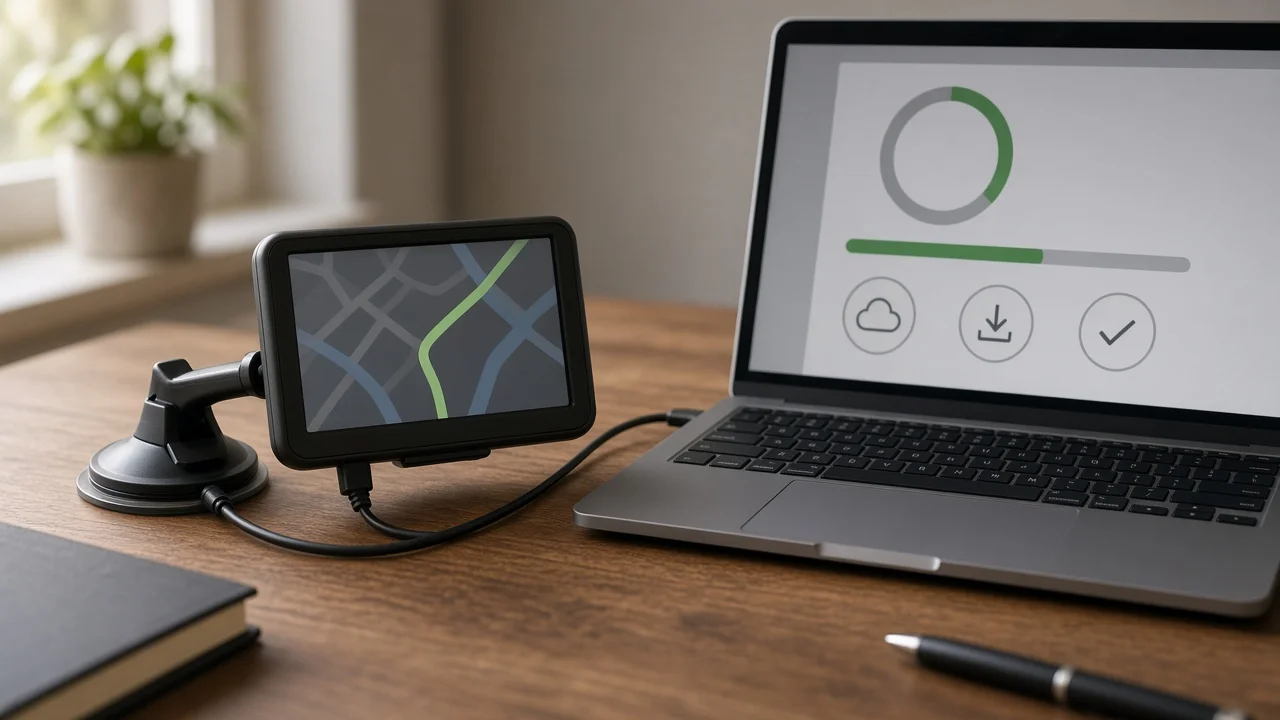
You update a Garmin nüvi by connecting it to a computer with a USB data cable and running Garmin Express, Garmin's free desktop application for Windows and Mac. Garmin Express detects the device and lists any available map updates and software (firmware) updates. Firmware is the device's internal operating software. You then install the updates and confirm the new versions on the nüvi itself.
Three things can change that answer:
Lifetime maps: Many nüvi models with "LM" (lifetime maps) or "LMT" (lifetime maps and traffic) in the model name include free map updates. Models without that coverage may need a paid map update. Older models: Garmin has ended map and software support for some older nüvi units. Garmin Express will either offer no updates or show that the device is no longer supported. Storage space: Newer maps can be larger than the device's internal memory. Some models can hold extra map data on a microSD card, and Garmin Express will tell you if more space is needed.
The material used for this guide did not include model-specific details such as support status, memory capacity, prices or menu layouts. Treat menu names below as typical rather than exact. Check Garmin's official support information for your specific model.
Before You Start
A Windows or Mac computer that can run the current version of Garmin Express. Very old operating systems may not be supported. A reliable internet connection. Map updates can be large downloads. A USB data cable that fits your nüvi. Older models typically use mini-USB and some later ones use micro-USB. Charge-only cables will not let the computer see the device. A Garmin account. Garmin Express asks you to sign in or create one when you add a device. A blank microSD card, only if Garmin Express reports that internal memory is insufficient and your model has a card slot. Enough time to let the update finish without interruption. Large map installs can take a long time.
Step-by-Step: Updating Your nüvi
1) Install Garmin Express
Download Garmin Express from Garmin's official website and install it on your computer. Avoid third-party download sites and unofficial map files. They can carry malware or damage the device's map data.
2) Connect the nüvi to the computer
Do this at a desk, not in the vehicle. Never attempt updates or device setup while driving. Plug the USB cable into the nüvi and then into the computer. The nüvi should switch to a computer-connection screen and appear as a drive.
If nothing happens, try a different cable or USB port. A charge-only cable is the most common cause.
3) Add the device in Garmin Express
Open Garmin Express and choose the option to add a device. Let it find the nüvi, then sign in to your Garmin account and register the device when prompted. Registration links the device to any lifetime map entitlement it has.
4) Review the available updates
Garmin Express lists the software and map updates it has found. Here is how to read the result:
Free updates listed: proceed to install. Updates offered for purchase: your device does not include lifetime maps. Decide whether the cost is worthwhile for an older unit before buying. No updates and an unsupported or end-of-support notice: Garmin no longer provides updates for this model. See the section on older units below. Message about insufficient space: follow the on-screen options. These may include removing old map data or adding a microSD card.
5) Install software updates first, then maps
Select Install All, or install the software update first if they are listed separately. Updated firmware helps the device read newer map data correctly.
Leave the process running until Garmin Express reports that it is complete. Stop conditions:
Do not unplug the nüvi during an update. Do not let the computer sleep, shut down or lose power during an update. Do not close Garmin Express during an update. An interrupted update can leave the device with missing or corrupted maps. If one is interrupted, reconnect and run Garmin Express again rather than copying files manually.
6) Eject and disconnect safely
When Garmin Express confirms the update is finished, eject the nüvi from the computer and then unplug the cable. On Windows, use the safely remove hardware option. On a Mac, eject the drive.
How to Confirm the Update Worked
Power on the nüvi and check two places. Exact menu names vary by model.
Map version: look in the settings menu for a map section, often labeled Map Info or My Maps. The listed map version or year should match what Garmin Express installed. Software version: look in the settings menu for an About or device information screen. The software version should match the latest version Garmin Express reported. Final check: run a test route to a familiar destination and confirm the map draws correctly and routing works.
If the device reports missing maps or the old version, reconnect it and run Garmin Express again. If the problem continues, contact Garmin product support.
Updating an Old Garmin nüvi
Older nüvi units use the same Garmin Express process. The difference is whether Garmin still supports the model. Earlier Garmin updater tools from before Garmin Express are not needed; use Garmin Express.
If Garmin Express shows that your model has reached end of support, it will not receive new maps or software. The device may still work with its last installed maps, but roads, addresses and points of interest will gradually go out of date.
At that point, the practical options are:
Keep using the device as it is, knowing its maps will age. Replace it with a currently supported Garmin model. Use a smartphone navigation app or your vehicle's built-in navigation, if it has one.
Even on supported models, a paid map update may cost a meaningful share of a new unit's price. Compare current prices before you buy.