How to Update Garmin GPS Maps with Garmin Express
The short answer
To get a new map on a Garmin car navigator, install Garmin Express on a Windows or Mac computer, connect the GPS with a USB data cable, add the device in the app, and install the map and software updates it offers. Garmin Express is Garmin's free desktop program for registering devices and managing their updates. The process is free if your device includes map updates. On many Garmin automotive units this is shown by "LM" or "LMT" in the model name, which indicates lifetime maps. If your device does not include map updates, Garmin Express may offer a paid map instead. Very old models may no longer receive any updates.
Some newer Garmin navigators can also download map updates over Wi-Fi directly on the device, with no computer needed. This guide covers the Garmin Express method, which works for most portable Garmin car GPS units. Navigation systems built into a car's dashboard follow the vehicle manufacturer's update process, even when the maps come from Garmin. Check your vehicle's documentation for those systems.
Check whether your map updates are free
Look at the model name on the device, its box, or the label on the back of the unit.
LM: lifetime maps. Map updates are typically included for the useful life of the device, as defined in Garmin's terms. LMT: lifetime maps plus traffic information. Map updates are included the same way. No LM or LMT: map updates usually have to be purchased. Garmin Express will show what is available for that device. Unsure: connect the device to Garmin Express. The app shows which updates the device qualifies for, including any free ones.
What you need before starting
A Windows or Mac computer with administrator rights so you can install software. A stable, preferably fast internet connection. Map files are large and can take a long time to download. A USB cable that carries data, not just charging current. The cable that came with the GPS is the safest choice. Free space on the computer's drive for the downloaded files. Enough storage on the GPS. If internal memory is too small, Garmin Express may ask you to free space or insert a microSD card. Time. A full map update can take an hour or more depending on your connection and the device. A Garmin account. You can create one during setup if you don't have one.
Step-by-step: updating maps in Garmin Express
Do the update at home or with the vehicle parked. Never handle the device or cables while driving.
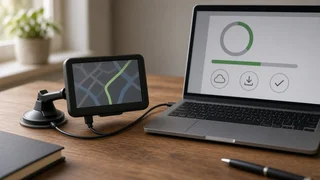
1) Download and install Garmin Express from Garmin's official website. Avoid third-party download sites, which may bundle unwanted software. 2) Open Garmin Express and sign in to your Garmin account, or create one. 3) Connect the GPS to the computer with the USB cable. Turn the device on if it doesn't power up automatically. Most units switch to a computer-connection screen. 4) In Garmin Express, choose Add a Device. The app searches for the connected GPS. When it appears, follow the prompts to add and register it. 5) Let the app check for updates. The device's page lists available updates, usually split into map updates and software (firmware) updates. 6) Install software updates first if any are offered, or choose Install All to let the app handle the order. Firmware updates improve how the device runs and may be needed for newer maps to work properly. 7) Start the map update. If space is short, Garmin Express will tell you. You can then remove unneeded files, delete older map regions if the app offers that, or insert a microSD card and continue. 8) Wait for the download and installation to finish. Keep the device connected, keep the computer awake, and don't close Garmin Express. Turn off sleep mode if your computer tends to doze off during long tasks. 9) When the app reports that the device is up to date, use your operating system's eject or safely remove option before unplugging the cable.
Stop condition: do not disconnect the device, shut down the computer, or close the app while files are installing. Interrupting a map or firmware installation can leave the device unable to load maps or start correctly. If the connection drops, reconnect the device and run Garmin Express again so it can resume or repeat the update.
How to confirm the update worked
Garmin Express no longer lists pending map or software updates for the device. On the GPS, open the settings and find the section showing device or map information. Its name and location vary by model, but it is often labeled About or Map Information. The installed map version or year should match what Garmin Express installed. Take a short test: search for a recently built road or a newly opened business, and check that routes calculate normally.
Common problems and what to try
Device not detected: try a different USB port, preferably directly on the computer rather than through a hub. Swap to a known data-capable cable. Restart both the GPS and the computer. Not enough space: remove unused files or map regions when Garmin Express offers that option, or add a compatible microSD card and run the update again. Download very slow or failing: use a wired or stronger connection and pause other large downloads. Restart Garmin Express to resume. No map update offered: the device may already have the latest map, it may not include map updates, or it may have reached the end of Garmin's update support. Device won't start properly after an interrupted update: reconnect it to Garmin Express and let the app try again. If that fails, contact Garmin support rather than attempting unofficial repair tools.
Keeping maps current
Garmin releases map updates periodically. Opening Garmin Express and connecting the device every few months, or before a long trip, keeps roads, points of interest, and speed-limit data reasonably current. Garmin Express can also notify you when new updates are available for registered devices. If your navigator supports Wi-Fi updates, you can check for updates from the device's settings while connected to a home network as an alternative to the computer method.