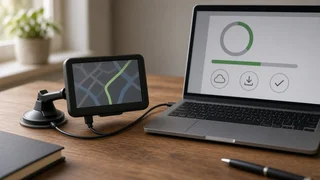
Update Garmin nüvi GPS Maps and Software
Updating a Garmin nüvi involves two separate tasks: refreshing the map data the device uses to plan routes, and updating the device software (firmware) that runs the unit. Both are normally done by connecting the nüvi to a computer with a USB cable and running Garmin Express, Garmin's desktop application for Windows and Mac. Whether your device can still receive updates, and whether map updates cost anything, depends on the specific nüvi model and the map entitlement it came with.
The short answer
Install Garmin Express on a Windows or Mac computer. Connect the nüvi with a USB data cable and let Garmin Express detect it. Add the device in Garmin Express and let it check for available updates. Install software updates and any map updates the device is eligible for. Keep the nüvi connected until Garmin Express confirms the installation is complete.
The main qualification is model age. The nüvi line was sold over many years, and Garmin has ended map and software support for a number of older models. If Garmin Express shows no updates or reports that the device is no longer supported, the device may still work with the maps already installed, but it will not receive new official map data.
Map updates vs. software updates
Aspect | Map update | Software update; What it changes | Road network, addresses, points of interest and other route information | The device's operating firmware and built-in features; Typical effect | New roads, corrected turns, updated business listings | Bug fixes, stability improvements, feature or compatibility changes; Cost | Free only if the device has a map update entitlement such as lifetime maps; otherwise usually a paid purchase | Generally free while the model is supported; Size and time | Large download; installation can take a long time | Usually smaller and quicker; Storage needs | May require free internal memory or a microSD card | Rarely limited by storage
A map update does not improve how well the unit receives satellite signals. Position accuracy depends on the GPS receiver, antenna placement and sky visibility. Newer map data can make the displayed position line up better with real roads, because the coordinates of roads and intersections are more current. Software updates can sometimes adjust how the receiver behaves, but they cannot change the hardware.
Check whether your nüvi qualifies for free map updates
Many nüvi units were sold with a suffix in the model name that signals included map updates. LM generally indicates lifetime maps, and LMT generally indicates lifetime maps plus traffic. Devices without such an entitlement can usually still be updated, but the map update has to be purchased, often as a one-time update.
In Garmin's terms, "lifetime" refers to the useful life of the device and Garmin's continued support for it, not the owner's lifetime. When Garmin ends support for a model, the lifetime map entitlement no longer delivers new map releases. Garmin Express shows what a connected device is eligible for, so that is the most reliable way to check a specific unit.
Step-by-step: updating with Garmin Express
Prepare the computer: install Garmin Express, use a reliable internet connection and make sure the computer has enough free disk space. Map downloads are large, and Garmin Express stores the files temporarily before installing them. Connect the device: use a USB cable that carries data, not a charge-only cable. Power on the nüvi if it does not wake automatically; it should show a computer-connection screen. Add the device: in Garmin Express, choose to add a device. You may be asked to sign in to or create a Garmin account and register the unit. Review available updates: Garmin Express lists software and map updates separately. Install software updates first if both are offered, unless the program sets a different order. Install map updates: follow the prompts. If internal memory is too small, Garmin Express may offer to install part of the map, remove older map regions or install to a microSD card. Wait for completion: do not unplug the device, let the computer sleep or close Garmin Express until it reports that the update is finished. Eject safely: use the eject option before disconnecting, then restart the nüvi and confirm the new map version in the device settings.
Before you start
Back up saved locations: Garmin Express can back up and restore favorites and other saved data. Using this before a major map update is sensible. Check storage: older nüvi models with limited internal memory may not hold a full current map. A blank microSD card, where the model supports one, is the usual workaround. Use a stable setup: a desktop computer plugged into mains power, or a laptop on its charger, reduces the risk of an interrupted installation. Allow time: a full map installation can take a long while depending on map size, connection speed and the device's USB transfer rate.
Common problems and fixes
Garmin Express does not detect the nüvi: try a different USB cable and port, avoid USB hubs, restart the device and computer, and confirm the cable carries data. Not enough space: remove unused map regions or extra voices if prompted, or install the map to a microSD card. Update stalls or fails: keep the device connected, restart Garmin Express and run the update again. Interrupted map installs can usually be resumed or repeated. No updates shown: the model may be out of support, the maps may already be current, or the device may lack a map entitlement. Device will not boot after an interrupted update: reconnect it to Garmin Express, which can often reinstall the software. If that fails, Garmin support is the next step.
Older nüvi models and older update tools
Some older guides mention Garmin WebUpdater, MapSource or other legacy utilities for nüvi updates. Garmin Express replaced these as the standard tool for automotive devices. If an old guide's steps do not match what you see, follow the Garmin Express process.
For nüvi units that are no longer supported, the realistic options are to keep using the existing maps, accepting that new roads and businesses will be missing, or to replace the device. Some owners load community-built maps based on OpenStreetMap data. This can work on many Garmin units, but it is unofficial, setup varies by model, and routing and address search quality depend on the map build. Treat it as an enthusiast option rather than a supported update.
Is it worth updating an older nüvi?
If your nüvi has lifetime maps and is still supported, updating is worthwhile. It costs nothing beyond time and keeps route information current. If updates must be purchased, compare the cost with the price of a current navigator or with smartphone navigation through the vehicle's infotainment system. A standalone nüvi still has some practical advantages: it does not use mobile data, does not depend on phone location permissions or battery, and works offline in areas with weak cellular coverage. Those advantages matter most when the map data on the device is reasonably current.