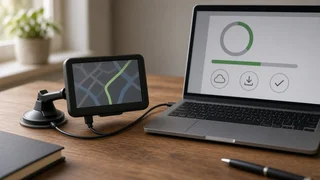
How to Update Maps on a Garmin nüvi 250
The Short Answer
You update a Garmin nüvi 250 by connecting it to a Windows or Mac computer and using Garmin Express, Garmin's free desktop program for device and map updates. The main qualification is the device's age. The nüvi 250 is a legacy portable navigator, so whether a new map is offered depends on Garmin's current support for the model. Even if one is offered, a full modern map may not fit in the unit's small internal memory. Garmin Express shows what is available for your specific device once it is connected and registered.
What a Map Update Covers
A map update replaces the device's stored street map with a newer release. It can add new roads, changed intersections, updated speed and routing data, and revised points of interest such as fuel stations and restaurants. This is separate from a firmware update, which changes the device's operating software. Garmin Express can handle both, but they are different downloads and may be offered at different times.
The nüvi 250 does not download anything on its own. It has no built-in internet connection, so every update goes through a computer.
Ways to Get Updated Maps
Option | How it works | What to check; Lifetime map updates | Some units were sold with lifetime updates, or the option was added later. Updates are included at no extra cost while the device remains supported. | Whether the lifetime entitlement is tied to your unit's serial number in Garmin Express; One-time map purchase | You buy a single map release for the device. | Whether Garmin still offers a purchase for this model, and whether the map fits the available storage; No update available | Garmin no longer offers new maps for the device. | Whether the existing map is still usable, or whether a replacement navigator makes more sense
Pricing and availability change over time and vary by region. Garmin Express shows the current options for your unit rather than general list prices.
Step-by-Step: Updating Through Garmin Express
1) Download and install Garmin Express on a Windows or Mac computer with a stable internet connection and plenty of free disk space. 2) Connect the nüvi 250 to the computer with a USB data cable. Some charging-only cables carry power but not data, and the computer will not see the device. 3) Open Garmin Express and choose to add a device. Let it detect the nüvi, then sign in or create a Garmin account to register it. 4) Review the updates listed for the device. Maps and software updates appear separately. 5) If prompted, back up the device or note any saved favorites before installing. 6) Start the installation and leave the device connected until Garmin Express reports that it is finished. Map downloads can be large and may take a long time. 7) Safely eject the device, disconnect it, and power it on to confirm the new map version in the device's settings or information screen.
Storage: The Most Common Obstacle
Map files have grown much larger since the nüvi 250 was designed, and its internal memory is limited. If the full update will not fit, Garmin Express may report insufficient space. Depending on what Garmin offers for the model, it may suggest installing to a memory card or loading only a region instead of the full map.
The nüvi 2x0 family includes a memory card slot. If Garmin Express offers card installation, use a card type and capacity the unit can read; very large modern cards may not be recognized by older hardware. Deleting optional content such as extra voices, vehicle icons or unused files can also free some internal space. Avoid deleting system files you do not recognize.
If the Computer Does Not Detect the Device
Try a different USB cable, preferably one known to transfer data. Plug directly into a computer port instead of a hub or front-panel port. Restart Garmin Express and the computer, then reconnect the device. Make sure the nüvi powers on and shows a computer-connection screen when plugged in. If the internal battery is badly worn, keep the unit connected throughout so it does not shut down mid-update.
An interrupted map installation can leave the device without a working map. If that happens, reconnect it and let Garmin Express repeat the installation rather than copying files by hand.
When No Update Is Offered
If Garmin Express lists no map update, Garmin may have ended map support for the model. The navigator will keep working with the map already installed, but that map will gradually drift out of date, especially in fast-growing areas where roads and exits change.
Some owners load community-made maps based on OpenStreetMap data onto older Garmin units. Garmin does not provide or support these maps, compatibility with a device this old is not guaranteed, and installation is more technical than the standard method. Treat it as an advanced option, and back up the device's original files first.
Is It Worth Updating?
If you have a lifetime map entitlement and the update fits, updating costs only time and is worthwhile. If you would have to pay for maps on a device this old, compare that cost with the alternatives. A current portable navigator typically handles larger maps and receives longer support. A smartphone navigation app with a dash mount may be another option. Paying for maps makes the most sense when you specifically want a dedicated, phone-independent navigator and the nüvi 250 is otherwise working well.