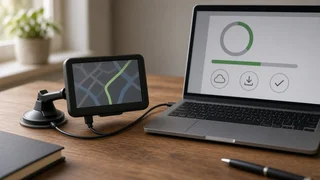
Garmin nüvi 200W Map Update: How It Works and What to Expect
The Garmin nüvi 200W is a widescreen portable car navigator from Garmin's earlier nüvi generation. If you want to update its maps, the short answer is to connect it to a computer running Garmin Express, Garmin's desktop management software, and see what the program offers for your unit. Because the 200W is a legacy model, whether a newer map release is available depends on Garmin's current support for that device. You may find a map update, only a software update, or nothing new at all. This guide explains how the process works, what limits an older unit, and what your options are.
The essential answer
Updating a nüvi 200W follows the same basic path as other Garmin automotive navigators. You install Garmin Express on a Windows or Mac computer, connect the navigator by USB, and let the software detect it and list available updates. The important qualification is age. Manufacturers eventually stop producing new map releases for older hardware, and older units also have limited internal storage. Garmin Express is the authoritative place to check your own device. If it lists a map update, you can install it there. If it does not, the maps already on the unit are likely the last ones it will get from Garmin.
Map update vs. software update
Garmin Express can deliver two different kinds of updates, and they are easy to confuse. Knowing the difference helps you understand what you are actually getting.
Aspect | Map update | Software (firmware) update; What it changes | The map data: roads, addresses, points of interest and the route information used for navigation | The device's operating software: features, bug fixes and how the unit behaves; Typical size | Large; can approach or exceed the free storage on older units | Usually small; Effect on navigation | Adds newer roads and corrected addresses, so routes reflect current conditions | May improve stability or fix glitches, but does not add new roads; Availability on legacy models | May have ended or may be limited | May still be offered even when new maps are not
What you need before you start
A Windows or Mac computer with a reliable internet connection and enough free disk space for temporary map files; Garmin Express installed on that computer; A working USB data cable that fits the navigator; units of this era generally use an older mini-USB connector, and some cables only charge and cannot transfer data; Time; large map downloads and installs can run for a long while, and the device should stay connected throughout; A charged device, though it will normally draw power over USB while connected
How to check for and install updates
1) Install and open Garmin Express on your computer. 2) Connect the nüvi 200W to the computer with the USB cable. The unit should switch to a computer-connection screen instead of normal navigation. 3) In Garmin Express, choose the option to add a device and let the program detect the navigator. You may be asked to sign in or create a Garmin account to register it. 4) Back up the device's contents before changing anything (see the next section). 5) Review the updates Garmin Express lists. Install any software update first, then the map update if one is offered. 6) Leave the device connected and the computer awake until Garmin Express reports that installation is complete. Interrupting a map install can leave the unit with incomplete map data. 7) Eject the device safely from the computer, disconnect it, and power it on to confirm the new map version in the device settings.
Back up your saved locations first
Favorites, your home location and recent destinations are stored on the device. A map update is not designed to erase them, but large updates on a nearly full unit can involve removing old files to make space. When connected, the navigator appears on the computer like a removable drive. Copying its entire contents to a folder on your computer before updating gives you a fallback if something goes wrong. Do not delete or rename files on the device by hand unless you know what they are for.
Storage limits on older units
Map data has grown considerably since the nüvi 200W was designed, and the unit's internal memory is small by modern standards. If a full map set does not fit, Garmin Express may tell you there is not enough space. Depending on the unit and what Garmin offers, you may be able to install a smaller regional subset instead of a full North America map, or use a memory card if your unit has a card slot and Garmin Express supports installing maps to it. If neither option appears, the device cannot hold the newer map, even if one exists.
If no map update is offered
If Garmin Express shows no map update for your nüvi 200W, it most likely means Garmin no longer publishes new map data for this model or the current maps are the final version available. Reinstalling the program or trying another computer usually will not change this, although it is worth confirming that the device was detected correctly and that any pending software update has been installed.
At that point you have three practical options. You can keep using the unit with its existing maps, which is often fine for established roads but less reliable for new developments, changed interchanges and recently built streets. You can look at community-made maps based on OpenStreetMap that some owners load onto Garmin devices; these are unofficial, compatibility with older nüvi models varies, and Garmin does not support them. Or you can move to a newer dedicated navigator or a smartphone navigation app, which get map data more regularly.
What a map update will and will not fix
A map update changes the road and address data the navigator uses to calculate routes. It does not change the GPS receiver itself, so it does not directly improve position accuracy. The unit works out your coordinates from satellite signals and then places that position on the map. When maps are out of date, the coordinates can be correct while the car appears to drive across empty space or off the road. That happens because the road you are on is missing from the map data, not because the GPS is faulty. Updating the maps fixes that mismatch where newer data is available. Poor satellite reception from a windshield coating, obstructions or a weak signal is a separate issue.
Unlike phone navigation apps, a standalone nüvi has no location permissions to manage. It uses its own GPS receiver and does not share your position with a phone or online service while you drive. If you switch to a phone app, you will need to allow location access in the phone's settings for navigation to work.
Common problems and quick checks
Device not detected: try a different USB port and cable, connect directly instead of through a hub, and confirm the cable carries data rather than only charging. Install stops or fails: keep the computer from sleeping, check free space on both the computer and the device, and restart the install from Garmin Express. Not enough space: accept a smaller regional map if one is offered, or use a supported memory card if your unit has a slot. New map version not showing: check the map information in the device settings after a full restart, and confirm in Garmin Express that the install finished. Saved locations missing: restore them from the backup you copied before updating.
Bottom line
To update the maps on a Garmin nüvi 200W, connect it to Garmin Express and install whatever the program offers, software first and maps second, after backing up the device. Because this is an older model with limited storage, newer map data may be restricted or unavailable. If Garmin Express offers no map update, treat the current maps as final and decide whether they still meet your needs or whether a newer navigation option makes more sense.