How to Install Maps on a Garmin Car GPS
The Short Answer
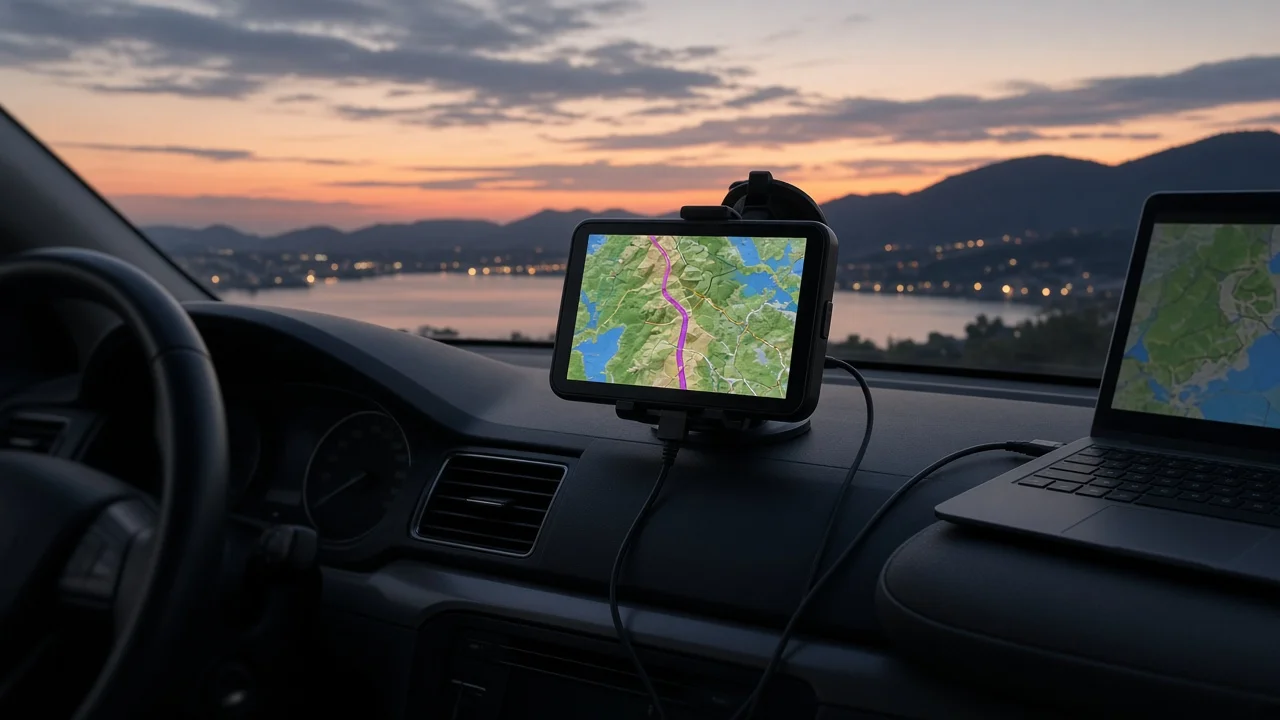
On most Garmin car navigators, you install or update maps through Garmin Express, Garmin's free desktop application for Windows and Mac. Connect the device to the computer with a USB cable, sign in with a Garmin account, and install the map updates the program finds for your device. Many newer Wi-Fi-capable models can also download map updates directly over a wireless network, with no computer needed.
Three conditions change this answer. First, whether the update is free depends on whether your device includes lifetime map updates. Garmin commonly marks this with an "LM" (lifetime maps) or "LMT" (lifetime maps and traffic) suffix in the model name. Without that entitlement, newer maps may need to be purchased. Second, older devices may lack the internal storage for a full map and may need a microSD card. Third, if Garmin navigation is built into your vehicle's dashboard, this process usually does not apply. Those systems are updated through the vehicle manufacturer or dealer.
Before You Start
A computer running Windows or macOS with Garmin Express installed, unless your device updates over Wi-Fi; A data-capable USB cable that fits your device; some cables only charge and cannot transfer data; A stable internet connection, because map files are large and downloads can take a long time; A Garmin account, which you create during setup if you don't already have one; A compatible microSD card if Garmin Express reports that the device lacks enough free space
Installing Maps with Garmin Express
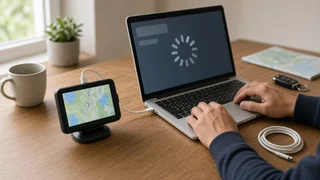
1) Install and open Garmin Express on your computer. 2) Connect the Garmin navigator to the computer with the USB cable. Use a direct port rather than a hub if possible. 3) Choose to add a device, let Garmin Express detect your navigator, and sign in to register it to your account. 4) Select the device and review the available updates. Map updates are listed separately from software updates. 5) Choose to install the map update. If space is limited, follow the prompts, which may include removing older map regions or using a microSD card. 6) Leave the device connected until Garmin Express reports that the installation is complete. Disconnecting partway through can leave the map incomplete. 7) Eject or safely disconnect the device, then power it on.
Installing Maps over Wi-Fi
On Garmin models with built-in Wi-Fi, connect the device to a wireless network from its settings menu and open the updates section to check for map and software updates. Keep the device plugged into a power source during the download and installation. Menu names and locations vary by model, so check your device's owner's manual if the options don't match what you see.
Checking That the New Map Installed
After restarting, open the device's settings and find the section listing the installed maps. Depending on the model, it may be called myMaps, map information, or an "About" screen. Confirm that the listed map version or year matches what Garmin Express or the Wi-Fi updater reported. As a practical check, search for a recently built road or a newly opened business in your area. If it still doesn't appear, the newer map may not cover it yet, or the old map may still be active.
If It Doesn't Work
Device not detected: try another USB cable or port, and confirm the cable carries data. Not enough space: let Garmin Express remove unneeded map regions, or insert a microSD card and run the update again. Update offered for purchase rather than free: the device probably lacks lifetime map updates for that region. No updates available: Garmin may have stopped producing maps for an older model. Check your device's support status with Garmin.
Information Gaps
This guide covers the general process for portable Garmin automotive navigators. It does not give prices, download sizes, map release dates, or model-specific menu paths, because no confirmed figures were available. For those details, and for in-dash systems that use Garmin maps, refer to your device's manual or your vehicle manufacturer.