How to Update Garmin Maps
The Short Answer
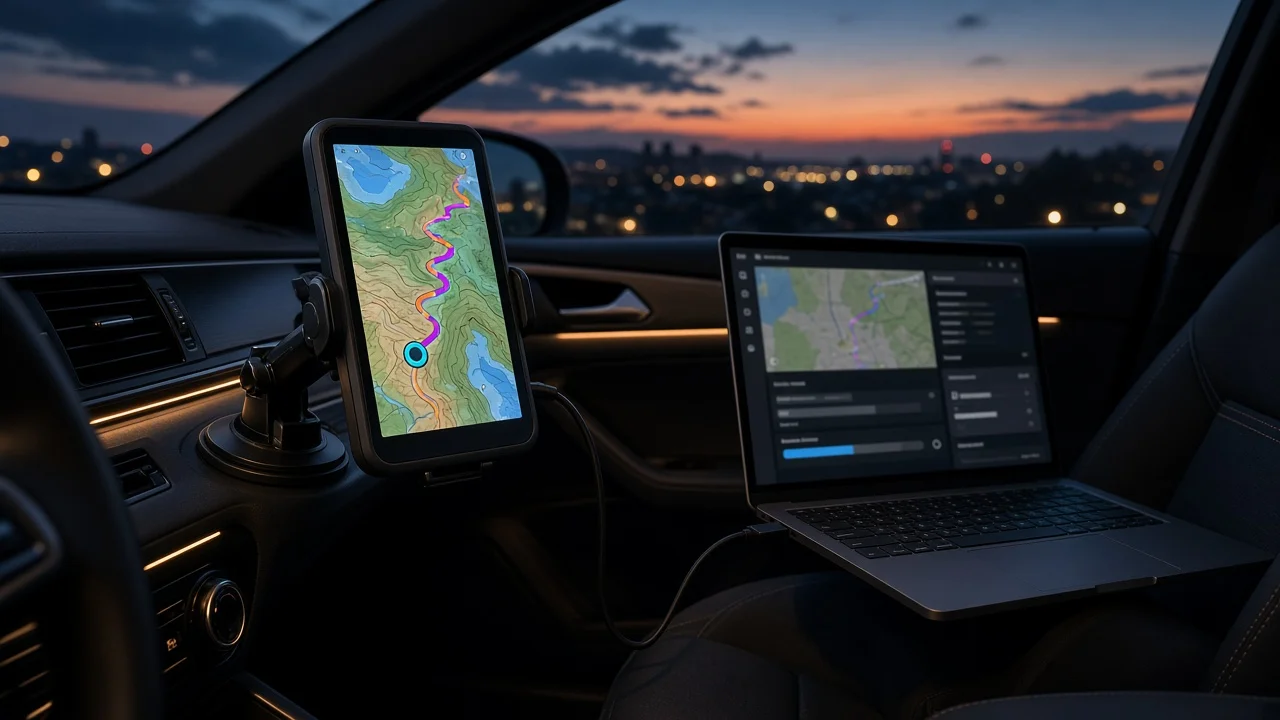
Most standalone Garmin car navigators get new maps in one of two ways. You can connect the device to a Windows or Mac computer and use Garmin Express, Garmin's free desktop software for managing devices. On models with built-in Wi-Fi, you can also download updates directly over a wireless network. Either way, keep the device powered and connected until the update finishes, then confirm the new map version in the device settings.
A few conditions affect what you can do. Some devices include map updates at no extra cost, often labeled as lifetime maps. Others may need a paid update or may no longer receive new maps. If your Garmin maps are part of a navigation system built into your car's dashboard, the process is usually set by the automaker rather than Garmin Express. Check your vehicle's owner's manual or ask a dealer in that case.
Before You Start
Your Garmin navigator and the USB cable that came with it, or a compatible data cable. Some cables only charge and cannot transfer data. A Windows or Mac computer with a reliable internet connection, if you are updating through Garmin Express. A Garmin account, which Garmin Express asks you to sign in to or create when you add a device. Enough free storage. If the device does not have room for a full map, Garmin Express may ask you to insert a microSD memory card or to install only some map regions. A power source. For Wi-Fi updates, plug the device into a charger and keep it plugged in for the whole update. Time. Map files are large, so updates can take a long time. Download size and duration depend on the device, the region and your connection; no confirmed figures were available for this guide.
Safety note: do not run an update while driving or set it up while the vehicle is moving. Bring the device indoors or work while parked. The update ties up the screen, and you may lose navigation until it finishes.
Method 1: Update Using Garmin Express on a Computer
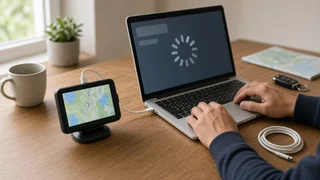
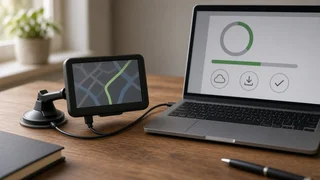
1) Download and install Garmin Express from Garmin's official support pages. Avoid third-party download sites. 2) Open Garmin Express and turn off sleep mode on your computer for now, so the computer does not suspend mid-transfer. 3) Connect the navigator to the computer with the USB cable. The device should switch to a computer-connection screen. 4) In Garmin Express, choose the option to add a device. Follow the prompts to find your navigator and register it with your Garmin account. 5) Let Garmin Express check for updates. It lists available map and software updates for that device. 6) If prompted about storage, choose whether to use a microSD card or select which map regions to install. 7) Start the installation. Garmin Express downloads the files and then copies them to the device. Software updates may install alongside the maps. 8) Do not unplug the device, close Garmin Express or shut down the computer until the program says the update is complete. 9) Eject the device safely from your computer's operating system before disconnecting the cable.
Stop condition: if Garmin Express does not detect the device, try a different USB port or a known data cable, restart the device and the computer, and confirm Garmin Express is the current version. If the device still does not appear, or the update fails repeatedly, contact Garmin product support instead of interrupting further installs.
Method 2: Update Over Wi-Fi on Supported Models
Some newer Garmin car navigators can connect to a Wi-Fi network and update without a computer. Wi-Fi support depends on the model, so check your device's manual if you are unsure. No confirmed model list was available for this guide.
1) Plug the device into a wall charger or other steady power source. Wi-Fi updates generally require external power. 2) Open the settings menu and find the wireless or Wi-Fi network option. Connect to a trusted network. 3) Go to the updates section in settings. Exact menu names vary by model. 4) Select the available map and software updates and start the download. 5) Leave the device connected to power and Wi-Fi until it reports that the update is complete. It may restart during installation.
Stop condition: if the device reports there is not enough space, you may need to add a microSD card or use Garmin Express on a computer to manage which regions are installed.
How to Check That the Update Worked
Open the device settings and look for map information, often under a map or vehicle section or an About screen. Compare the listed map version with the one Garmin Express or the Wi-Fi update screen showed as current. In Garmin Express, reconnect the device and confirm it no longer shows pending map updates. While parked, search for a recently built road or a newly opened business in your area to see whether it now appears.
Limits and Gaps to Keep in Mind
This guide covers the general update process for Garmin car navigators. Menu names, Wi-Fi support, storage options and whether updates are free all vary by model and by the map coverage purchased. No confirmed prices, file sizes, update times or model-specific menu paths were available. For those details, check your device's manual or Garmin's official support material. For navigation systems built into a vehicle, the automaker's update instructions apply instead.