How to Update Garmin Express on a Mac
The short answer
Garmin Express is Garmin's free desktop application for Windows and macOS. It installs map and software updates on Garmin devices, including in-car satnavs, over a USB connection. On a Mac, the app usually checks for its own updates when you open it and offers to install them. If it doesn't, or the update fails, download the current installer from Garmin's official website and install it over the existing copy. Your registered devices are linked to your Garmin account, so reinstalling normally doesn't remove them.
Updating Garmin Express and updating your navigator are separate jobs. The first refreshes the Mac application. The second uses that application to download new maps or firmware to the device. Most people searching for this need both, so this guide covers both in order.
Before you start
• A Mac running a version of macOS that the current Garmin Express release supports. Garmin lists supported versions on its download page. Very old macOS versions may not run the latest app. • An administrator account password for the Mac, which macOS asks for when installing or replacing applications. • A reliable internet connection. Map updates can be several gigabytes, so a stable home network is better than a phone hotspot. • Enough free storage on the Mac. Garmin Express downloads updates to the computer before copying them to the device. • A USB cable that carries data, not just power. A cable that only charges will not let the Mac see the navigator. • A suitable USB-C adapter or hub if your Mac has only USB-C ports and your navigator's cable is USB-A. • Your Garmin account sign-in details, if you have already registered the device.
Part 1: Update the Garmin Express app
Method A: Let the app update itself
1) Open Garmin Express from the Applications folder or Launchpad. If it is already running, you can usually open it from its icon in the menu bar at the top of the screen. 2) Wait a moment after launch. If a newer version is available, the app typically shows a prompt offering to install it. 3) Accept the update and enter your Mac administrator password if macOS asks for it. 4) Let the installer finish without closing the window or putting the Mac to sleep. 5) Reopen Garmin Express if it doesn't relaunch on its own.
Menu labels vary between versions. If you don't see a prompt, look in the Garmin Express menu in the macOS menu bar, or in the app's settings, for an option to check for updates or view the version number.
Method B: Reinstall the latest version manually
Use this method if the automatic update doesn't appear, stalls, or the app won't open.
1) Quit Garmin Express completely. Close the main window, then quit the menu bar helper too, since Garmin Express can keep running in the background after the window closes. If it won't quit, use Force Quit from the Apple menu. 2) On Garmin's official website, find the Garmin Express download page and choose the Mac version. 3) Open the downloaded disk image or installer package from your Downloads folder. 4) Follow the prompts. If you are offered a drag-to-Applications step, drag the new Garmin Express into Applications and choose to replace the existing copy. 5) Enter your administrator password when asked. 6) Open Garmin Express from Applications. If macOS warns that the app was downloaded from the internet, confirm that you want to open it. Only do this for an installer you downloaded directly from Garmin. 7) Sign in to your Garmin account if prompted. Your previously added devices should reappear.
Allow the permissions macOS asks for
Recent versions of macOS control which apps can reach removable drives and certain folders. When Garmin Express first tries to read your connected navigator, macOS may ask whether to allow access to removable volumes or files. Allow it, or the app may not detect the device. If you dismissed the prompt earlier, go to System Settings, then Privacy & Security, and check the Files and Folders section, and Full Disk Access if needed, for Garmin Express entries. The exact section names depend on your macOS version.
Check that the app update worked
Open the About Garmin Express window from the app menu and note the version number. Compare it with the version shown on Garmin's download page. If they match and the app opens without an update prompt, Garmin Express is current.
Part 2: Update your Garmin navigator with Garmin Express
Update the navigator at home or with the vehicle parked. Don't update while driving. Removing a portable unit from its windscreen mount while the car is moving is a distraction hazard. If your Garmin navigation is built into the vehicle's infotainment system, the update process is different and may be handled by the vehicle maker or a dealer. Check the vehicle documentation rather than assuming Garmin Express applies.
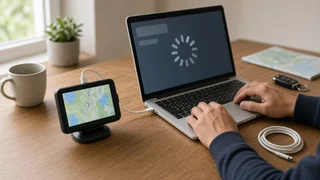
1) Charge the navigator, or keep it connected so it draws power from the Mac throughout the update. 2) Connect the navigator to the Mac with a data-capable USB cable, plugged directly into the Mac rather than an unpowered hub if possible. 3) Open Garmin Express. If this is a new device, choose the option to add a device and follow the prompts to register it to your account. 4) Select the navigator in Garmin Express. The app checks for available map, software and related updates. 5) Read what is offered. Map updates are often large, and some devices can't hold a complete map set. In that case Garmin Express may ask you to choose regions or add a memory card. 6) Start the installation and leave everything alone until it finishes. Keep the Mac awake: adjust sleep and display settings if needed, and keep a MacBook on its charger. 7) Do not unplug the navigator while files are being copied. Interrupting a map or firmware installation can leave the device with missing maps or unable to start properly. 8) When Garmin Express reports that the device is up to date, eject the navigator before unplugging. Use the eject option in Garmin Express if offered, or eject it in Finder.
Confirm the navigator update
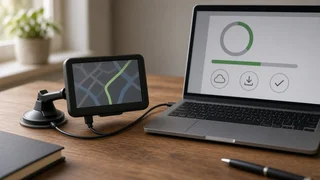
Reconnect the device or reopen Garmin Express. The device should show as up to date with no pending installs. On the navigator itself, the settings menu usually has an About or device information screen listing the installed software and map versions. Check that the maps load normally and that a test route calculates before relying on the unit for a trip.
Fixing common problems
Problem | Likely cause | What to try; No update prompt appears | Version check failed, or app already current | Check the version in About Garmin Express; reinstall from Garmin's website if it is out of date; App won't open after updating | Incomplete install, or old background helper still running | Quit or force-quit all Garmin Express processes, restart the Mac, reinstall; macOS blocks the installer | Gatekeeper security check | Confirm the download came from Garmin, then allow it under Privacy & Security; Navigator not detected | Charge-only cable, faulty port or adapter, missing permission | Try a different data cable and port, connect directly, check removable volume permissions, restart both devices; Download fails or is very slow | Unstable network or low disk space | Free up storage, switch to a stronger connection, retry; Not enough space on device | Full map set exceeds internal memory | Choose fewer map regions, or add a compatible memory card if the device supports one; Update stalls partway | Mac slept, cable moved, network dropped | Keep the Mac awake and the cable still, then restart the update from Garmin Express
When to stop and get help
Contact Garmin support if the navigator won't power on or boot after an interrupted update. Do the same if Garmin Express repeatedly fails at the same point after a clean reinstall and different cables, or if the device no longer appears in your account. For navigation built into a car's dashboard, go to the vehicle manufacturer or a dealer. Those systems often use their own update process, and an incorrect attempt can affect the infotainment unit.