How to Update TomTom GPS Maps
The Short Answer
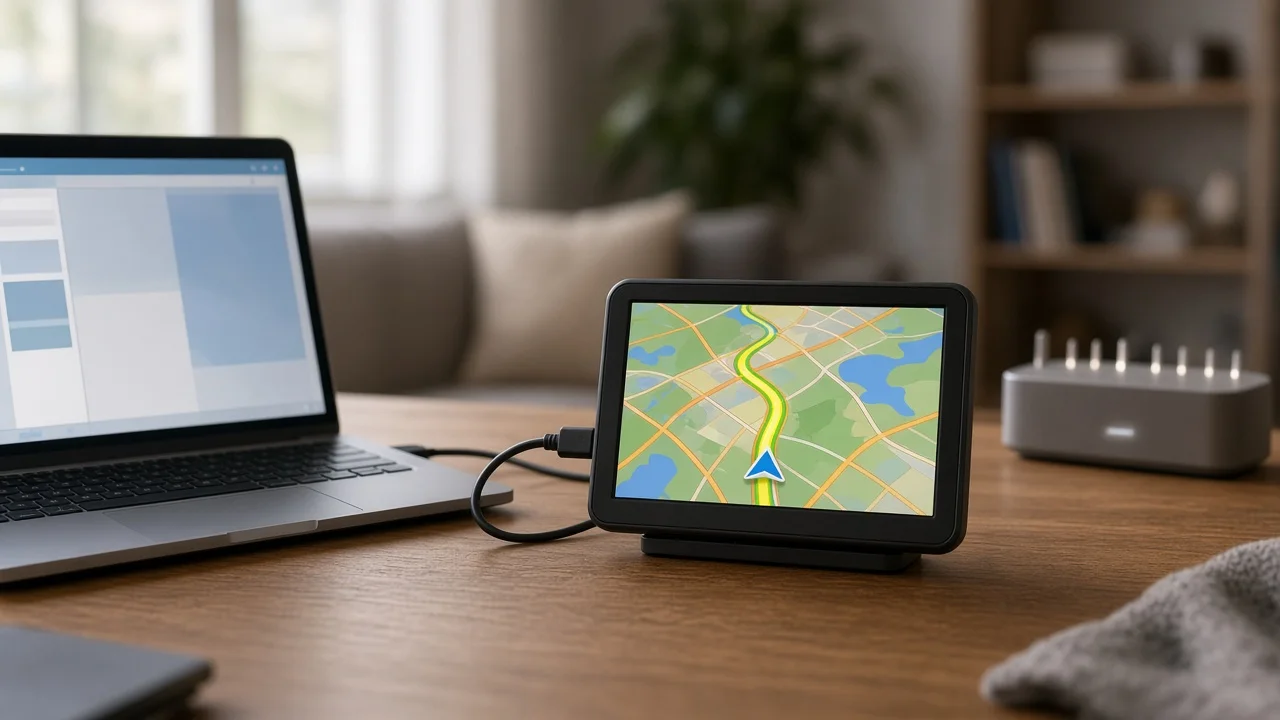
Most standalone TomTom GPS units are updated in one of two ways. Newer Wi-Fi-capable models can download map and software updates directly over a wireless network. Older or non-Wi-Fi models are updated by connecting the device to a computer with a USB cable and using TomTom's free desktop application, MyDrive Connect. Either way, you need a TomTom account linked to the device, a reliable internet connection and enough free storage on the device.
Three conditions change this answer. First, whether you can get new maps depends on your device's map entitlement: some models include ongoing map updates, while others require a paid subscription or a one-time map purchase. Second, some older TomTom models no longer receive map updates. Third, if your TomTom navigation is built into your car's dashboard rather than a separate unit, updates follow the vehicle manufacturer's process, not the steps below. Your TomTom account or the MyDrive Connect application will show what your specific device is eligible for.
Which Method Applies to You
Device type | Typical update method | Where to check; Wi-Fi-capable portable TomTom (for example, many recent GO models) | Download directly over Wi-Fi on the device | Device settings menu for updates; Portable TomTom without Wi-Fi | MyDrive Connect on a Windows or Mac computer via USB | MyDrive Connect after signing in; TomTom navigation built into a car's infotainment system | Vehicle manufacturer's update process, which may be over the air, by USB or at a dealer | Owner's manual or the carmaker; TomTom navigation app on a smartphone | App updates through the phone's app store; maps downloaded inside the app | App settings
Menu names and layouts differ between TomTom models and software versions. The steps below use common wording; if your screen differs, look for the closest equivalent or consult the manual for your model.
Before You Start
A TomTom account, with your device linked to it; A stable internet connection, preferably at home rather than a public or metered network; For the Wi-Fi method: the network name and password; For the computer method: a Windows or Mac computer with MyDrive Connect installed, and a USB cable that carries data, not just power; The device fully charged or connected to a power source; Enough free storage on the device for the update; Time to let the update finish without interruption, since map downloads are large
Do the update indoors with the device removed from the car, or with the vehicle safely parked. Never start or manage an update while driving. If you power the unit from the car during an update, do not leave the engine running in a garage or any enclosed space because of the risk of carbon monoxide build-up.
Method 1: Updating Over Wi-Fi
1) Plug the device into a wall charger or USB power source so the battery cannot run out during the download. 2) Open the main menu and go to Settings, then Wi-Fi. Select your network and enter the password. 3) If prompted, sign in to your TomTom account on the device. 4) Go to the updates section of the settings menu, often labeled Updates & New Items. 5) Install any pending software update first if one is offered. Software updates can be required before newer maps will install. 6) Select the available map update and start the download. 7) Keep the device on power and on the Wi-Fi network until it reports that installation is complete. Do not switch it off or unplug it while it is installing. 8) Restart the device if it does not restart on its own.
Method 2: Updating With MyDrive Connect on a Computer
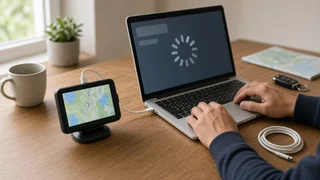
1) Install MyDrive Connect on your computer from TomTom's official support site, then open it and sign in with your TomTom account. 2) Switch on the TomTom device and connect it to the computer with a data-capable USB cable. The device should show a screen indicating it is connected to a computer. 3) Wait for MyDrive Connect to detect the device and check for updates. 4) Review the list of available updates. Install software updates as well as the map update when offered. 5) Start the update and leave both the computer and the device undisturbed. Turn off sleep mode on the computer if it might interrupt a long download. 6) Do not disconnect the cable while the application shows that files are being transferred or installed. 7) When MyDrive Connect reports that the device is up to date, safely eject or disconnect the device as the application instructs. 8) Let the device restart and finish any final setup on screen.
If There Is Not Enough Storage
Full map packages can exceed the free space on a device. Depending on the model, the update tool may let you remove maps or regions you do not need, or choose a smaller map region. Some models also accept a microSD card for extra map storage. Check your model's manual to see whether a memory card is supported before buying one.
How to Confirm the Update Worked
Open the device's settings and find the About or map information screen, which shows the installed map name and version. Compare that version with the latest one listed for your device in MyDrive Connect or the device's updates screen. If no further map update is offered, the device is current. Plan a short test route to an address you know, ideally one involving a recently built road or changed junction, and check that it routes correctly before relying on it for a trip.
Common Problems
Computer does not detect the device: try a different USB cable and a different USB port, restart both the device and the computer, and make sure MyDrive Connect is up to date. Update stops or fails partway: restart the device, confirm it has enough free storage and a steady connection, then retry. No map update is offered: check that the device is linked to your account and whether it is covered by a map subscription or included updates. Some older models are no longer supported for new maps. Wi-Fi option is missing: the device likely lacks Wi-Fi, so use the computer method.
Built-In Car Systems and Phone Apps
Several carmakers use TomTom map data or navigation software in factory infotainment systems. In those vehicles, map updates are controlled by the vehicle manufacturer, and the process, cost and eligibility vary by brand, model year and market. Follow the owner's manual or ask a dealer rather than applying the portable-device steps above. Dealer-performed updates may be needed for some systems. TomTom's smartphone navigation app is separate again: the app updates through your phone's app store, and maps are downloaded or refreshed from within the app.
Limits of This Guide
This guide covers the general update process for TomTom portable navigation devices. It does not list specific model support status, subscription prices, download sizes or exact menu wording, because these vary by model and software version and were not available for verification here. For those details, rely on your device's manual, your TomTom account and the information shown in MyDrive Connect for your specific unit.