How to Update Rand McNally GPS Maps
The Short Answer
Most Rand McNally GPS units are updated in one of two ways. You can connect the device to a computer and run Rand McNally Dock, the company's desktop update app for Windows and macOS. Some newer models can also download updates directly over Wi-Fi. Both methods install new map data (roads, addresses, points of interest and, on truck and RV models, routing restrictions) and usually firmware, which is the device's operating software.
Three things can change this answer. First, your model determines which update methods are available. Second, your unit's update coverage determines whether new maps are free or require a purchase or subscription. Third, older or discontinued models may no longer receive new map releases at all.
Before You Start
Map updates are large downloads that can take a long time to install. A little preparation prevents most failed updates.
Identify your exact model. The model name and number are usually in the device's settings or About screen, or on a label on the back of the unit. Check your update eligibility. Some units include map updates for the life of the device, and others need a paid update. The terms depend on the model and how it was sold, so check your device or Rand McNally account rather than assuming. Have a reliable internet connection. A wired or strong home Wi-Fi connection is better than a phone hotspot or a truck-stop network. Charge the device fully, and keep it on external power during the update if possible. For the computer method, use a computer with administrator rights, enough free disk space for temporary download files, and a USB cable that carries data. Some cables only carry power. Set aside enough time. Large map updates can take an hour or more, depending on connection speed and how much data needs to change. Never update while driving. Do it parked, or better, at home or in the office.
Which Update Method to Use
Method | Typical use | What you need; Rand McNally Dock (computer) | Most Rand McNally truck, RV and car GPS units, especially older models | Windows or Mac computer, USB data cable, internet connection, Rand McNally account; Wi-Fi update on the device | Newer models that support direct downloads | Wi-Fi network, device on charger, Rand McNally account signed in on the device
If your device has a Wi-Fi or updates option in its settings, the on-device method is usually the simplest. If it doesn't, or a Wi-Fi update keeps failing, use Dock on a computer.
Method 1: Update with Rand McNally Dock on a Computer
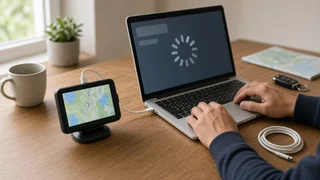
1) Download and install Rand McNally Dock from Rand McNally's official support area. Avoid third-party download sites. 2) Open Dock and sign in to your Rand McNally account, or create one. If the device isn't registered yet, Dock will usually prompt you to register it. 3) Turn on the GPS and connect it to the computer with a USB data cable. Plug directly into a port on the computer instead of a hub or keyboard port. 4) Wait for Dock to detect the device. If it asks you to choose a connection mode on the GPS screen, accept the computer or data connection. 5) Let Dock check for available updates. Map updates and software or firmware updates may be listed separately. 6) Select the updates and start the download and installation. If both a software update and a map update are offered, install them in the order Dock presents. 7) Leave the device connected and the computer awake until Dock reports that the update is complete. Turn off sleep mode if your computer tends to doze during long tasks. 8) Follow Dock's prompt to disconnect safely, then let the GPS restart. The first startup after a major update may take longer than usual.
Stop condition: if Dock shows an error during installation, don't unplug the device mid-write unless Dock tells you it's safe. Interrupting a firmware installation is the most common way to leave a unit unable to start. Close the error, reconnect if needed, and let Dock retry or resume.
Method 2: Update over Wi-Fi on the Device
1) Park the vehicle, or bring the device indoors, and connect it to its charger. 2) Open the device's settings and join a Wi-Fi network. Networks that need a browser sign-in page, as in many hotels and truck stops, often don't work with GPS units. 3) Sign in to your Rand McNally account on the device if prompted. 4) Find the updates option in the settings menu and check for updates. 5) Download and install the available updates. Keep the device on power and within Wi-Fi range for the whole process. 6) Allow the device to restart when the installation finishes.
How to Confirm the Update Worked
Open the device's About or system information screen and note the map version and software version. They should differ from what was shown before the update. Run the update check again in Dock or on the device. It should report that no further updates are available. Test a route to a recently built road, new business or address you know was missing before. On truck and RV models, confirm your vehicle profile (height, weight, length, hazmat and similar settings) is still correct. Routing depends on those values, so check them after any software change.
Common Problems and Fixes
Dock doesn't see the device: try a different USB cable that you know carries data, a different port, and restarting both the GPS and the computer. Make sure the GPS is powered on and has accepted the computer connection. Not enough storage: some units hold maps on a memory card or have limited internal storage. Dock or the device may let you remove optional content, such as extra regions, voices or saved data, to make room. The download stalls or is very slow: switch to a more stable network, pause other large downloads, and let Dock resume instead of restarting from scratch. The update says it's unavailable or needs purchase: your unit may not have update coverage, or the model may no longer be supported. Check your account details or contact Rand McNally support. The device won't start after a failed update: reconnect it to Dock, which may offer a recovery or reinstall option. If that doesn't work, contact Rand McNally support instead of attempting unofficial firmware fixes.
Limits to Keep in Mind
Even a freshly updated map is a snapshot. Road construction, new restrictions and closures can appear between map releases. This matters most for commercial drivers relying on truck-specific routing. Posted signs, bridge clearances and local restrictions always take priority over what the GPS shows.
If your device is no longer supported, the practical options are to keep using it with its last available map or to replace it. Smartphone navigation apps are another option for car use. Truck and RV drivers who need dimension-aware routing should choose a dedicated device or app that offers that feature.