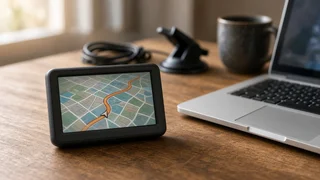
How to Update a Garmin nüvi 2595: Maps, Software and What to Expect
The Garmin nüvi 2595 is a portable, dash-mounted GPS navigator rather than a built-in vehicle system, so it is updated by connecting it to a computer, not over the air. If you want to run a Garmin nüvi 2595 update, the usual route is Garmin's desktop application, Garmin Express, which checks the unit for newer map data and device software and installs whatever is available. Whether a map update costs anything depends on the exact variant you own, and because this is an older model line, it is worth confirming in Garmin Express that updates are still being offered for your unit before planning around them.
The Short Answer
To update a nüvi 2595, install Garmin Express on a Windows or Mac computer, connect the navigator with a USB cable, add the device in the application, and install the updates it lists. The software identifies the specific unit and shows which map and software updates apply to it. The main qualification is entitlement: units sold with lifetime maps can download available map updates at no extra charge, while units without that feature generally require a paid map update if one is offered.
Map Updates Versus Software Updates
Two different kinds of updates can apply to the device, and it helps to keep them separate.
Map updates replace the stored road network and points of interest. They add new roads, interchanges and changed speed or turn information, which affects the route information the navigator calculates. Software (firmware) updates change how the device itself behaves. They can fix bugs, adjust features or improve compatibility, and they are typically free when available. Neither type of update changes the satellite hardware, so a map update improves where the device thinks roads are, not the underlying position accuracy of the GPS receiver.
Check Which nüvi 2595 You Have
Garmin commonly uses letter suffixes after the model number to describe included features. In Garmin's naming, an "LM" suffix generally indicates lifetime maps and "T" indicates traffic capability, so a unit labeled with those letters was sold with ongoing map update eligibility. The model designation is usually printed on the back of the device or the original packaging, and it is also shown in the device's About or system information screen under device settings. Garmin Express will also report what the unit is entitled to once the device is connected.
Keep in mind that lifetime map coverage is tied to the useful life of the device as defined by Garmin's terms, not to an unlimited period. For older products, map support can eventually end, so the practical test is whether Garmin Express still offers a new map version for your unit.
Before You Start
Use a computer with a reliable internet connection; map downloads can be large and take a long time. Use a USB cable that supports data transfer, not a charge-only cable. The cable that came with the unit is the safest choice. Make sure the computer has enough free disk space for the download to be staged before it is copied to the navigator. Charge the navigator or keep it connected so it does not lose power mid-installation. Have a microSD card available in case the device's internal memory is too small for the full map set.
Step-by-Step Update Process
Download and install Garmin Express on your computer from Garmin's official support resources. Turn on the nüvi 2595 and connect it to the computer with the USB cable. The device should switch into a connected or mass-storage mode. Open Garmin Express and choose to add a device. Let it detect the navigator. Sign in with or create a Garmin account if prompted, and register the device so its update entitlements can be recognized. Review the list of available updates. Install software updates as well as maps when both are offered. Leave the device connected until Garmin Express reports that installation is complete. Do not unplug it during the process, even if progress appears to pause. Safely eject the device from the computer before disconnecting the cable, then restart the navigator and confirm the new map version in its system information.
When the Map Will Not Fit
Newer map releases tend to grow in size over time, and older navigators can run short of internal storage. If Garmin Express reports insufficient space, it typically offers options such as installing a smaller map region or using a microSD card as additional storage. Inserting a compatible card into the device's card slot before starting lets the application place part or all of the map data on the card. If you choose a reduced region, check that it covers the areas you actually drive, since routes outside the installed region will not be calculated.
Common Problems and Fixes
Problem | Likely cause | What to try; Computer does not detect the device | Charge-only cable, faulty USB port or device not powered on | Try another data-capable cable and a different USB port; turn the unit on before connecting; No map update offered | Unit lacks lifetime maps, or map support for the model has ended | Check the device's entitlement in Garmin Express; consider a paid update if offered; Not enough space | Map data larger than available internal memory | Add a microSD card or install a smaller region; Download stalls or fails | Unstable connection or interrupted transfer | Restart Garmin Express, keep the device connected and retry; Device behaves oddly after update | Incomplete installation | Reconnect to Garmin Express and let it verify and reinstall the update
After the Update
Saved favorites, home location and other user data are normally kept through a map update, but it is sensible to note any important saved places or coordinates beforehand in case something needs to be re-entered. After restarting, give the receiver a few minutes outdoors with a clear view of the sky to reacquire satellites, then check device settings such as route preferences, avoidances and units of measure, since a software update can occasionally reset some options. Because this is a standalone navigator, there are no phone-style location permissions to manage; it determines its position directly from satellite signals.
Is Updating Still Worth It?
If your unit is eligible for free map updates and Garmin Express still offers them, updating is a straightforward way to keep turn-by-turn guidance accurate on changed roads. If updates are no longer offered, or a paid update would cost a meaningful share of a newer device, many drivers find that a current navigator or a smartphone navigation app paired with the vehicle is the more practical choice. For a unit that still works well and covers your regular routes, an occasional update when available keeps it useful for everyday driving.