Update Garmin nüvi 40LM
The short answer
The Garmin nüvi 40LM is a portable, dash-mounted GPS navigator. You update it by connecting it to a computer and using Garmin Express, Garmin's free desktop application for Windows and Mac. Garmin Express checks the unit, then downloads and installs any available map and software updates. The device does not update itself over the air.
There is one important qualification. The nüvi 40LM is an older model. Whether Garmin still publishes new map releases for it, and whether a current full map still fits in its internal memory, depends on Garmin's present support status for this unit. The available evidence does not confirm that status. Garmin Express will show what is actually available once the device is connected.
What "LM" means
The "LM" suffix stands for lifetime maps. It means map updates are included at no extra charge for the device's useful life, as defined in Garmin's terms. In other words, the entitlement depends on Garmin continuing to support that model, not on how long you own it. A model without the LM suffix normally needs a paid map update or subscription. This guide does not cover pricing for non-LM units because no confirmed figures were available.
Map updates versus software updates
Garmin Express can deliver two kinds of update. A map update replaces the road network, addresses and points of interest stored on the device. A software (firmware) update changes how the device itself operates, such as fixes or behavior changes. The two are separate. A unit can be current on software while its maps are out of date, or the reverse.
General update process
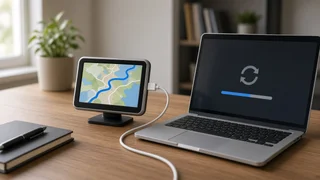
1) Install Garmin Express on a Windows or Mac computer with a stable internet connection. 2) Connect the nüvi 40LM to the computer with a USB data cable and wait for it to be recognized. 3) Add the device in Garmin Express. You may be asked to sign in or create a Garmin account. 4) Review the listed updates and start the installation. 5) Keep the device connected and the computer awake until Garmin Express reports that the update is complete. Map downloads can be large and may take a long time. 6) Eject the device safely before you unplug it.
Common complications with older units
Map files have grown over time, and older navigators have fixed internal storage. If a full map no longer fits, Garmin Express may report insufficient space. It may offer to install only selected regions, or it may suggest removing other data. Before you remove anything, save copies of any saved locations or custom data you want to keep. The available evidence does not confirm the nüvi 40LM's storage capacity or whether it supports a memory card for maps. Check the device's manual or Garmin Express for those details.
If Garmin Express does not recognize the unit, a frequent cause is a charge-only USB cable that carries no data. Trying a different cable or USB port is a reasonable first check.
What could not be confirmed
No verified evidence was available for any of the following: the latest map version for the nüvi 40LM, the date of its most recent update, its current support status, its storage capacity, or the map regions preloaded on US units. Treat Garmin Express and Garmin's official support documentation as the authoritative source on these points.
Next step
Install Garmin Express and connect the device. If updates are listed, install them. If Garmin Express shows no new maps, or reports that the device is no longer supported, the lifetime maps entitlement has effectively reached its limit. At that point, decide whether the existing maps are still accurate enough for your driving or whether a newer navigator or a phone-based navigation app would serve you better.