Update Garmin nüvi 55
The short answer
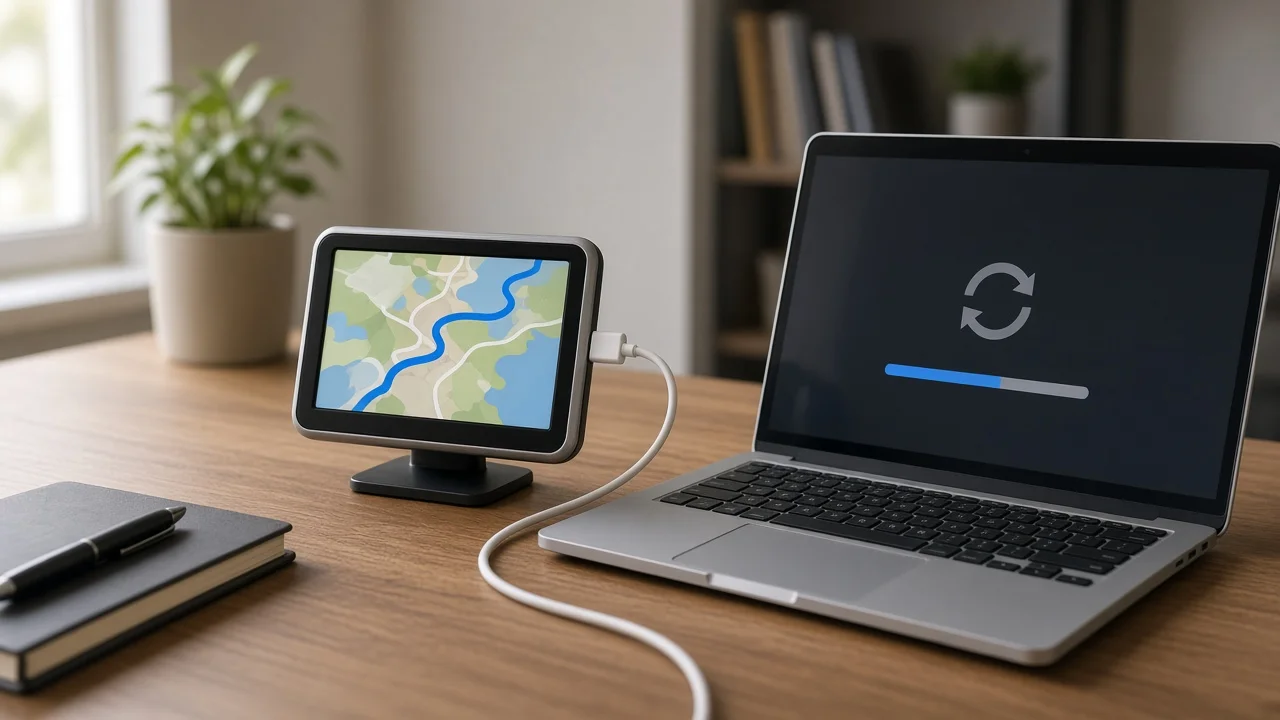
A Garmin nüvi 55 is updated by connecting it to a Windows or Mac computer with a USB cable and running Garmin Express, Garmin's free desktop program for device updates. Garmin Express detects the navigator, lists any available map and software updates, and installs them. The navigator itself has no Wi-Fi or cellular connection, so it cannot update on its own.
Whether a new map is actually offered depends on two things: whether your unit includes lifetime map updates or needs a paid map purchase, and whether Garmin still publishes maps for this model. Both are explained below.
What the nüvi 55 is
The nüvi 55 is a portable, dash-mounted Garmin GPS navigator from Garmin's older nüvi line. It is a standalone unit rather than a car's built-in infotainment system, so updating it has nothing to do with the vehicle or the dealer. All updates go through the device and a computer.
The model was sold in several variants, and the letters after the number determine what updates the unit includes:
nüvi 55 (no suffix): No lifetime map updates are bundled, so newer maps generally require a purchase. nüvi 55LM: "LM" means lifetime maps, so map updates are included under Garmin's terms. nüvi 55LMT: "LMT" means lifetime maps and traffic, adding traffic information when used with a compatible traffic receiver or cable.
The exact model name is printed on the back of the device or its box. It is also shown in the device's About or System information screen.
Map updates versus software updates
Garmin Express handles two different kinds of update:
Software (firmware) updates change the device's operating software. They can fix bugs or improve features, and they are free. Map updates replace the road, address and points-of-interest data the unit uses to plan routes. Depending on the variant, they are included as lifetime maps or sold separately.
A unit can be fully up to date on software and still be running an old map, or the reverse. Garmin Express shows each type separately.
How the update process works
1) Install Garmin Express on a Windows or Mac computer and open it. 2) Connect the nüvi 55 to the computer with a USB data cable. The device should switch to a computer-connection screen. 3) Add the device in Garmin Express when prompted. You may be asked to sign in with or create a Garmin account. 4) Review the listed updates and choose to install them. 5) Keep the device connected, and the computer awake, until Garmin Express confirms the installation is complete. Then disconnect it safely.
Map files are large, so downloading and installing them can take a long time on a slow connection. Interrupting the process partway through can leave the map incomplete, and the update would then need to be run again.
Qualifications that change the answer
Lifetime is tied to the device, not the owner. Garmin's lifetime map terms cover the useful life of the device, as Garmin defines it. They are not an unlimited promise, and they end when Garmin stops supporting that model.
Support for older models can end. The nüvi 55 belongs to an older product generation, and Garmin has stopped issuing new maps for various older devices over time. This article has no confirmed information on whether new maps are still being released for the nüvi 55. The reliable way to check is to connect the unit to Garmin Express and see whether a map update is offered. Garmin customer support can also confirm the model's status.
Storage space can be a limit. Newer maps can be larger than older ones. If Garmin Express reports that the device lacks space, it may suggest freeing space or installing part of the map to a memory card. Follow the specific prompt Garmin Express shows.
Region matters. Maps are specific to coverage areas. A unit sold for the US market normally receives North American map coverage, and other regions may require a different map product.
What could not be confirmed
No confirmed evidence was available about the nüvi 55's current map support status. The same is true for its latest software version, map file sizes, update prices for non-lifetime units, and download times. Those details should be checked directly in Garmin Express or with Garmin.
Next step
First, identify your exact variant from the label or the device's system information screen. Then connect the unit to Garmin Express. What it offers will settle the question for your specific unit. If it offers no map update, you are either already on the latest map or the model no longer receives map updates, and Garmin support can tell you which.