How to Update a Garmin Drive 50: Maps, Software and Common Problems
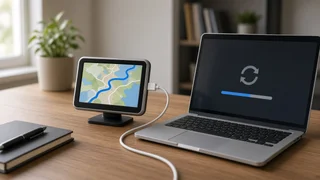
Updating a Garmin Drive 50 is done through Garmin Express, Garmin's desktop program for Windows and Mac. You connect the navigator to the computer with a USB data cable, let Garmin Express detect it, and install whatever map and software updates it offers. The unit cannot update itself over Wi-Fi or through a phone. Whether map updates are free depends on which version you own, and because the Drive 50 is an older navigator, storage space and continued support can also affect what you can install.
What an Update Includes
"Update" can mean two different things on this device, and Garmin Express handles both in the same session.
Update type | What it changes | Why it matters; Map update | The map data: roads, addresses, points of interest, speed limit information where available, and road attributes used for routing | Newer map data gives more accurate route information, finds recently built roads and addresses, and reduces detours based on outdated layouts; Software (firmware) update | The device's operating software | Can fix bugs, improve stability, and refine how the unit handles routing and satellite reception
Live traffic is a separate feature. On models that support it, traffic data comes from a traffic receiver while you drive, not from a desktop update.
Drive 50, 50LM and 50LMT: Why the Model Suffix Matters
The Drive 50 was sold in several versions, and the letters after the model number indicate which ownership terms apply. Check the label on the back of the unit or the original packaging. You can also look at the device information screen in the device settings menu.
LM: includes lifetime map updates, subject to Garmin's terms for the device's supported life. LMT: includes lifetime map updates plus traffic capability. No suffix: the unit may not include free map updates. Garmin Express may offer software updates only, or offer a paid map update where one is available.
"Lifetime" in Garmin's terms is generally tied to the useful life of the device as Garmin defines it, not to the owner's lifetime. Older navigators can eventually stop receiving new map releases. If Garmin Express shows no map update for an LM or LMT unit, the device may have reached the end of its update support. Garmin's current terms and the Garmin Express status message are the authoritative answer for your unit.
What You Need Before You Start
A Windows or Mac computer with Garmin Express installed. A USB cable that carries data, not just power. Charge-only cables are a common reason a computer fails to detect the device. A stable internet connection. Full map updates are large and can take a long time to download. Free disk space on the computer for the downloaded files. Optionally, a microSD card if the navigator's internal memory is too small for the latest map set.
How to Update the Garmin Drive 50 Step by Step
1) Install and open Garmin Express on your computer. 2) Connect the Drive 50 to the computer with the USB data cable. The navigator should switch to a computer-connection screen. 3) In Garmin Express, choose the option to add a device and follow the prompts. You may be asked to sign in or create a Garmin account to register the unit. 4) Use the backup option if it is offered, so saved locations and favorites are preserved. 5) Let Garmin Express check for updates. It will list available map and software updates. 6) Select install. Keep the computer awake and the cable connected for the entire process. 7) When Garmin Express reports that the device is up to date, eject or safely disconnect the navigator before unplugging it.
Do not disconnect the device during an update. Interrupting the transfer can leave incomplete map data on the unit, and the update may need to be run again.
Not Enough Space for the New Maps
Map databases have grown over the years, and an older navigator's internal memory may no longer hold a full current map set. Garmin Express typically reports when space is insufficient. Depending on what it offers, you can handle this in one of three ways:
Install a smaller map region instead of a full continent, for example the contiguous US rather than all of North America, if that option is presented. Insert a microSD card in the device's card slot and let Garmin Express place some or all of the map data there. Remove older map versions or unused regions from the device if Garmin Express gives you that choice.
Fixing Common Update Problems
Device not detected: try a different USB cable and port, avoid USB hubs, restart both the computer and the navigator, and confirm the unit shows its computer-connection screen. No map update shown: confirm the model is an LM or LMT version and that it is registered to your account. Also check whether Garmin Express indicates the device is no longer supported for new maps. Download stalls or fails: check the internet connection and the free disk space on the computer, then restart Garmin Express and resume. Update keeps restarting: this often points to storage limits on the device. Use the space options described above. Saved locations missing afterward: restore them from the Garmin Express backup if you made one before updating.
Checking the Navigator After the Update
Once the update finishes, take the unit outside or into the car with a clear view of the sky and let it acquire satellites. The first satellite fix after an update can take longer than usual. Then check these items:
The map version shown in the device information or map settings screen matches the update you installed. The position on the map matches where you actually are. If position accuracy seems off, give the unit more time outdoors before assuming a fault. Buildings, tree cover and some windshield coatings can weaken satellite reception. Your preferred device settings are still in place, such as route preference (faster time or shorter distance), avoidances and units of measurement. A test route to a familiar destination looks sensible.
Some people want the exact coordinates of their location, for example to share a spot that has no street address. The Drive 50 typically shows these through a "Where Am I?" style option on the map screen. Location permissions of the kind phones require do not apply here. The navigator calculates its position on its own from satellite signals and does not need a phone or app to grant access.
Is Updating Still Worth It?
If you have an LM or LMT unit that still receives map updates, updating is worthwhile. Current map data directly improves routing and address search, and the process costs only time. If the unit no longer receives new maps, or would need a paid update, compare that cost with a newer navigator or a phone-based navigation app. An older device with outdated maps still works for familiar areas and well-established roads, but it becomes less reliable for new construction, changed road layouts and recently added addresses.