Garmin Drive 60 Update: How to Refresh Maps and Software
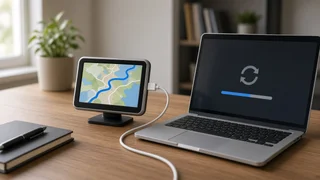
The short answer: you update a Garmin Drive 60 by connecting it to a Windows or Mac computer with a USB cable and running Garmin Express, Garmin's free desktop update application. The device cannot update itself over Wi-Fi or through a phone. Whether you get new map data at no cost depends on the version you own. Units sold as Drive 60LM or Drive 60LMT include map updates for the supported life of the device. A base Drive 60 without those letters may need a paid map update if one is still offered. Garmin also ends support for older navigators over time, so the updates available for your unit are whatever Garmin Express shows when you connect it.
What an Update Changes on the Drive 60
A Garmin Drive 60 update can include two separate parts, and Garmin Express handles both.
Map updates: revised map data, including new or changed roads, address ranges, points of interest, and road attributes such as speed limits. This is the larger download and has the most effect on route information. Software updates: changes to the device's operating firmware. These can fix bugs, improve how features behave, or change how the device handles device settings and data. They are usually much smaller than map files.
A map update does not upgrade the GPS receiver itself, so it does not directly improve position accuracy. The device calculates your coordinates from satellite signals. Current map data helps it place those coordinates on the correct road and build better routes, especially where roads have been added or rerouted since your last update.
LM, LMT, or Base Model: Which Drive 60 Do You Have?
The suffix after the model name is the most important detail when you decide whether to update. It is printed on the original box and usually on a label on the back of the device. You can also find it in the device's About or system information screen. Garmin Express identifies the exact model once the device is connected.
Model designation | Map updates | Traffic; Drive 60 (no suffix) | Not included; a paid update may be required if Garmin still offers one for this unit | Not included; Drive 60LM | Included for the device's supported life under Garmin's terms | Not included; Drive 60LMT | Included for the device's supported life under Garmin's terms | Included through a traffic receiver supplied with the unit
"Lifetime" in this context follows Garmin's definition, which is tied to the device and Garmin's support for it, not to the owner's lifetime. If Garmin Express shows no new maps for an LM or LMT unit, the cause may be that support has ended rather than a fault with your computer or cable.
What You Need Before You Start
A Windows or Mac computer with enough free disk space to download and stage large map files. A stable, reasonably fast internet connection. Map downloads can be large and can take a long time. A USB cable that supports data transfer. Some cables only carry power and will charge the device without letting the computer detect it. The current version of Garmin Express. Optionally, a compatible microSD card if the device's internal memory cannot hold the full map set.
How to Update a Garmin Drive 60 Step by Step
1) Install Garmin Express on your computer, or open it and accept any prompt to update the application. 2) Connect the Drive 60 to the computer with the USB cable. The device should show a screen indicating it is connected to a computer rather than starting normal navigation. 3) In Garmin Express, choose the option to add a device. Let the application find the Drive 60, then register it to a Garmin account when prompted. 4) Open the device in Garmin Express and check for updates. Available map and software updates will be listed. 5) Choose to install the updates. Map installation can take a long time, sometimes more than an hour depending on your connection and the update size. 6) Keep the device connected and the computer awake until Garmin Express confirms the installation is complete. Disconnecting partway through can leave the map data incomplete. 7) Safely eject the device, disconnect it, and power it on. Confirm the new map version in the device's About or map information screen.
Before updating, back up your saved locations and favorites. Garmin Express can back up device data, and keeping a copy of saved addresses and coordinates protects you if something goes wrong during installation.
When the Device Runs Out of Storage
Map data has grown over the years, and an older navigator's internal memory may not hold a full regional map set. If space runs short, Garmin Express typically offers ways around it. One is to install the update to a microSD card inserted in the device. Another is to install only selected regions. If you choose regions, consider where you actually drive. A partial install will not route through areas left off the device. Removing unneeded extras, such as optional voice files, may also free space, but use the options Garmin Express provides rather than deleting system files by hand.
Troubleshooting Common Update Problems
Device not detected: try a different USB cable, since a charge-only cable is a common cause. Use a different USB port directly on the computer instead of a hub. Restart both the device and the computer. Device starts navigating instead of showing a connected screen: power it off, then connect the cable before turning it back on. Installation stalls or fails: check the internet connection and free disk space on the computer, then restart Garmin Express and retry. Update the application first if prompted. No updates listed: the device may already be current. A base model may have no included update, or Garmin may have ended support for the unit. Slow GPS fix after the update: this usually reflects satellite acquisition rather than the map. Power the device on outdoors with a clear view of the sky and give it time to find satellites, especially if it has been unused for a long period.
Is Updating Still Worth It?
For an LM or LMT unit that Garmin Express still supports, updating is worthwhile. It costs nothing beyond time and gives you more accurate route information, current addresses, and fewer wrong turns on newer roads. For a base Drive 60, compare the price of a paid map update, if one is available, with the cost of a newer navigator or a phone-based navigation app. Phone apps rely on the phone's location permissions and a data connection, while a standalone unit like the Drive 60 works from its own stored maps without either. That offline independence is the main reason some drivers keep an older navigator updated rather than replacing it.