How to Update Android Auto: Phone App, Car Software and What Each Update Changes
The Short Answer
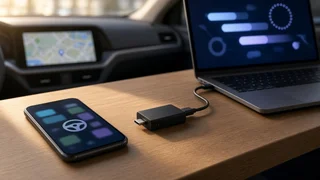
Android Auto is updated on your phone, not in your car. The interface you see on the dashboard screen is generated by the Android Auto software on your smartphone and projected to the vehicle's display, so keeping the phone side current is what brings new features, design changes and bug fixes. In most cases that means updating Android Auto through the Google Play Store, either automatically or by hand.
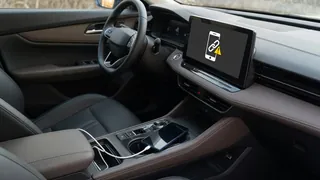
There is one important qualification. Your car's infotainment system runs its own software, which the automaker controls. That software decides things like whether wireless Android Auto is supported, how the head unit handles the connection and how stable the link is. Updating the phone app cannot change those capabilities. If a problem lives on the car's side, only an update from the vehicle manufacturer will address it.
What Actually Gets Updated
Android Auto depends on several pieces of software working together. Knowing which part does what helps you decide where to look when something isn't working.
Component | What it controls | How it is updated | Who controls it; Android Auto app or system component | The projected interface, app support, voice integration, connection behavior from the phone side | Google Play Store, automatically or manually | Google; Google Play services and related Google apps | Background services Android Auto relies on, plus apps such as Maps and Assistant that run inside it | Google Play Store and system updates | Google; Phone operating system | Overall compatibility and minimum supported version | System update in the phone's settings | Phone manufacturer and carrier; Third-party apps (music, messaging, navigation) | How each app appears and behaves in Android Auto | Google Play Store | Each app's developer; Vehicle infotainment software | Wired or wireless support, head unit stability, screen handling | Over-the-air update, USB update or dealer service, depending on the vehicle | Automaker
How Android Auto Is Installed Depends on Your Android Version
On newer versions of Android (Android 10 and later), Android Auto is built into the phone as a system component rather than offered as a separate app you install yourself. It doesn't appear as a normal app icon in the app drawer, and its settings sit inside the phone's settings menu. It is still updated through the Google Play Store, though, so you can update it like any other app.
On older Android versions, Android Auto is a standalone app downloaded from the Play Store. Google periodically raises the minimum Android version that Android Auto supports, so a phone running an old operating system may eventually stop receiving Android Auto updates altogether. If updates are no longer offered, check whether your phone's operating system is still within Google's current support range.
How to Update Android Auto on Your Phone
The exact menu names vary by phone manufacturer and Android version, but the process generally follows these steps:
Open the Google Play Store on your phone. Search for Android Auto. Open its store listing. If a newer version is available, you will see an Update button; if it only shows Open or no action, you already have the latest version available to your device. Tap Update and wait for the installation to finish. Restart the phone if Android Auto behaves oddly afterward, then reconnect to your car.
An alternative route is through the phone's settings. Find Android Auto in your app list (on many phones it is under Settings, then Apps, with system apps shown) and look for an option to view app details in the store. That opens the same Play Store listing.
Turning On Automatic Updates
If you'd rather not check manually, the Play Store can update apps on its own. In the Play Store, open your profile menu, go to settings and look for the auto-update option for apps. You can usually choose whether updates download over any network or only over Wi-Fi. Some phones also let you set auto-update per app from the app's store listing menu.
Update the Supporting Apps Too
A current version of Android Auto may still misbehave if the apps around it are outdated. While you are in the Play Store, check for updates to Google Play services, Google Maps, the Google app and any music, podcast or messaging apps you use in the car. Installing pending phone system updates is also worthwhile, since Android Auto relies on the underlying operating system.
Updating Your Car's Infotainment Software
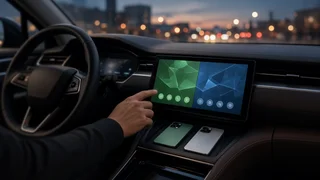
Head unit updates are separate from anything you do on your phone, and how they are delivered depends heavily on the manufacturer, model year and infotainment generation. Common methods include:
Over-the-air updates, downloaded through the car's built-in connection or a Wi-Fi network and installed from the infotainment settings. USB updates, where you download a file from the automaker and load it into the car with a flash drive. Dealer updates, applied during a service visit or as part of a recall or service campaign.
Some vehicles have gained features such as wireless Android Auto through later software updates, but this is model-specific and never guaranteed. A car that doesn't support wireless projection in hardware cannot gain it from a phone update. If you're unsure what your vehicle supports or whether an infotainment update exists, the owner's manual, the automaker's owner portal or app, or a dealer service department can tell you.
Joining the Android Auto Beta
Google has offered a beta program for Android Auto through the Play Store, which delivers upcoming versions before their wide release. Spots can be limited and availability changes. Beta builds may introduce features earlier but can also be less stable, which matters for software you use while driving. If you rely on Android Auto daily, the regular release channel is the safer choice. You can typically leave a beta from the same Play Store listing and return to the stable version.
A Note on Manual Installation Files
Some people install Android Auto from downloaded APK files to get a version before it reaches their device. This bypasses the Play Store's delivery and verification, and files from unknown sources can be tampered with. Google also rolls out updates gradually, so a version may simply not have reached your phone yet. For most drivers, waiting for the Play Store update is the more reliable path.
When an Update Doesn't Fix the Problem
If Android Auto still disconnects, freezes or won't launch after updating, work through the basics before assuming a software fault:
Try a different USB cable for wired connections. Worn or charge-only cables are a frequent cause of drops and failed connections. Restart both the phone and the car's infotainment system. Clear the Android Auto cache from the phone's app settings. Clearing storage also works but resets your Android Auto preferences. Remove the car from Android Auto's list of previously connected cars and from the phone's Bluetooth devices, then pair it again. Check that battery optimization or power-saving settings aren't restricting Android Auto or your navigation and media apps. Confirm the car's infotainment software is current, especially if the problem started after a phone update.
If problems began right after a new Android Auto version arrived, the cause may be a bug in that release that Google addresses in a later update. Keeping auto-updates enabled helps you receive such fixes promptly.
Key Takeaways
Android Auto updates arrive on the phone through the Google Play Store, even on newer phones where it is built into the system. The car's infotainment software is updated separately by the automaker and determines hardware-level capabilities such as wireless support. Updating Google Play services, your phone's operating system and the apps you use in the car matters as much as updating Android Auto itself. If updates stop appearing, your phone's Android version may have fallen below Google's current minimum.