Android Auto Not Working After an Update: How to Get It Connecting Again
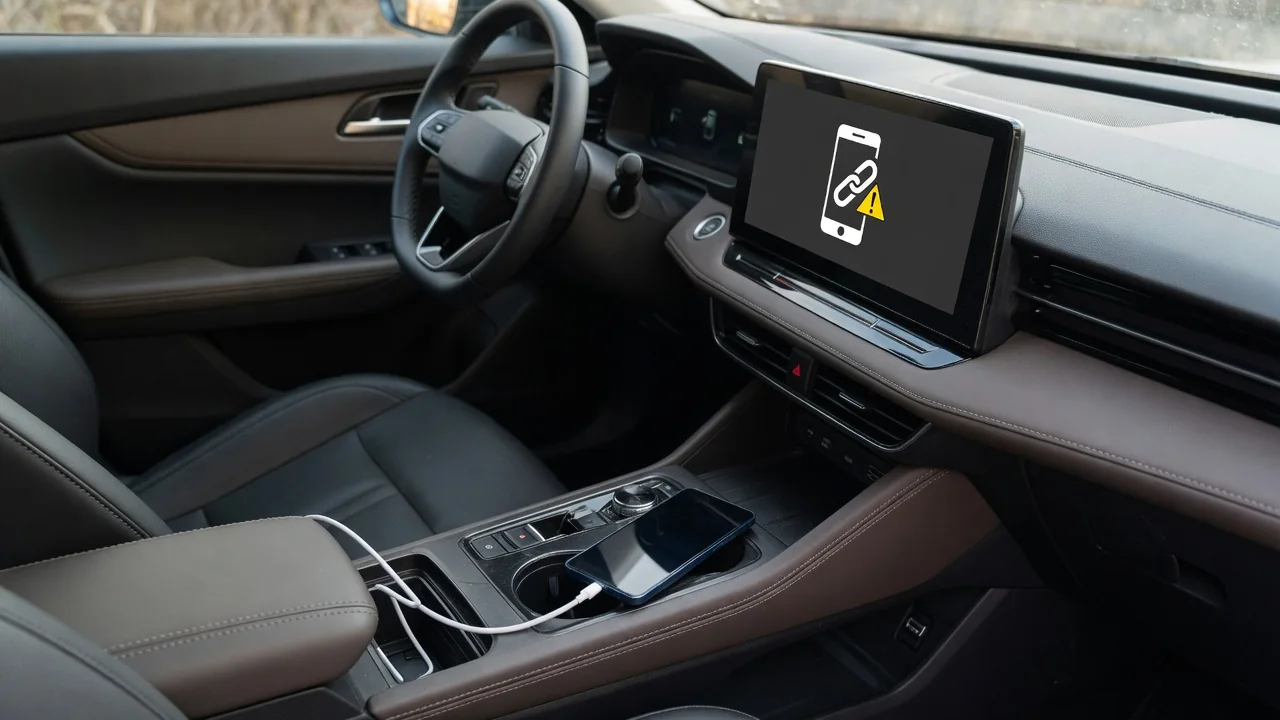
When Android Auto stops working after an update, the cause is rarely obvious. A phone update, an app update, or a change on the car side can each break the link between the handset and the infotainment head unit. This guide walks through sensible checks for Android 11 through Android 15, Samsung phones, wireless projection, and a commonly confused auto-rotate problem.
Why Android Auto Can Stop Connecting After a Phone or App Update
Three different updates can disturb the connection. A phone software update may reset app permissions or change default USB behavior. An Android Auto app update can alter how the app talks to the car, and a Google Play services update affects the background framework the app depends on. The symptoms vary: the car display not launching Android Auto at all, a phone that charges but never connects, a connection that keeps dropping, or an app that opens on the phone but never appears on the car screen.
Before changing anything, note what changed and when. Write down which update installed, roughly what day, and whether wired, wireless, or both connections failed. Keep an open mind too, because timing is not proof. A USB data cable can fray internally, a port can collect lint, and a head unit can develop its own fault during the same week an update arrived, so the update may be a coincidence.
First Checks to Try After Any Update
Start with restarts. Reboot the phone, then switch the vehicle fully off, wait a minute, and start it again so the infotainment system reboots. There is no need to disconnect the battery or touch the car's electrical system. Next, open the Play Store and confirm that Android Auto, Google Play services, Google Maps, and the Google app are fully updated, with nothing pending or stuck partway through a download.
Then open phone settings and review the Android Auto app permissions and notification access, since an update may reset or limit them. If the link still fails, forget the car in the previously connected cars list inside Android Auto settings, remove it from Bluetooth pairing on the phone, delete the phone from the car's device list, and pair again from scratch. As a later step, clear the app cache first. Clearing storage goes further and erases saved preferences, so treat it as a last resort.
Android Auto Problems on Android 11 and Android 12 Phones
Readers searching for Android Auto not working on Android 11 or Android 12 are often thrown by a layout change. On newer Android versions, Android Auto is built into the system instead of acting as a standalone launcher on the phone screen, so its options live in phone settings. Searching the settings menu for Android Auto usually finds it, though menu names vary by phone maker. After a major version update, also check that the USB mode offered when plugged in allows data transfer, not just charging.
If Android Auto stopped working after an Android 12 update or a similar jump, resist assuming a version-specific bug exists. Check the phone maker's update notes and the Android Auto help pages for acknowledged issues first. The car matters as well: some older infotainment head units may handle newer phone software differently than they handled the previous release. The car maker or a dealer can confirm whether an infotainment software update is available for your vehicle.
Android Auto Problems on Android 13, 14 and 15 Phones
Recent Android releases have tightened privacy controls in general terms, with separate permissions for nearby devices, notifications, and background activity. When Android Auto is not working on Android 13 or Android 14, or fails after an Android 15 update, open the app's permission page and confirm each of these is still allowed. Then check battery settings. Battery optimization and app sleeping features can restrict Android Auto or Google Play services in the background, which may show up as a session that starts and then quits.
When many owners report the same failure after one release, a follow-up phone patch or Android Auto app update often addresses it, though nobody can promise a date. Rolling back the phone's operating system is tempting but usually unavailable, and where it is possible it typically wipes data and can leave the device in a worse state. Waiting for an official update, or contacting the phone maker or Google support with your notes, is the safer route.
Samsung Phones: Settings to Recheck After a One UI Update
Android Auto not working after an update on a Samsung phone deserves its own look, because Samsung's One UI software layer adds settings on top of standard Android. Battery management, sleeping apps lists, and the default USB configuration can each interfere with projection. After a One UI update, open the battery section of the phone's settings and look at background usage limits. Check whether Android Auto or Google Play services were moved into the sleeping or deep sleeping apps list, and remove them if so.
The default USB configuration sits under developer options, a hidden menu meant for testing. Look there only if you are comfortable with it, and change nothing else, because developer settings carry real risk of unexpected behavior. If the option is set to charging only, a data-capable choice may let the car recognize the phone. Galaxy models differ in menu names and behavior, so Samsung Members or Samsung support is the right source for model-specific guidance, not fixes passed around without verification.
Wireless Android Auto Not Working After an Update
Wireless Android Auto uses Bluetooth to begin the handshake and Wi-Fi to carry the projection, so both radios must be on. When wireless Android Auto is not working after an update, confirm that the phone is not clinging to a home or office Wi-Fi network in the driveway. Then plug in with a known good USB data cable. If wired works and wireless does not, the problem probably sits in the wireless link or its settings, not in the app itself.
From there, remove the car from both Bluetooth and Android Auto, then pair again so the wireless credentials are rebuilt. Check whether a VPN, an active hotspot, or a data saver setting switched on or changed behavior after the update, since each can interfere with the direct Wi-Fi link to the car. Finally, confirm in the owner's manual or with the car maker that your vehicle or head unit supports wireless projection at all.
Auto-Rotate Not Working Is a Separate Phone Issue
Searches for auto-rotate not working on Android 12, Android 13, or Android 14 often land beside Android Auto topics, but the two are unrelated. Auto-rotate is the phone feature that turns the screen between portrait and landscape as you tilt the handset. It has nothing to do with projecting apps onto a car display, even though the names sound alike. The Android Auto steps above will not affect it.
For rotation trouble, pull down quick settings and make sure the rotation toggle is set to auto-rotate and not locked to portrait. Consider whether a particular app locks its own orientation, since some do by design, and restart the phone after an update so the sensors reinitialize. If the screen still refuses to turn in any app, the phone maker's support can test the motion sensors and tell you whether the fault is software or hardware.