Android Auto Not Working? Common Causes and How to Narrow Them Down
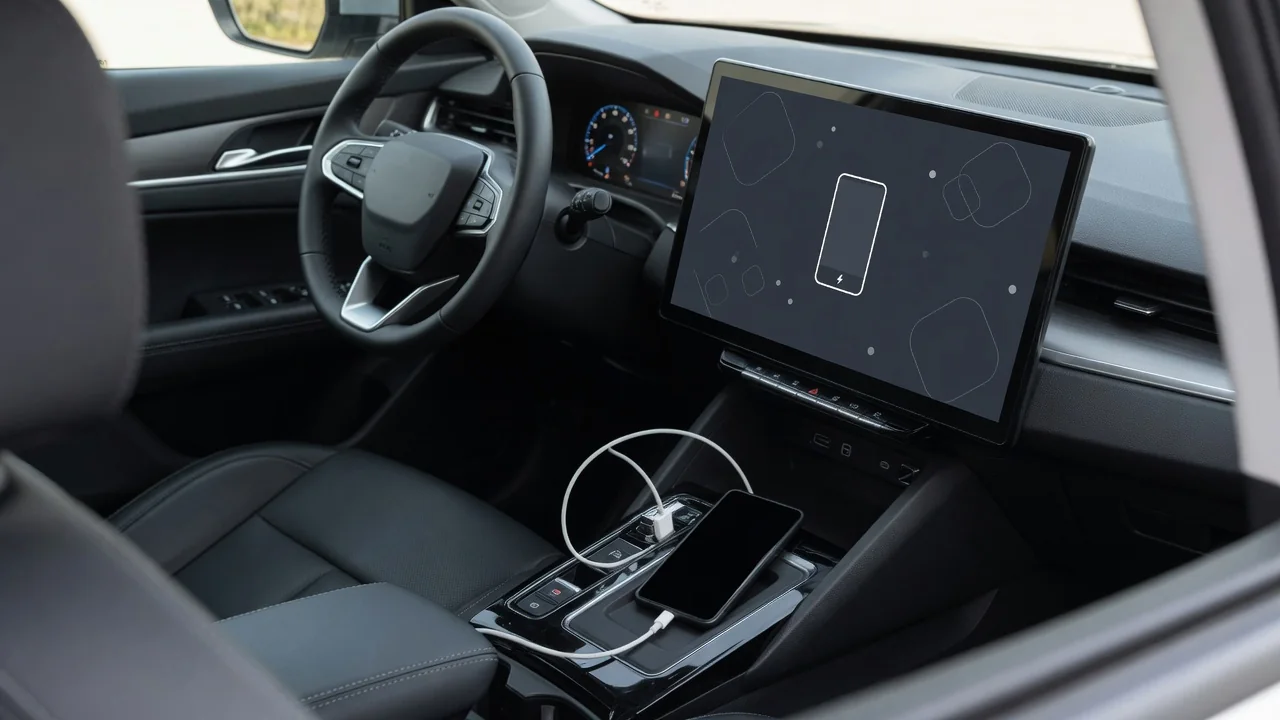
When Android Auto is not working in your car, the cause can sit in the phone, the USB data cable, the wireless link or the infotainment system itself. The same logic applies whether you drive a Vauxhall Corsa, a Renault, a Volvo XC40 or a Mustang Mach-E, and whether you carry a Samsung, Pixel, Motorola or Xiaomi. This guide explains how to narrow a failure down safely.
Why Android Auto Stops Working: The First Checks to Make
Android Auto fails in a few distinct ways, and the pattern matters. If it never launches, suspect the cable, the port or a setting that keeps the car from recognizing the phone. If it connects and then drops, look at an intermittent data link or a phone putting the app to sleep. A frozen car screen points toward the projection session or head unit, while partial failures, where maps run but calls, buttons or the bottom bar do not, usually trace to permissions or individual apps.
When Android Auto suddenly stops after working for months, think about what changed: a phone or app software update, new head unit firmware, a different cable or an altered phone setting. None is automatically the culprit, so start simple. While parked, confirm the Android Auto app and Google services are current, check that Android Auto is enabled in the car's settings, unlock the phone for the first connection, then restart both phone and infotainment system. Never troubleshoot the screen while driving.
Is the Problem the Phone, the Cable or the Car?
Swapping one element at a time shows where the fault lives. Try a known-good USB data cable and another port, because a phone that is charging but not connecting often means a charge-only cable or a port that carries no data. Then try a second phone in the same car, or your phone in another compatible vehicle. If Apple CarPlay works on the same port while Android Auto does not, the car hardware is probably sound and attention shifts to the phone.
Wireless Android Auto adds Bluetooth pairing and a Wi-Fi link, so forgetting the car and re-pairing is a sensible test, as is checking whether the phone's hotspot is competing for the connection. Clearing the app's cache or connected cars list is reversible and resets a stale sync. If the touchscreen ignores input only inside Android Auto, suspect software; if the car's own menus, radio or reverse camera also misbehave, the display needs dealer or professional diagnosis, and the vehicle or head unit maker should be contacted.
Phone-Specific Issues: Samsung, Pixel, Motorola and VPN Settings
Samsung, Pixel, Motorola, OnePlus, Xiaomi, Huawei, Honor and Sony Xperia phones all layer their own battery optimization, app permissions and USB behavior over Android. Menu names vary by brand and version, so look for anything that restricts Android Auto in the background or limits USB to charging only. Owners of recent flagships such as the Galaxy S25 Ultra, Pixel 9 Pro or a Z Fold should check the manufacturer's official support channels after a software update rather than assuming a known bug.
A VPN, private DNS or a security app can interfere with the connection, particularly the wireless one, so pause them briefly to test and re-enable them afterward. Searches about auto-rotate usually concern something different: the phone's rotation setting governs how the handset display turns, while the car's layout is determined by the head unit's screen shape and the Android Auto interface. Changing rotation on the phone is not a guaranteed fix for a strange layout in the car.
Phone Calls, Text Messages and Notifications Not Working
Phone calls normally ride on a Bluetooth hands-free connection that runs alongside Android Auto, even with a cable plugged in. When incoming or outgoing calls fail, check that the car's Bluetooth entry is allowed call audio and contact access, and confirm which app is the default dialer. Samsung owners with call trouble should begin with those same permission and default-app checks; nothing here indicates a model-wide defect. WhatsApp calls depend on that app's own Android Auto support and permissions.
For text messages and notifications, separate three symptoms. If alerts never appear, look at the messaging app's notification permission, the default messaging app, and any Do Not Disturb or driving mode that hides them. If messages appear but are not read aloud, the problem leans toward the Assistant and media volume. If replies will not send, check dictation, the keyboard while parked, and the data connection. WhatsApp and Telegram follow the same logic, provided their conversation alerts have not been muted.
Google Assistant, Hey Google and Voice Commands Not Responding
Voice commands depend on Google Assistant being fully set up on the phone, with microphone permission granted and the voice match or hotword setting switched on. If saying Hey Google or OK Google does nothing, press the voice button on the steering wheel or the microphone icon on screen. A button that works while the wake phrase fails points to hotword settings; the reverse suggests a button mapping issue, and how a short or long press behaves depends on the vehicle.
When the Assistant hears you but responds poorly, consider conditions rather than blaming a part. Cabin noise from open windows or fans, the position of the car's microphone, and a weak mobile data connection can all limit recognition, though none is a certain cause. Google also changes how its assistant features work over time, so behavior may shift after an update. Keeping the Google app, Android Auto and the phone's system software current covers the likeliest software-side explanations.
Navigation and Media Apps Like Waze Not Working, Plus Aftermarket Head Units
Third-party apps appear only if they support Android Auto and are up to date, and some show up only after being opened once on the phone. For Waze, confirm location permission, unrestricted background data and that the app is enabled in the launcher settings. The same reasoning applies to Audible, VLC, Lyft, onX Hunt or GameSnacks. Apps installed from unknown sources, including video players like CarStream or CarTube and tools such as Performance Monitor, are unofficial and may stop appearing without notice.
An aftermarket stereo from Kenwood, Pioneer, Sony, Alpine, JVC or Xtrons runs its own firmware, as do Smartbox-style adapters, units using Zlink or Tlink software, and factory systems such as Ford SYNC 3. Each has its own compatibility limits, so a Sony XAV-AX5000 or Alpine iLX-W650 should be checked against its maker's support information rather than assumed to behave like another. Avoid unofficial firmware and wiring changes; a qualified installer is the right route when the head unit itself seems faulty.
Steering Wheel Controls, Volume and Night Mode Problems
Steering wheel controls and volume buttons pass through the car or head unit before reaching Android Auto, so test them with the radio or another native source first. If they fail there too, the issue is not the phone. Volume is also split into separate levels: media, navigation prompts, calls and the Assistant can each be set differently, usually by adjusting while that sound is playing. A silent guidance voice with normal music often means one level was simply turned down.
Android Auto offers day, night and automatic appearance options, and automatic switching may rely on the car's headlight or ambient light sensor signal, which varies by vehicle and head unit. If night mode never changes, try the manual settings to see whether the app or the signal is at fault. Controls that stopped working after an aftermarket install usually involve the steering wheel interface adapter and belong with the installer or a dealer. Do not probe wiring around the steering wheel or airbag yourself.