Android Auto Voice Commands Not Working: Causes and Fixes
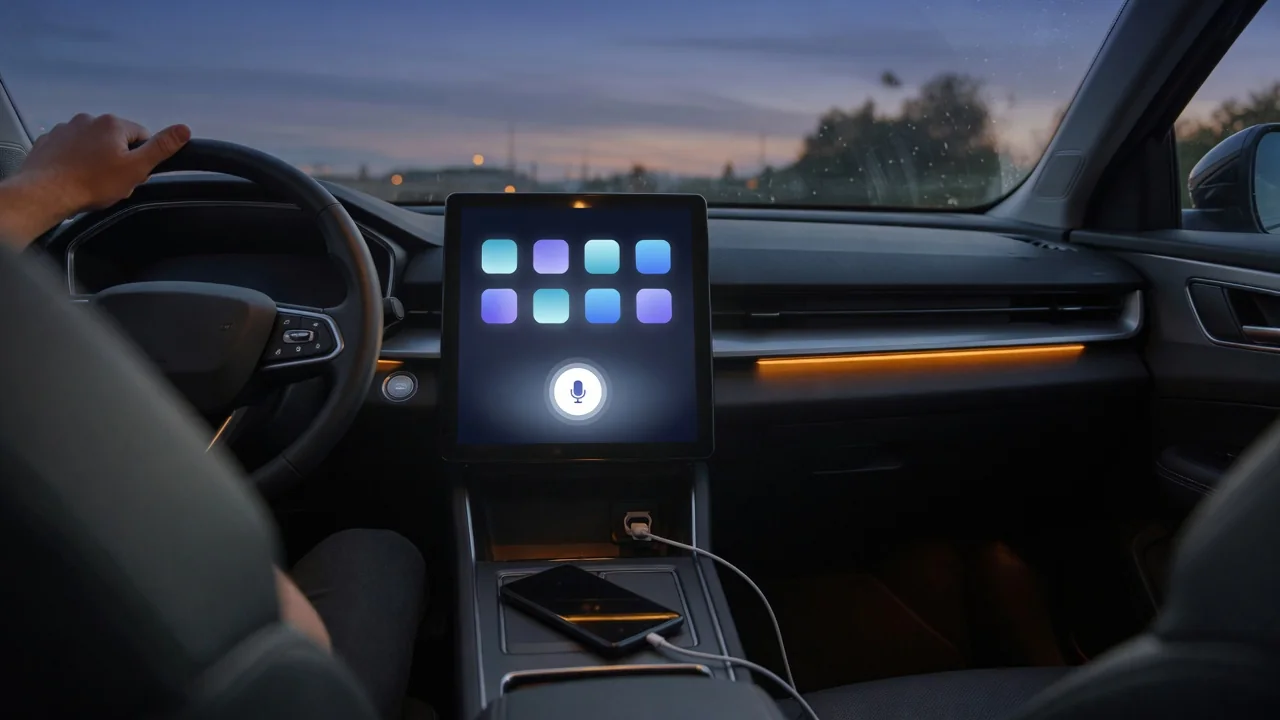
When an Android Auto voice command is not working, the cause is rarely a single broken part. Voice control depends on the phone's assistant, app permissions, the connection to the car and the vehicle's own microphone. This guide explains why voice commands stop working on Android Auto, how to find the weak link, and when the problem belongs with a dealer or audio specialist.
Why Android Auto Voice Commands Stop Responding
Voice problems on Android Auto tend to follow a few patterns. The mic icon does nothing when tapped, the assistant chimes and listens but never acts on the request, or the steering wheel voice button opens the car's built-in voice system instead of Android Auto. Each pattern hints at a different link in the chain, because a spoken request passes through the car's microphone, the infotainment head unit, the USB or wireless connection, app permissions and finally the phone's assistant.
Start with a quick first pass. Try both the on-screen mic icon and the wheel button, then disconnect and reconnect the phone, restart it, and switch the car off and back on. If voice control stopped right after a phone, app or head unit update, software is a far more likely culprit than failed hardware. Note when the failure happens, whether on every drive, only on wireless or only in certain apps, since that pattern makes later checks easier.
Android Auto Microphone Not Picking Up Your Voice
During an Android Auto session, audio input usually comes through the car's microphone rather than the phone's, though this depends on the vehicle and the connection type. That is why an Android Auto mic not working can have nothing to do with the handset. A useful distinction: if the assistant opens and shows it is listening but hears nothing, look at the microphone path; if it never opens at all, look at assistant settings or the connection instead.
Place an ordinary Bluetooth hands-free call and ask how you sound, since that tests the car's mic directly. Lower the blower fan speed, close the windows and make sure nothing covers the headliner mic area. On the phone, confirm microphone permission is granted to Android Auto and the Google app, and that no other app is holding the mic. If the microphone also fails during regular calls, vehicle hardware or wiring is the likely cause and needs testing by a dealer or qualified audio shop.
Checking Google Assistant and Voice Assistant Settings on the Phone
The phone's default digital assistant setting decides what answers a voice request. Depending on the phone, app version and region, that may be Google Assistant or Gemini, so behavior is not identical for everyone. If Google voice is not working on Android Auto, confirm the Google app is installed, enabled and updated, that the intended Google account is signed in, and that voice settings, including Hey Google detection where it is offered, are switched on.
Stuck voice behavior sometimes clears after updating Android Auto and the Google app or clearing their app cache; the exact menu names vary by phone and software version. Restrictive battery saver or data saver modes, and disabled background activity, can stop the voice assistant from responding while the phone screen is off, which is exactly how it sits during a drive. Some voice features also need a data connection, so weak cellular signal can produce silent or delayed responses.
Samsung and Pixel Phones: Settings Worth Checking
Phone makers add their own assistant, battery and permission layers, so the fix can differ between brands even when the symptom looks the same. When Android Auto voice commands are not working on a Samsung phone, check that the default assistant has not been set to the manufacturer's assistant when you expect Google to answer. Then review battery optimization and app sleeping settings for Android Auto and the Google app, keeping in mind that menu names shift between software versions.
On Pixel phones, including newer models such as the Pixel 9, recheck the assistant selection, app updates and permissions after a system update, since settings sometimes change in the process; that is a routine check, not evidence of a model-specific defect. If another phone is available, try it in the same car to separate a phone-side problem from a vehicle-side one. For confirmed known issues, rely on official support forums or the phone maker's support rather than unverified fixes.
Voice Calling and Voice-to-Text Messages Failing
Voice calling can fail while other requests work. The assistant needs contacts permission to find the person, the default phone app must be set correctly, and unusual or duplicated names can be hard for it to recognize. Saying the full contact name, or adding a nickname to the contact, often helps. Voice-to-text replies have their own requirements: the messaging app must support Android Auto, notification access must be allowed, and the right default SMS or messaging app must be selected.
If incoming messages never appear or cannot be answered by voice, confirm that notifications for that app are not silenced or restricted, because Android Auto reads and replies through the notification system. The nature of the failure matters as well. Dictation that is missing entirely suggests a permission or app setting, while dictation that arrives garbled, with wrong words or cut-off sentences, more likely reflects cabin noise or microphone quality. In that case, the mic checks described earlier are more productive than changing settings.
Waze and Other Navigation Apps Ignoring Voice Commands
Navigation apps can handle speech through the system assistant or through their own built-in voice features, and behavior differs by app and version. When Waze voice commands are not working in Android Auto, confirm the app is updated, has microphone permission, and that any in-app voice command option is turned on. Then make the same request in another navigation app. If it works there, the problem is limited to one app; if not, it affects Android Auto as a whole.
Troubleshooting navigation should never compete with driving. Set the destination before pulling away, or rely only on hands-free input while the vehicle is moving, and leave the phone alone until parked. Changing permissions, reinstalling apps and testing different phrasing all belong in the driveway or a parking lot. A stationary test is also more reliable, since road and wind noise are removed and you can see whether the app is listening at all.
Connection, Head Unit and When to Get Professional Help
Wired and wireless Android Auto can behave differently, so a fault on one does not always appear on the other. Try a known-good, data-capable USB cable, since some cables only charge, or switch to the other connection type if the car supports it. To reset the link, remove the vehicle from Android Auto's connected cars list and from the phone's Bluetooth list, then pair again. Head unit software updates are vehicle-specific, so consult the owner's manual or ask the dealer rather than assuming one exists.
Certain signs point to the vehicle rather than the phone: the car's own voice system and hands-free calls fail too, several phones produce no audio input, or the infotainment system shows errors. In those cases, avoid opening trim panels or handling infotainment wiring yourself, since trim can hide airbag components and fragile connectors. When phone-side checks have not restored voice control, diagnosis by a dealer or qualified audio technician is the sensible next step.