Apple Maps Not Working on CarPlay: Causes and Fixes to Try
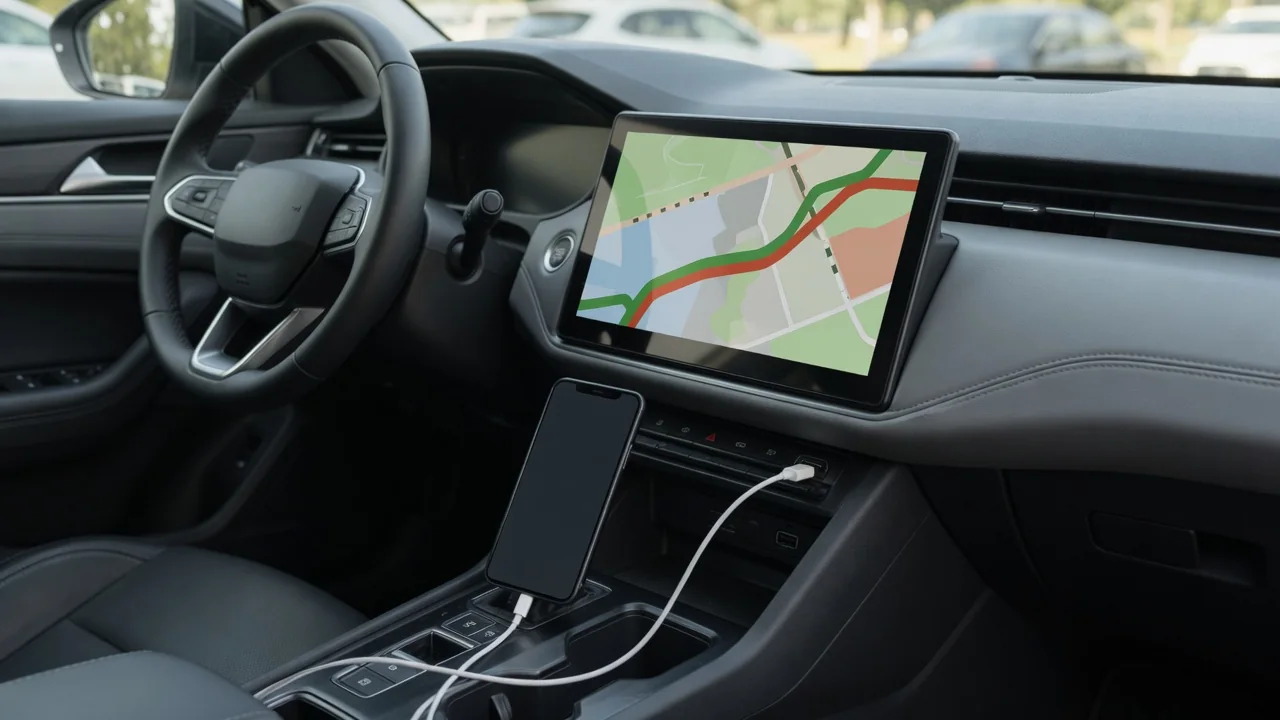
When Apple Maps is not working on CarPlay, the fault can sit in the iPhone, the link to the car, or the vehicle's own infotainment system. This guide explains why Apple CarPlay maps stop loading, why voice guidance goes silent, what to do when Google Maps is not working on Apple CarPlay, and when CarPlay navigation trouble needs a professional look.
Why Apple Maps Stops Working on CarPlay
Drivers asking why Apple Maps is not working on CarPlay usually describe one of a few symptoms: a blank or frozen map, a Maps icon that has vanished from the car screen, a position arrow that never moves, routes that refuse to load, or the app closing by itself. These look alike from the driver's seat, but they point in different directions, because CarPlay does not run navigation inside the car. The iPhone does the work and the vehicle's display simply shows the result.
That arrangement means three places can fail: the phone, the cable or wireless link, and the head unit. Broad causes include iOS or app glitches, location permissions, restrictions, weak cellular data, connection drops and outdated head unit software. A quick way to narrow things down is to disconnect and open Maps on the iPhone alone. If it misbehaves there too, the phone needs attention. If it works normally on the handset, the trouble lies in the CarPlay connection or the vehicle.
iPhone and CarPlay Settings That Can Block Apple Maps
When Apple Maps CarPlay settings are not working as expected, start with location. In the iPhone's privacy settings, Location Services needs to be switched on, and the Maps entry should be set to While Using the App or Always, with Precise Location enabled so the position does not drift across a wide area. Screen Time is the next place to look. Its content and privacy restrictions can hide Maps or block CarPlay altogether, so review the allowed apps there, especially on a phone managed by a parent or employer.
The CarPlay menu in the iPhone's general settings lists each paired vehicle. Selecting the car lets you add Maps back to the CarPlay home screen if it was removed, or forget the vehicle and pair it again for a clean start. Live routing can also suffer when Low Power Mode is active, when Background App Refresh is off, or when cellular data has been disabled for Maps. Make all of these changes while parked, never while driving, since each one takes your eyes and attention away from the road.
Apple Maps Voice Directions Not Playing Through the Car
If the Apple Maps voice is not working in CarPlay but the map looks fine, check the spoken directions settings for Maps on the iPhone. Guidance can be muted entirely or limited to alerts, and the voice volume may be set too low to hear over road noise. During an active route, the audio control on the CarPlay screen shows whether prompts are silenced. Many vehicles also treat navigation prompts as a separate audio channel, so turning up the media volume may not raise the directions, depending on the head unit.
Audio routing adds another layer. On some vehicles, a Bluetooth audio connection running alongside CarPlay can send prompts somewhere unexpected, and a silent setting or Focus mode on the iPhone may change how alerts behave; this varies between cars, so do not assume one pattern applies everywhere. A useful test is to play music or a podcast through CarPlay. If that audio is clear while directions stay quiet, a Maps setting is the likely cause. If nothing plays properly, the car's audio source or routing deserves a closer look.
Google Maps Not Working on Apple CarPlay
Reports of Apple CarPlay Google Maps not working follow slightly different logic, because Google Maps is one of several third-party navigation apps and does not inherit the permissions granted to Apple Maps. It needs its own location access on the iPhone, an up-to-date version, and in some cases a working sign-in to restore saved places and preferences. Also confirm that it appears in the CarPlay app list for your vehicle, since an app can be hidden or removed from the car's home screen while remaining installed on the phone.
App-specific steps come next: update Google Maps, and if it still stalls, delete and reinstall it to clear corrupted data. Downloading offline maps for regular routes helps where coverage is poor, because the app can then draw roads without a live data connection. Afterward, open Apple Maps straight away as a comparison. When both apps fail, look at the phone, the connection or the car. When only Google Maps fails, the app itself is the most likely source of the problem.
Connection, Signal and Software Checks for CarPlay Navigation
With wired CarPlay, the USB cable is a common weak point. Try a different good-quality cable and another USB port, since some ports in a vehicle only supply charging power. Inspect the iPhone's port for lint or debris and clear it gently, without sharp metal tools that could damage the contacts. With wireless CarPlay, both Bluetooth and Wi-Fi must be on, because Bluetooth pairing starts the session and Wi-Fi carries it. Interference from other devices can interrupt the link, and forgetting the car and pairing again can restore it.
Reception matters as much as hardware. A GPS signal can fade in parking garages, tunnels and dense city streets lined with tall buildings, and cellular data may drop in the same places, so a stalled position or a route that will not load can look like a fault when nothing is broken. If Apple CarPlay navigation is not working under open sky, restart the iPhone, install any pending iOS update, and restart the infotainment system using the method described in the owner's manual.
When to Get the Car's Infotainment System Checked
Some signs point to the vehicle rather than the phone. If the same failure appears with several iPhones, if the screen freezes in the radio or other built-in menus outside CarPlay, or if touch input does not respond, the head unit is the likely suspect. Ask a dealer or qualified technician whether a software update is available for your specific vehicle rather than assuming one exists, because update availability depends on the manufacturer, the model and the hardware fitted.
Resist the urge to open dashboard panels or alter infotainment wiring yourself. Trim clips break easily, connectors behind the dash are delicate, and nearby airbag and electrical circuits make hardware diagnosis a job for professionals. Before the appointment, write down what happened and when, the iOS version on the phone, and whether the connection was wired or wireless. Noting whether the problem follows a particular cable, route or temperature gives the technician a pattern to reproduce, which can shorten diagnosis.