How to Update Google Maps for In-Car Navigation
The Short Answer
You rarely download a map file to update Google Maps in a car. The road and business data, which is the navigation data the app uses to route you, is stored on Google's servers and refreshes continuously while the app has an internet connection. When people talk about a Google Maps update for the car, they usually mean one of two things: updating the Google Maps app itself, or refreshing offline maps saved for use without a signal.
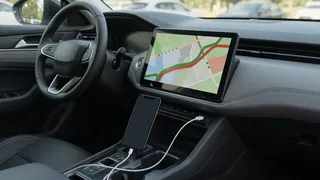
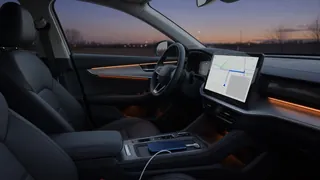
Where you update depends on how Google Maps reaches your dashboard. With Android Auto or Apple CarPlay, the app runs on your phone, so you update it on the phone. In a vehicle with Google built-in, the app runs on the car's own infotainment system, so you update it through the Google Play Store on the car's screen. If your car uses the automaker's own navigation system rather than Google Maps, updating the Google Maps app will not change that system's maps. Those maps update through the automaker's process.
Identify Your Setup First
Setup | Where Google Maps runs | Where you update it; Android Auto (wired or wireless) | Your Android phone | Google Play Store on the phone; Apple CarPlay (wired or wireless) | Your iPhone | App Store on the iPhone; Google built-in (Android Automotive OS) | The vehicle's infotainment computer | Google Play Store on the car's display; Automaker's own navigation | The vehicle's head unit | Automaker's update method: over-the-air, USB or dealer
To tell Android Auto or CarPlay apart from Google built-in, see whether Google Maps disappears from the dashboard when your phone is unplugged or disconnected. If it does, the phone is projecting it. If Google Maps stays available with no phone connected and the car has its own Google account sign-in and Play Store, you have Google built-in. Vehicle compatibility varies by model year, trim and market, so a model that offers Google built-in in one configuration may not have it in another.
Before You Start
Park the vehicle in a safe place. Do not update apps or change navigation settings while driving. Use a reliable internet connection. Wi-Fi is best for large app or offline map downloads, especially if your phone or car data plan has limits. Make sure the device has enough free storage. Offline map areas can take up significant space. Know your account details. You may need your Google account on the phone or car, or your Apple ID on an iPhone. Check the phone's battery level, or keep the phone connected to power during the update.
Updating Google Maps for Android Auto
1) On your Android phone, open the Google Play Store. 2) Tap your profile icon, then go to the section for managing apps and your device. 3) Look for available updates. If Google Maps is listed, tap Update. You can also search for Google Maps and tap Update on its page. 4) Check the same list for Android Auto and update it if an update is available. Android Auto handles the phone integration with your car's screen, so an outdated version can cause display or connection problems even if Maps is current. 5) Update Google Play services too if it appears in the list, because many Google apps depend on it. 6) Consider turning on auto-update for apps in the Play Store settings so future updates install automatically, ideally over Wi-Fi. 7) Reconnect the phone to the car and open Google Maps on the dashboard.
If your phone has a pending system software update, install it too. Some Android Auto features depend on the phone's operating system version, and a very old Android version may eventually stop receiving updates for Maps or Android Auto.
Updating Google Maps for Apple CarPlay
1) On your iPhone, open the App Store. 2) Tap your account icon to see pending updates. 3) If Google Maps is listed, tap Update. You can also search for Google Maps and update it from its page. 4) To keep it current automatically, turn on automatic App Updates in the App Store section of the iPhone's Settings app. 5) Check for an iOS update under General and then Software Update in Settings. CarPlay is part of iOS, so its behavior depends on the iPhone's software version. 6) Reconnect to the car. If Google Maps does not appear on the CarPlay screen, check the CarPlay settings for your car on the iPhone. You can rearrange or show apps there.
Updating Google Maps in a Car With Google Built-In
In vehicles with Google built-in, Google Maps is part of the car's Android-based infotainment system, and updates come through the Play Store on the center display. The car needs internet connectivity for this. That usually comes from the vehicle's built-in cellular connection, which may depend on an active connected-services plan, or from a Wi-Fi network if the car supports it. Menu names and layout differ between manufacturers, so the steps below are general.
1) Park the car and keep it in a state where the infotainment system stays on, as described in the owner's manual. If you need the engine running, do not run it in an enclosed garage. 2) Make sure you are signed in to your Google account on the car's display. 3) Open the Google Play Store app on the car's screen. 4) Open the section for app updates and look for Google Maps. Tap Update if it is listed. 5) Turn on automatic app updates in the car's Play Store settings if available. 6) Separately, check the vehicle's own system software settings for any pending automaker update. Some Google Maps features depend on the car's software version, which only the automaker can update.
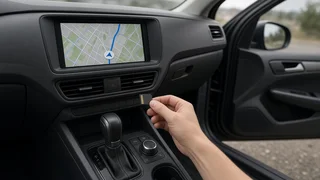
Vehicle system software updates, whether over-the-air or by USB, are different from app updates. Follow the automaker's instructions exactly for these. Some vehicles cannot be driven while an update installs, and interrupting one can leave the infotainment system unusable. If an automaker update fails, shows an error, or leaves the screen unresponsive, stop and contact a dealer or authorized service center rather than retrying repeatedly.
Keeping Offline Maps Up to Date
Offline maps are areas you download ahead of time so navigation still works where cellular coverage is weak or unavailable. Unlike live map data, offline areas are saved copies and can become outdated. Google Maps can refresh them automatically, and downloaded areas that go too long without an update eventually expire.
1) In Google Maps on your phone, tap your profile picture and open Offline maps. 2) Review your downloaded areas. Any marked as expiring or needing an update can be updated from this screen. 3) Open the offline maps settings with the gear icon and turn on automatic updates for offline maps. 4) Choose to download over Wi-Fi only if you want to avoid using cellular data. 5) Before a trip into a low-coverage area, open the app on Wi-Fi so pending offline updates can finish.
Offline maps support basic driving directions but not everything. Live traffic, alternate routes based on current conditions, and some search results need a connection. Offline availability in Google built-in vehicles depends on the manufacturer and software version, so check the car's Google Maps settings to see whether the option exists.
How to Confirm the Update Worked
In the app store on the phone or car, Google Maps shows an Open button instead of Update. In Google Maps, the app's software version appears in the About section of the Settings menu, and in the device's app information screen. With the car connected, Google Maps opens on the dashboard, shows your current position correctly, and calculates a route to a test destination. Recently changed roads or businesses in your area appear on the map. If they don't, the change may not be in Google's data yet. An app update does not affect that. Under Offline maps, downloaded areas no longer show expiry or update warnings.
If Something Still Isn't Right
Google Maps doesn't appear on the car screen: Update Android Auto or iOS, reconnect the phone, and with a wired connection try a different, good-quality data cable. Make sure the app is enabled in the Android Auto or CarPlay settings. Position is wrong or jumps around: Depending on the setup, location may come from the phone, the car, or both. Make sure location services are on for Google Maps. GPS reception is weaker in parking garages, tunnels and dense downtown areas, so test in an open area. A phone mount that blocks the view of the sky can also affect it. Traffic or search isn't working: These features need connectivity. Check the phone's mobile data, or the car's connected-services status for Google built-in. The app crashes or freezes after updating: Restart the phone, or restart the infotainment system as the owner's manual describes. On a phone, you can also clear the Google Maps cache in the app settings. A road or place is missing or wrong: Report it from within Google Maps using the option for sending feedback or editing the map. Updating the app won't add data Google doesn't have yet.
When the Problem Is the Car's Own Navigation
Many vehicles come with a factory navigation system that has nothing to do with Google Maps, even if both can appear on the same screen. If outdated maps show up when you use the car's native navigation app, updating Google Maps won't help. Those maps update through the automaker. Depending on the vehicle, that may be an over-the-air update, a download installed by USB, or a dealer visit, and some updates may require a fee or subscription. Check the owner's manual or the automaker's owner support channels for the method that applies to your model year and market. Using Google Maps through Android Auto, CarPlay or Google built-in is often the simpler way to keep in-car navigation current.