Android Auto Maps Not Working? Fixing Google Maps, GPS and Voice Guidance
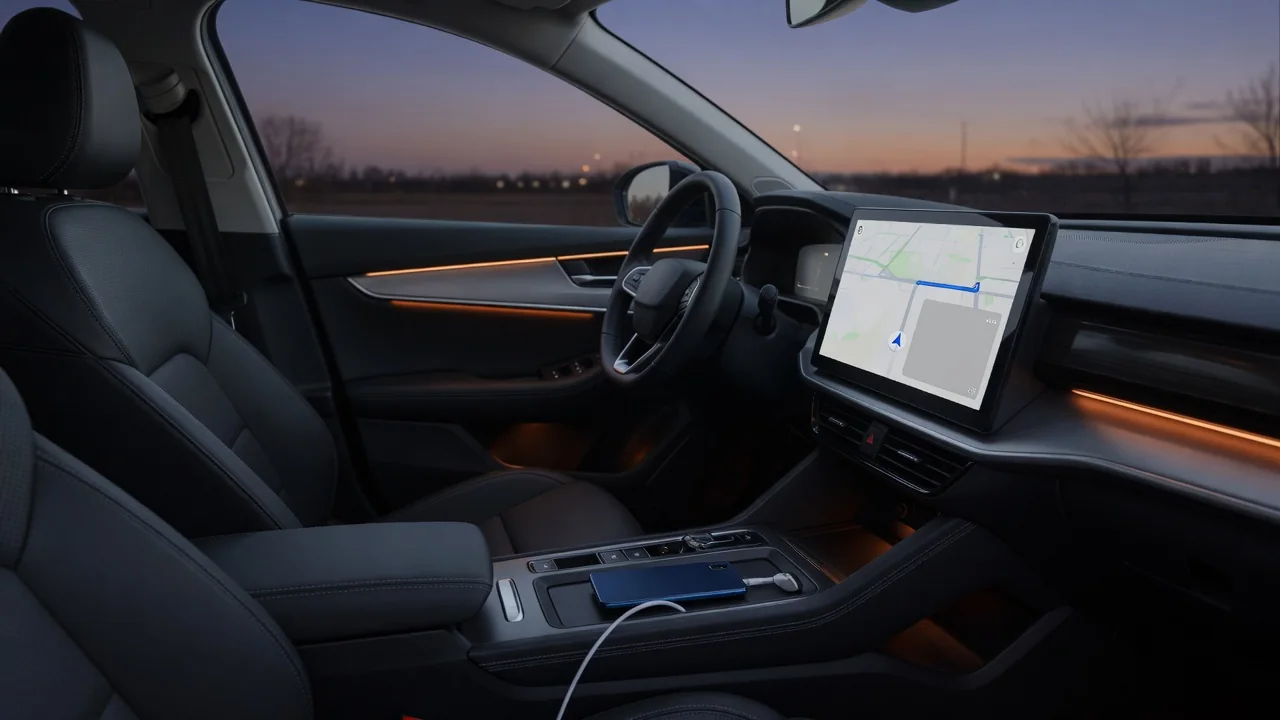
When Android Auto maps stop working, the cause could be the phone, the connection or the car, and the symptoms rarely say which. This guide explains why Google Maps is not working on Android Auto in the most common ways, covering blank screens, GPS position errors, silent voice navigation, a night mode that will not switch, and settings specific to Samsung phones and Waze.
Why Google Maps Stops Working on Android Auto: Common Symptoms
Maps not working on Android Auto usually shows up in one of a few ways. The map stays blank or freezes while the rest of the infotainment display responds, the Google Maps icon disappears from the app launcher, the app opens and drops back to the home screen, or Android Auto navigation never starts a route. Because Android Auto projects apps that run on the phone, most of these faults begin with the phone's app version, permissions, account or data connection, not the car's screen.
Timing is the most useful clue. A failure on every drive suggests a setting or permission, one that began right after an update points to software, a fault that appears only on long trips hints at heat, battery management or a marginal connection, and trouble limited to one cable or to wireless Android Auto points at the link itself. No single fix is guaranteed, so the checks below run from quick to more involved, with a test after each one.
Quick Phone-Side Checks Before Each Drive
Start with versions. Google Maps, Android Auto, which is built into the system on newer phones instead of being a separate app, and Google Play services all cooperate to draw the map on the head unit. If one is updated and the others lag behind, the pieces may no longer communicate as expected, and the map view can fail to render. Updating all three, then restarting the phone, removes that mismatch as a suspect.
Next, clear the app cache for Maps and Android Auto in the phone's app settings, which removes temporary files without touching preferences. Clearing app data is a reasonable follow-up, but it resets settings and may remove offline maps and saved car connections. Confirm that Maps has location permissions with precise accuracy, and that mobile data is on or offline maps cover the area; airplane mode or a data saver can leave blank tiles or failed routing. Make every change and test only while parked safely.
Android Auto Navigation and GPS Position Problems
A map that will not load and a map that loads but places the car wrongly are different problems. When Android Auto GPS is not working, the tiles appear normally, yet the arrow drifts, sits on a parallel road, or the app reports that it is searching for GPS. Depending on the vehicle and setup, position data may come from the phone, the car, or both, so the owner's manual or a dealer is the right source for how a particular vehicle handles it.
Some safe observations help. With the phone unplugged, open Maps and see whether its own GPS signal holds a steady position. Test in an open area, since parking structures and tall buildings weaken reception for any receiver. Then note whether the error follows the phone into another car. If several phones all show position errors in one vehicle only, the vehicle side may need professional diagnosis, but that pattern alone does not identify a specific failed component.
Google Maps Voice Guidance Not Working on Android Auto
Two different problems hide behind complaints about Google Maps voice not working on Android Auto. One is silent turn-by-turn navigation, where the route displays but no spoken prompts play. The other is voice command input, where Google Assistant does not respond to requests; that depends on microphone and assistant settings, not guidance settings. For silent prompts, check the sound toggle on the Maps navigation screen, which may be muted, and the voice guidance volume option inside Maps.
Some head units also keep a navigation volume separate from media, and it may need adjusting on its own. Bluetooth audio routing matters too: a second paired device such as earbuds, do not disturb mode, or media settings on the phone can send prompts somewhere other than the car speakers. A structured test narrows it down. Try guidance on the phone alone, then connected to the car, then with a different cable or connection mode, and write down where the audio drops out.
Google Maps Dark Mode or Night Mode Not Switching on Android Auto
When Google Maps dark mode or night mode does not switch on Android Auto, the first question is what controls the theme. Depending on the setup, the map's day or night appearance may follow a signal from the car tied to headlights or display dimming, a setting in Android Auto, or a color scheme option in Maps itself. Menu names change between app versions, so look through the display and theme options in both apps without expecting a specific label.
The car's side deserves a look as well. On some vehicles, the headlight setting or a display brightness control can influence when the projection changes to its night theme; the owner's manual explains how that vehicle behaves. If every setting looks correct and the theme still will not change, a software bug is plausible. Reporting it through the app's feedback option and waiting for an update is more productive than reinstalling repeatedly.
Samsung Phones and Waze: App-Specific Settings to Review
Some phones manage background apps aggressively, and Samsung models are among those with such controls. Battery optimization, sleeping app lists and background limits can close Maps or Android Auto mid-drive, which looks like a crash or frozen map. In the battery and app settings, check that these apps are not restricted or put to sleep; exact menu paths vary by software version. Manufacturer connection settings, including USB preferences, the default USB mode and Bluetooth permissions, can also affect whether Android Auto shows Maps.
Waze users who find GPS not working on Android Auto should check the same areas: Waze location permissions, unrestricted background activity and a current app version. Then compare with Google Maps on the same drive. If both apps lose position, the cause is likely shared, such as the phone's location settings or the connection, and not Waze itself. Before asking for support, note the phone model and software version, because the settings differ between them.
Cables, Connection Mode and When to Seek Further Help
Connection faults often masquerade as Maps failures. A worn cable, a charge-only cable with no data wires, a loose port or an unstable wireless link can interrupt projection, leaving a frozen map or dropped route. Testing with a short, data-capable USB data cable in good condition helps rule this out. Re-pairing can also help: while parked, remove the car from the connected cars list in Android Auto, delete the phone from the head unit, then set up the connection again.
To decide where the problem lives, swap one side at a time. If the fault follows the phone to another compatible car or display, keep working on the phone. If another phone fails the same way in this vehicle, the car side is the better lead, and the manufacturer or a dealer can advise on head unit software. Persistent app-side problems are best reported through the Android Auto or Maps feedback channels, though neither route guarantees a quick resolution.