Why Apple CarPlay Stops Working and How to Fix It
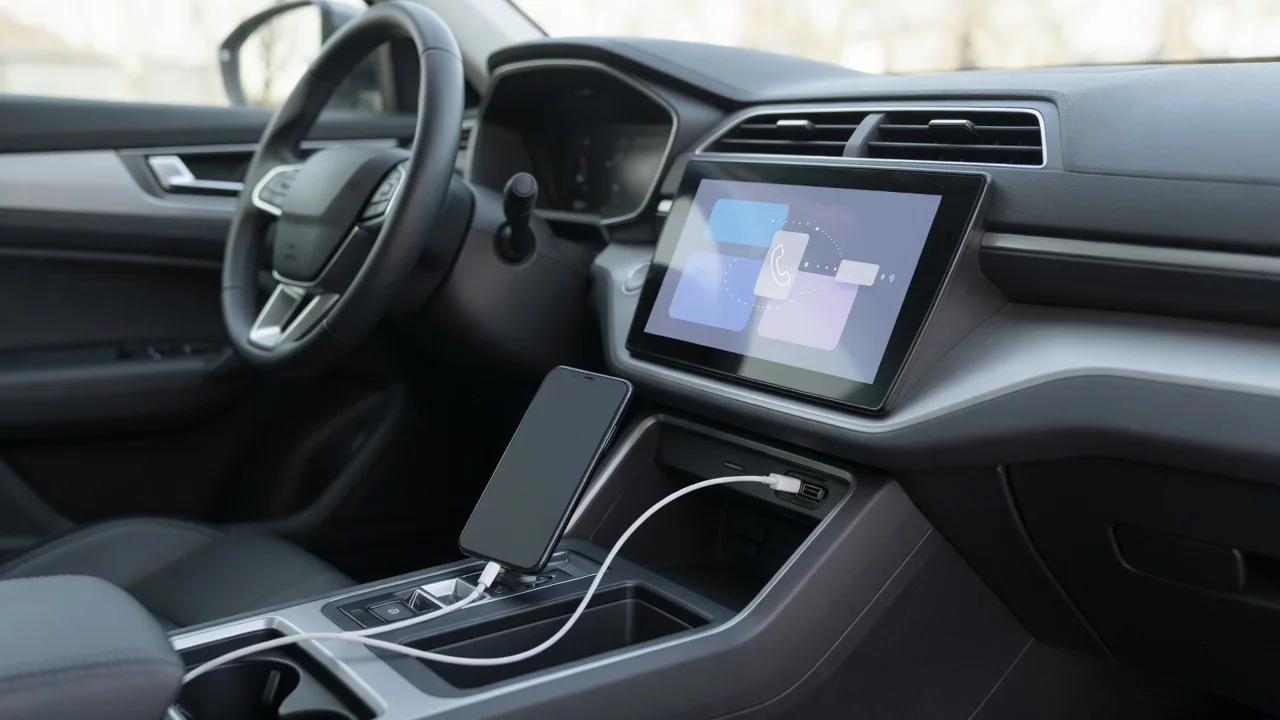
When Apple CarPlay is not working, the cause is rarely obvious from the driver's seat. The iPhone may charge while the screen stays blank, or CarPlay may open but refuse to play audio or read messages. This guide explains why CarPlay stops working in a car, how to fix it with safe checks, and when the problem belongs with a professional.
Why Apple CarPlay Stops Working in Your Car
CarPlay depends on three things cooperating: the iPhone, the link between phone and car, and the vehicle's infotainment system or head unit. The phone runs the apps, while the head unit provides the screen, speakers, microphone and controls. The link is either a USB data cable or wireless CarPlay, which uses Bluetooth pairing to start and Wi-Fi to carry the session. A weakness in any one part can make CarPlay fail.
Faults tend to fall into four groups: connection problems, iPhone settings or software, head unit software, and partial feature failures. A complete failure means CarPlay never launches, which usually points toward the cable, port, pairing or a blocking setting. A partial failure means CarPlay opens but audio, Siri or individual apps misbehave, which points toward permissions, app software or audio routing. Note when the trouble began and what changed recently, such as an Apple update, a new cord, a replacement stereo or a different car.
CarPlay Suddenly Stopped Working: Quick Fixes to Try First
If CarPlay was fine yesterday and is suddenly not working today, start with low-risk steps while parked, never while driving. Restart the iPhone, then switch the car fully off and start it again so the infotainment system reboots. Unplug and reconnect the cable, or for wireless CarPlay toggle Bluetooth and Wi-Fi off and back on. If nothing changes, open the CarPlay menu in the iPhone's general settings, select the vehicle, choose to forget this car, and then run the setup again.
A sudden change often follows a software update. A new iOS version can alter how the phone negotiates with older head unit firmware, and an infotainment update can do the same, so check for newer updates on both sides before assuming hardware damage. Where possible, try a different iPhone in your car, or your phone in another CarPlay vehicle. If your phone fails everywhere, focus on the phone; if every phone fails in one car, the vehicle deserves attention.
iPhone Settings That Can Block CarPlay, Including iPhone 16
Several iPhone settings can quietly block CarPlay. Under Screen Time, the content and privacy restrictions include a list of allowed apps, and CarPlay must be permitted there. Siri generally needs to be enabled as well, because CarPlay is built around voice control, and turning Siri off can stop CarPlay from starting or limit what it does. Also confirm that the car's entry in the CarPlay menu allows CarPlay while the phone is locked.
Owners of an iPhone 16 or iPhone 15 should not assume a model-specific defect; the same settings, software and cable checks apply as on an iPhone 12 or iPhone 13. The difference is the USB-C port, so confirm that the USB-C cable or adapter in use carries data and suits the car's socket. Keep iOS current. Resetting network settings is a later step, because it also erases saved Wi-Fi networks and Bluetooth pairings.
Phone Is Charging but CarPlay Won't Connect: Cables and USB Ports
A phone that is charging but will not start CarPlay makes sense once you know that power and data travel on separate conductors. Some cables are built only for charging, and some vehicle ports supply power without any link to the head unit. A worn cord can also keep charging after its data wires have failed. Try a good-quality USB data cable, ideally a second one, before suspecting a bigger fault.
Many vehicles support CarPlay through only certain USB ports, usually identified by a marking beside the socket or a note in the owner's manual. If the plug feels loose, look into the phone's port with a light for lint or debris, and test the fit gently; never insert metal tools, which can damage the contacts. Remove hubs, adapters and extension cables during testing, since each extra connection can interrupt data.
CarPlay Works but Audio, Siri, Calls, Messages or Apps Don't
When the CarPlay screen goes black or freezes while the rest of the infotainment system still responds, the session itself has probably hung, and reconnecting usually restores it. If the touch screen ignores input in the car's own menus too, the display or head unit is the likelier culprit. For missing volume or silent turn-by-turn voice directions, check the selected audio source, raise the volume while a prompt is speaking, and review the audio mixing settings. Steering wheel controls that stop responding point toward the vehicle side.
If Siri, talk to text, text messages or phone calls fail, review the Siri settings, microphone access and notification permissions on the iPhone. For app trouble, such as Spotify refusing to play, SharePlay not sharing music control, or a rideshare app like Uber not appearing as expected, update or reinstall the app and see whether other audio apps work. Not every app offers a CarPlay interface. Record which features fail and when, because that pattern separates phone, app and vehicle causes.
CarPlay Problems on Kenwood, JVC, Pioneer, Alpine and Ford SYNC 3
An aftermarket stereo adds its own layer of software. Receivers from Kenwood, JVC, Pioneer and Alpine, including the iLX-W650, along with units from Boss, Atoto and Dual, run their own firmware and have their own smartphone or CarPlay settings. Whether you own a Pioneer AVH-2550NEX, SPH-DA120 or SPH-DA160DAB, a Dual XDCPA9BT or XDCPA10BT, or a Boss Elite radio, check those settings and follow the manufacturer's official guidance when looking for firmware updates.
Installation quality matters as much as software. A pinched USB extension, a poorly seated harness or a badly placed microphone can produce dropouts, failed connections or weak voice recognition, and the installer should check that work. Factory systems follow the same principle: on Ford SYNC 3 and SYNC 4, including the Mustang Mach-E, and in vehicles such as the Toyota Tacoma and GR86, Hyundai Ioniq 5, Santa Fe and Palisade, Polestar 2 or Peugeot 5008, software version and settings matter, so consult owner resources or a dealer.
When to Get Professional Help With CarPlay
Some patterns point firmly at the vehicle. If CarPlay fails with several phones and several known-good cables, if the head unit keeps rebooting, or if other infotainment functions also misbehave, further phone troubleshooting is unlikely to help. Contact the dealer for a factory system, or the head unit maker or installer for an aftermarket one. Tell them the phone model, iOS version, when the fault started and everything you have already tried.
Resist the urge to open the dashboard, rewire the head unit or modify vehicle electronics without proper experience. Modern dashboards hide airbag wiring and data network connections, and a mistake can create faults far more serious than a missing CarPlay screen. Infotainment software updates are delivered differently from one vehicle to another, and warranty coverage varies as well, so confirm both with the manufacturer or dealer before paying for work or assuming a repair is covered.