Apple CarPlay Not Working After an iOS Update: Causes and Fixes
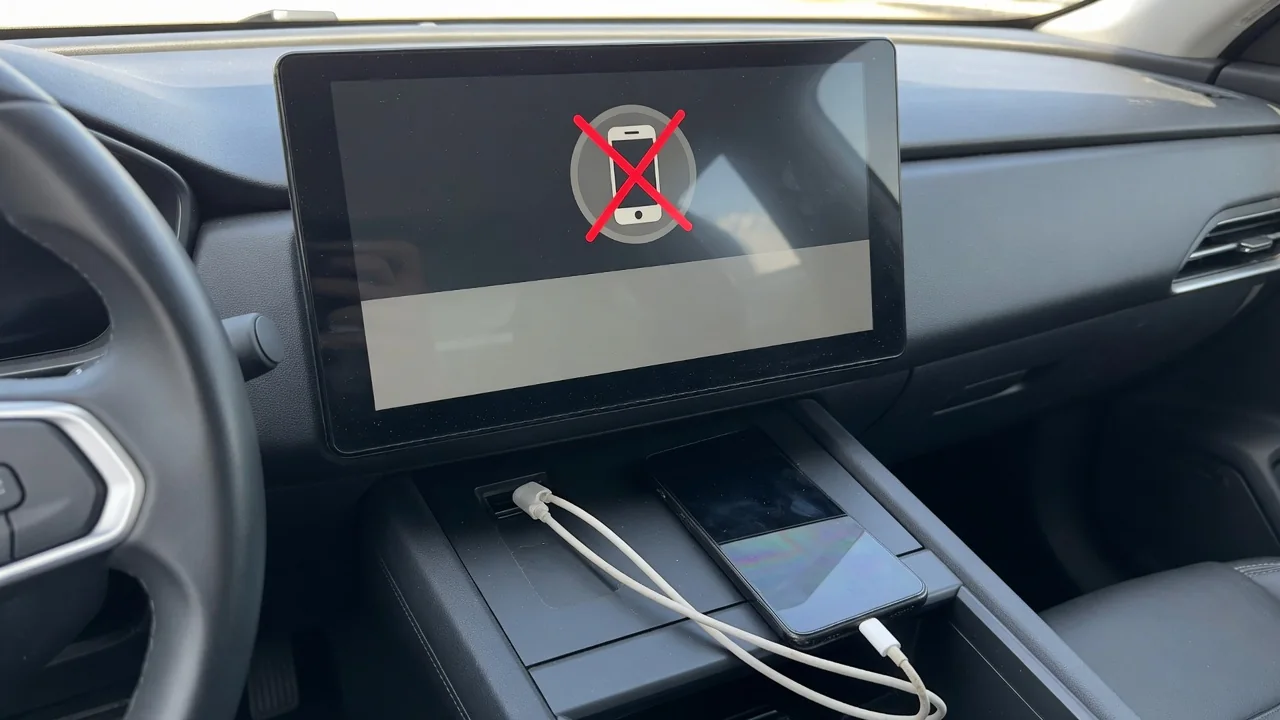
When Apple CarPlay is not working after an update, the cause is rarely obvious. A new iOS version can change settings, permissions and saved pairing data, while the car's infotainment system stays the same. This guide explains why CarPlay won't connect, how to check both the iPhone and the vehicle, and when Apple Support or a dealer should take over.
Why CarPlay Can Stop Working Right After an iOS Update
CarPlay depends on a chain of settings, permissions and stored pairing data on the iPhone. A software update can reset or change some of those items, so a connection that worked yesterday may fail today even though nothing in the car has changed. The symptoms vary: the phone may not connect at all, CarPlay keeps disconnecting, the display shows a black or frozen screen, apps go missing, or audio plays with nothing on the screen.
The head unit is the other half of the connection. Its infotainment software has to negotiate with the phone, so a phone update can expose a compatibility gap on either side rather than a fault in one device. Note whether the problem happens on every connection or only some, because that pattern narrows the cause considerably. Do all testing while parked; working through menus on a phone or touchscreen while driving is a distraction that isn't worth the risk.
Troubleshooting CarPlay on iOS 26 and Point Releases Like 26.2
If Apple CarPlay is not working after an iOS 26 update, or after a point release such as iOS 26.2, start by confirming what is actually installed. The About screen under General settings shows the exact version and build number. Then open Software Update to see whether a later release is offered. Follow-up updates often include fixes, though no particular release is guaranteed to resolve a CarPlay problem, so treat installing one as a reasonable step rather than a certain cure.
Next, check Screen Time. Under content and privacy restrictions, the list of allowed apps includes CarPlay, and if it is switched off the car will not see the phone as a CarPlay device at all. New features and redesigned menus can also move settings, so look for the CarPlay section under General. For version-specific problems, rely on Apple's own release notes and support pages; forum rumors often blame an update for faults that have other causes.
Fixing CarPlay Problems After an iOS 18 Update
When CarPlay stops working after an iOS 18 update, a clean re-pair is often the most productive step. In the CarPlay settings, select the vehicle and choose Forget This Car, which deletes the stored pairing record. Then set the connection up again from scratch as if the phone were new to the car. Keep the iPhone unlocked during that first connection, because the phone has to approve the vehicle, and confirm Siri is enabled, since CarPlay relies on it.
Restart both devices as well. Power the iPhone off fully and back on, then let the infotainment system shut down completely. In many vehicles the screen going dark doesn't mean the system is off, so follow the owner's manual for how the car powers down its electronics. None of this is unique to iOS 18; the same sequence applies whichever version preceded the trouble.
CarPlay Issues After Older Updates: iOS 17, iOS 16 and iOS 14
Drivers who notice Apple CarPlay not working after an iOS 17 update, or with iOS 16 or iOS 14, should first check whether their iPhone can run something newer. Software Update shows the latest compatible version for that model, and staying several releases behind means missing later fixes. In the other direction, older infotainment software may be less tolerant of newer phone software because it was validated against the iOS versions of its day, so a vehicle software update can matter as much as the phone's.
Age also affects hardware. Lightning and USB cables fray internally, connectors loosen, and ports collect lint, and these failures frequently show up around the same time as an update simply because phones are updated often. That coincidence makes the update look guilty. Before blaming old software, inspect the cable and the phone's port for damage or debris, and see whether the connection drops when the cable is moved. A purely mechanical fault won't be fixed by any setting.
Wired vs Wireless CarPlay: Separate Checks for Each Connection
A wired CarPlay USB connection needs a cable that carries data, not just power. Try a different certified cable, then a different port, because some ports in a vehicle only charge and only one may be the USB data port linked to the head unit. Wireless CarPlay uses Bluetooth pairing to start the session and Wi-Fi to carry it, so both must be on, and the phone shouldn't be stuck on another Wi-Fi network.
Stuck wireless connections can sometimes be cleared by turning Airplane Mode on, waiting a few seconds, and turning it off. A stronger step is to reset network settings, but that deletes saved Wi-Fi passwords and Bluetooth pairings, so be ready to re-enter them. If the car supports both methods, test the other one. CarPlay working over a cable but not wirelessly points toward radio settings or pairing data, while failure on both suggests a phone-wide setting or the head unit itself.
Checking the Car's Infotainment System and Settings
The car keeps its own record of paired phones, and a stale entry there can block a fresh connection. Using the menu steps in the owner's manual, remove the iPhone from the device list, then pair it again after forgetting the car on the phone. While in those menus, look for settings that turn off CarPlay or phone projection, or that designate another device as the main phone; a family member's handset set as the priority can keep yours from connecting.
Ask whether an infotainment software update is available. Depending on the automaker, updates may be delivered over the air, installed by a dealer, or loaded by USB, and availability varies by vehicle, so confirm it for your specific car. Do not remove the head unit, disconnect the battery or modify wiring as a fix. Those steps can trigger unrelated faults, erase learned settings or damage modules, and they rarely address a software handshake problem. Leave anything beyond menus to professional service.
When to Contact Apple Support or a Dealer
Swapping devices shows which side is at fault. Try the iPhone in another CarPlay vehicle, and try another iPhone in your car. If the problem follows the phone to other cars, or other Lightning or USB-C accessories also fail to work with it, Apple Support is the right contact. If several phones fail in the same car, the screen freezes regardless of what is connected, or the USB port is loose or visibly damaged, a dealer or infotainment specialist is needed.
Before booking support, write down the iOS version, the car's infotainment software version, and the exact symptoms, including whether the fault is wired, wireless or both and when it began. Those details let a technician or adviser skip the basics and check for relevant updates on their side, which shortens the appointment and reduces the chance of being sent away with a problem that can't be reproduced.