Troubleshooting Wireless CarPlay on iOS 26: Causes and the Order of Checks
The short answer
Most wireless CarPlay problems that appear after moving to iOS 26 come from a broken or outdated pairing record, a phone setting that blocks CarPlay, or a vehicle head unit or aftermarket adapter whose software has not caught up with the new iOS release. The fix usually follows a predictable order. First confirm the basic phone settings. Then forget the car and pair it again from scratch. Next, reset network settings if needed. Finally, check for software updates on the car or adapter side. If the problem persists after all of that, the cause is more likely on the vehicle side than on the iPhone.
One distinction matters before you start. A factory-installed wireless CarPlay system is maintained by the automaker. An aftermarket head unit or plug-in wireless adapter is maintained by its own manufacturer. Both depend on software compatibility with each new iOS version, but they are updated through different channels. Who supports your system changes where the final fix comes from.
How wireless CarPlay actually connects
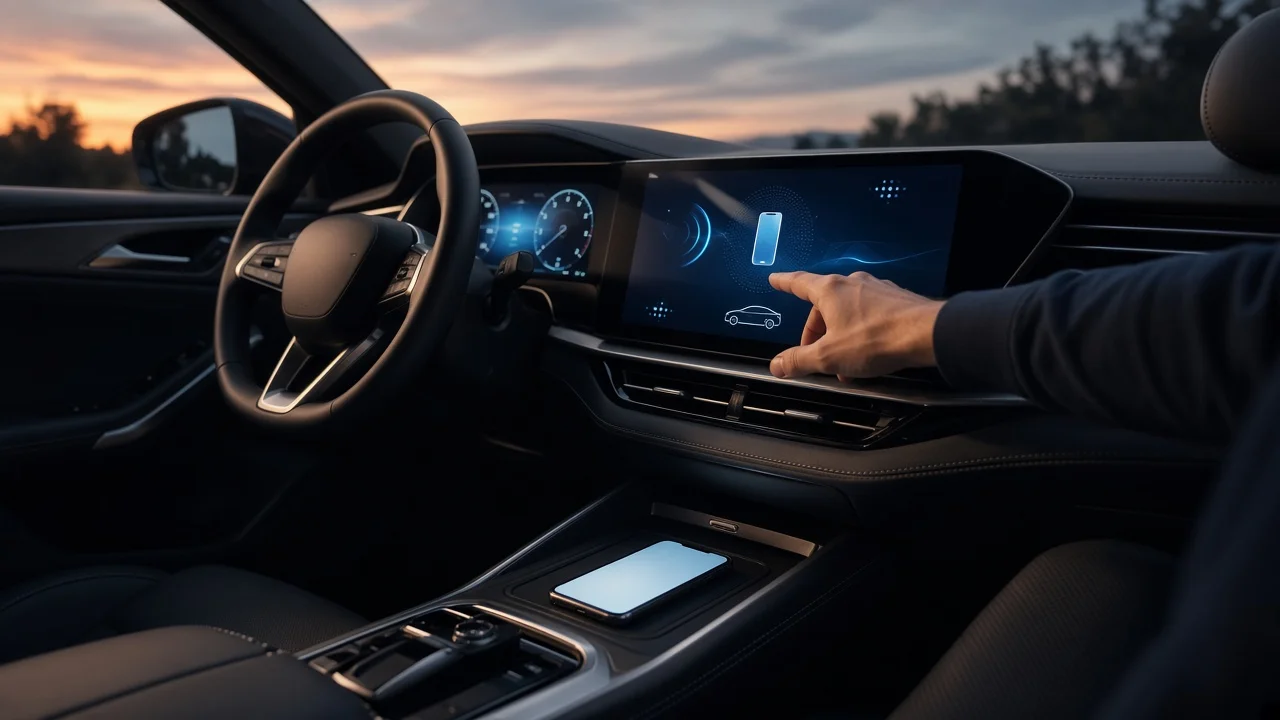
Wireless CarPlay uses two radios. Bluetooth handles the initial device pairing and the handshake that identifies your iPhone to the car. Once paired, the phone and head unit set up a direct Wi-Fi link that carries the CarPlay interface, audio and touch input. This direct link is separate from any home or hotspot network. Because of this, both Bluetooth and Wi-Fi must be switched on in the iPhone, even when the phone is not joined to a Wi-Fi network.
This two-step design explains many common symptoms. The car may show the phone as connected for calls but never launch CarPlay. It may start CarPlay and then drop it. Or it may connect only after a restart. Each of these usually points to a failure at one stage of the Bluetooth-to-Wi-Fi handoff, not to a hardware fault.
Typical symptoms after a major iOS update
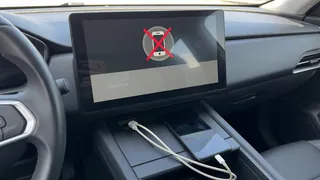
CarPlay does not appear on the car screen even though the phone pairs over Bluetooth for calls. CarPlay starts, then disconnects after a short time or when the car starts moving. The car asks to pair again every trip, or does not list the iPhone at all. Audio stutters, lags or cuts out while the interface stays on screen. CarPlay works by USB cable but not wirelessly. Siri or the voice button on the steering wheel interface no longer brings up the assistant.
If CarPlay works with a cable but not wirelessly, the car and phone are compatible at a basic level. Focus on the wireless pairing, Wi-Fi handoff and connection settings rather than on CarPlay itself.
Order of checks
Work through these steps in sequence and test CarPlay after each one. The early steps are quick and do not remove anything. The later steps clear saved data and take longer to recover from.
1) Confirm the iPhone basics
Bluetooth and Wi-Fi are both turned on in Settings, not just toggled in Control Center. Control Center switches can disconnect accessories without fully disabling the radio, which can confuse the handoff. Airplane Mode is off. Siri is enabled. CarPlay relies on Siri, and turning Siri off can stop CarPlay from working or remove voice control from the steering wheel button. CarPlay is not blocked by Screen Time. If Content and Privacy Restrictions are in use, check that CarPlay is allowed in the list of allowed apps. CarPlay is allowed while the phone is locked. You can check this in the car's entry under the CarPlay section in General settings.
2) Restart both ends
Restart the iPhone fully. Then turn the vehicle off, let the infotainment system shut down completely, and start it again. Many head units stay powered for a while after the ignition is switched off, so a brief off-and-on may not actually reboot them. If you use a plug-in wireless adapter, unplug it and plug it back in to force it to restart.
3) Check for interference from other connections
Disconnect or disable VPN apps temporarily. Some VPN configurations interfere with the local Wi-Fi link that CarPlay uses. Turn off Personal Hotspot while testing. If another phone has also been paired to the car, keep it away or turn off its Bluetooth so the car does not connect to it first. Temporarily disconnect other Bluetooth accessories, such as earbuds or watches, if the problem started at the same time you added them.
4) Forget the car and pair again
A pairing record created under an earlier iOS version can become unreliable after a major update. Remove the car from the iPhone's CarPlay list and from its Bluetooth device list. Then delete the iPhone from the car's own list of paired phones, using the vehicle's phone or connectivity menu. Removing the pairing from only one side often leaves a stale record on the other. After both are cleared, start pairing again from the car. On many vehicles this means holding the voice button on the steering wheel or choosing a pairing option on the screen. Then follow the prompts on the iPhone.
5) Reset network settings
If re-pairing does not help, resetting network settings clears all saved Wi-Fi networks, Bluetooth pairings, VPN profiles and cellular network preferences. It does not erase apps or personal data. The option is found under the reset options in the iPhone's General settings. After the reset, you will need to rejoin Wi-Fi networks and pair accessories again. Pair the car first and test CarPlay before reconnecting everything else.
6) Update the vehicle or adapter software
When a new iOS release changes how accessories connect, the car or adapter may need its own update to work reliably again. Factory systems may be updated over the air, at a dealer, or through a USB download, depending on the automaker, model year and market. Aftermarket head units and wireless adapters are usually updated through the manufacturer's app or a firmware file. Check whether an update is available. If the vehicle is under warranty or a known issue is suspected, ask the dealer whether a software update has been released for your model.
7) Test with a cable and with another iPhone
These two tests help isolate the fault. If wired CarPlay works but wireless does not, the problem lies in the wireless link: pairing, Wi-Fi handoff or the car's wireless module. If a different iPhone connects wirelessly without trouble, the issue is specific to your phone's settings or software. If no iPhone connects wirelessly, the head unit or adapter is the more likely cause.
Aftermarket wireless adapters
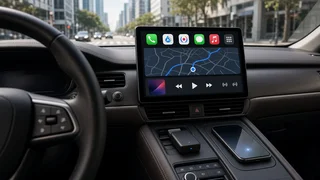
Plug-in wireless adapters convert a car's wired CarPlay into wireless operation. To the car, the adapter acts as a wired iPhone, and it connects to the real iPhone over Bluetooth and Wi-Fi. This extra layer adds its own failure points. These include firmware that has not been updated for a new iOS version, an unstable power supply from the USB port, and overheating in direct sun. If CarPlay worked wirelessly through an adapter before the update and stopped afterward, start with the adapter's firmware. Also try a different USB port if the car has more than one, because some ports supply less power or support only charging. Quality and update support vary widely between adapter brands. If a brand rarely releases updates, it may lag behind new iOS releases.
Steering wheel controls and Siri
In many vehicles, the voice button on the steering wheel opens the car's own voice system with a short press and Siri with a long press. This varies by make and model. If the button stops opening Siri after the update, first confirm that Siri is still enabled on the iPhone and that its settings allow Siri while the phone is locked. If Siri works on the phone but not from the wheel, re-pairing the car usually restores this integration, because the button's behavior depends on the CarPlay session being properly established.
Problems with early or point releases
Connectivity bugs sometimes show up in the first releases of a new major iOS version and are fixed in later point updates. If your settings check out, pairing has been redone, and the car and adapter software are current, install the latest available iOS 26 update. Installing beta software on a phone you rely on for driving makes connection problems more likely, not less. If you are on a beta and CarPlay reliability matters to you, consider returning to the public release.
When to take it further
If wireless CarPlay still fails after every step above, gather what you have learned before contacting the dealer, the head unit or adapter manufacturer, or Apple Support. Note whether wired CarPlay works, whether another iPhone connects wirelessly, which iOS 26 version is installed, and the vehicle's make, model year and infotainment software version if you can find it. These details show whether the fault lies with the phone, the vehicle integration or the adapter. They also save time, because support staff will not have to repeat checks you have already done.