Wired Apple CarPlay Not Working When Plugged In: How to Find the Cause
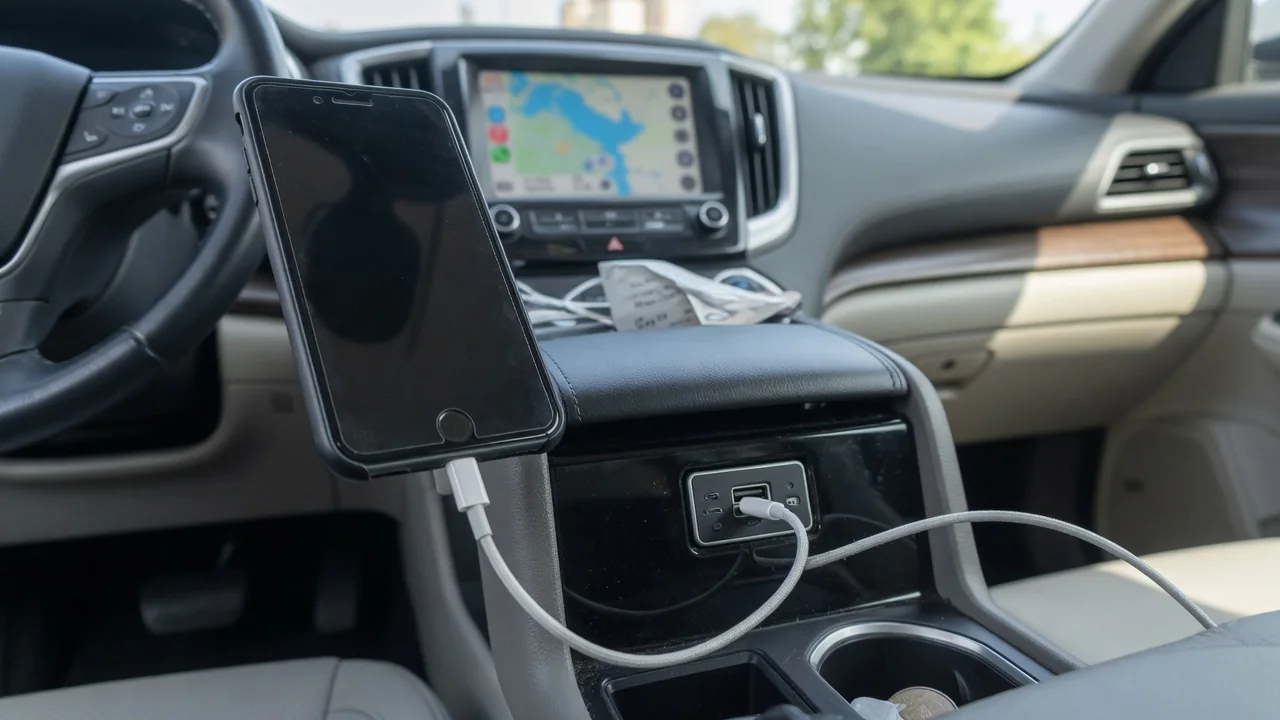
When Apple CarPlay is not working when plugged in, the cause usually sits in one of four places: the iPhone's settings, the USB data cable, the car's USB port, or the infotainment system itself. Working through them in order, while parked, tells you whether a wired CarPlay connection is failing because of something simple you can correct or something a technician needs to inspect.
What It Looks Like When CarPlay Won't Start After You Plug In
Wired Apple CarPlay not working can show up in several distinct ways, and each one points in a different direction. Sometimes you plug in and nothing happens at all. Sometimes the phone only charges and the screen never changes. In other cases CarPlay starts normally and then drops after a few minutes, or the head unit displays a connection error message. A charging icon by itself proves very little, because a cable or port can pass power through its supply conductors without the separate data lines ever communicating.
Pay attention to when the failure occurs. A problem that appears every single time suggests a setting, an unsuitable port or a dead cable, while one that began right after an iOS update or vehicle software change points toward software. Dropouts that show up only in very hot or cold weather, or only on bumpy roads, hint at a marginal physical connection somewhere in the chain. Make these observations and do all of your troubleshooting with the vehicle parked, never while driving, since the checks require looking at both screens.
iPhone Settings That Can Block Wired CarPlay
On the iPhone, open the CarPlay settings under General and see whether your vehicle is listed. If it is, forgetting the car and reconnecting forces a fresh pairing and is worth trying when a previously working setup stops responding. Next look at Screen Time, where content and privacy restrictions can switch off CarPlay under allowed apps; confirm both CarPlay and Siri are allowed, since CarPlay depends on Siri being enabled. A restriction set long ago, or on a family member's phone, is easy to forget.
A locked iPhone may limit accessory data access over USB until it is unlocked, so unlock the phone the first time you plug in and approve any prompt that appears; the USB accessories setting in the passcode section controls this behavior. Restarting the phone and installing any pending iOS update are reasonable steps, though neither is guaranteed to cure the fault. Also check the physical side: a thick case, a dirty Lightning or USB-C port, or packed lint in the charging port can keep the plug from seating fully.
Checking the USB Cable and the Car's USB Port
When Apple CarPlay over USB is not working, the cable is the easiest suspect to test. CarPlay needs a data-capable cable in good condition; a charge-only cable lacks the data conductors entirely, and a worn one with frayed strain relief or bent contacts can produce either no connection or random disconnects. Swap in a different known-good cable before blaming the car. If drops line up with moving the cable, that suggests a poor contact at the cable or either port, but it doesn't prove which component is at fault.
The port matters just as much. Many vehicles have a charge-only USB port alongside one that supports smartphone projection, and often only certain ports, sometimes marked with a phone or data symbol, will run CarPlay. Check the owner's manual or the port markings for your specific vehicle instead of guessing. If you suspect debris, look into the port with a light and nothing more. Don't push metal tools into the opening or pull dash trim apart, because the contacts and the module behind them are easily damaged.
USB-C iPhones, Adapters and Hubs
Newer iPhones use USB-C rather than Lightning, and how they connect depends on what the car offers. A vehicle with USB-C ports can take a cable with the same plug on both ends, while a vehicle with USB-A ports needs a USB-A to USB-C cable or an adapter. When Apple CarPlay over USB-C is not working, the mismatch between phone and car connectors is often where the trouble starts, particularly after upgrading from an older Lightning phone and replacing the cable that used to work.
USB-C cables look alike but are not built alike. Some are designed mainly for charging, and adapters and hubs vary in whether they carry data at all, so an unsuitable one can leave you with a charge-only connection even though everything appears plugged in correctly. Before relying on any adapter or hub, test a single direct cable that matches the car's port, with nothing in between. No particular brand or accessory can be assumed to work with a given vehicle, so the direct-cable test is the fairest comparison.
Infotainment Settings and Software on the Car Side
The car has its own switches for this feature. Confirm that CarPlay or smartphone projection is turned on in the infotainment settings; menu names differ by manufacturer, so the option may sit under connectivity, phone or apps menus. Old or duplicate phone profiles can also confuse the head unit, so clearing entries for phones you no longer use, removing your own, and then reconnecting gives the system a clean start. It also helps to confirm that your model, year and trim actually support wired CarPlay, since availability varies.
If the settings look right, restart the infotainment system using the method described in the owner's manual. That is safer than disconnecting the battery, which can reset other vehicle systems and create new problems. The head unit may also have software updates available, delivered over the air on some vehicles or installed by a dealer on others, and outdated software can affect how it communicates with a newer phone. Whether an update exists for your vehicle is something the manufacturer or dealer has to confirm.
Ruling Out the Phone vs the Car, and When to Get Professional Help
Swapping devices is the clearest way to isolate the fault. Try a different iPhone in the same car with the same cable and port; if it connects, your phone or its settings deserve more attention. If you have access to another CarPlay vehicle, plug in your iPhone there; if it works, the first car becomes the suspect. These tests have limits, though. Home testing can't confirm a fault inside the USB module, the wiring between the port and the head unit, or the head unit hardware itself.
See a dealer or qualified technician if no port gives a data connection with known-good cables, if a port feels loose or looks damaged, if you notice a burning smell, or if other electrical problems appear alongside the CarPlay fault. Before the visit, write down the symptoms, when they occur, the iOS version and the steps already tried, so the shop can diagnose faster without repeating your work. What the repair involves, what it costs and whether warranty applies depend on what the inspection finds.