Apple CarPlay Audio or Microphone Not Working: Practical Fixes
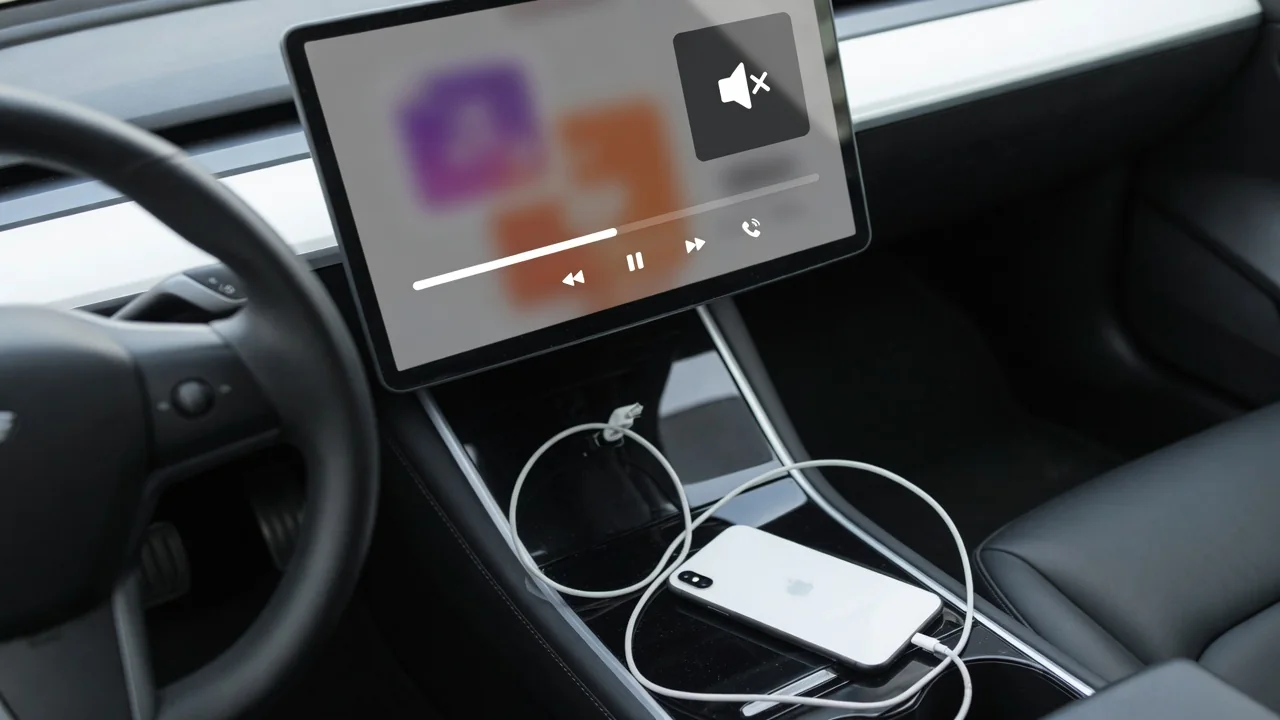
When Apple CarPlay audio is not working, the cause is usually one of a few things: the wrong source selected, a weak cable, an app setting, or a microphone the car cannot hear. The same logic applies whether the sound has vanished entirely, music will not play, Waze has gone quiet, or callers cannot hear you. Working through the symptoms in order narrows it down quickly.
No Sound at All Through the Car Speakers in CarPlay
Start with the head unit. Confirm its audio source is set to CarPlay rather than radio or another input, then raise the volume with the knob and the steering wheel controls while something is actually playing, because many cars store a separate level for each source. Check the iPhone's volume and mute state as well. Next, switch to FM radio. If the radio plays normally, the speakers and amplifier are working and the fault sits with CarPlay or the phone. If every source is silent, the vehicle's audio system is suspect and needs a qualified technician.
When Apple CarPlay sound is not working but the radio is fine, try resets from least to most disruptive. Unplug and reconnect the phone, restart the iPhone, then switch the vehicle off and back on so the head unit reboots. If that fails, open the iPhone's CarPlay settings, choose to forget this car, and pair again. On a wired connection, look at the cable and both ports for damage or pocket lint, and try a known-good USB data cable. Charge-only cables carry power but may not support CarPlay at all.
Music Apps Silent or Not Playing in CarPlay
If music is not working on Apple CarPlay while navigation or calls still make sound, look at the phone first. Check that playback is actually running and the progress bar is moving rather than paused or stuck buffering. Disconnect and play the same track through the phone speaker; if it fails there too, the car is not the problem. Then try a second audio app, such as a podcast player. One silent app points to that app, while silence across all of them points back to the CarPlay connection.
An app can also be missing or blocked. Check that it is allowed in CarPlay and that Screen Time or content restrictions are not limiting it; the menu names vary between iOS versions. When Apple Music is not working on CarPlay, consider whether the song is downloaded or streaming over a weak cellular signal, whether the account is signed in with an active subscription, and whether cellular streaming is permitted. Updating or reinstalling the app, and installing a pending iOS update, can clear playback bugs, though no particular version is guaranteed to fix it.
Navigation Voice Prompts Missing in Waze or Other Map Apps
Map apps keep their own sound and voice settings, separate from the car's volume. When Waze audio is not working on Apple CarPlay, open its sound settings and confirm that voice guidance is on rather than muted or set to alerts only, since either choice looks exactly like a CarPlay fault. Guidance volume is often adjusted independently too. On many head units, turning the knob while a prompt is being spoken sets the navigation level, so a prompt volume that was once turned right down can stay that way unnoticed.
Listen to how prompts behave over music. Normally audio ducking lowers the music briefly while the direction is spoken. If the music dips but no voice is heard, the prompt is probably playing at a very low level; if nothing changes, it is probably being skipped. Check that the app is updated and has the permissions it needs, and that a Focus mode is not limiting sounds on the iPhone. Then run a route in Apple Maps. If its prompts play and one app stays silent, that app's settings are the likely cause rather than the car.
CarPlay Microphone Not Working for Siri or Calls
When the Apple CarPlay microphone is not working, remember that CarPlay usually listens through the vehicle's built-in microphone, not the iPhone's. Its location varies by vehicle, so check the owner's manual rather than assuming. Useful observations are safe to gather: ask a caller whether they hear nothing, muffled speech, or echo, and notice whether Siri responds at all. Total silence suggests the microphone signal is not arriving, while muffled sound often means something is covering it, such as a sun visor, sagging headliner trim, or a clipped-on accessory.
On the phone, confirm that Siri is enabled and allowed while the iPhone is locked, because Siri not responding in the car is sometimes just a setting, and check that the call has not been muted on screen. Then disconnect CarPlay and make an ordinary Bluetooth hands-free call with the same phone. If callers hear you clearly that way, the vehicle microphone works and the issue is likely CarPlay software. If it fails in every mode, leave the trim panels and wiring alone and have it professionally diagnosed.
Audio Problems on Boss Audio and Other Aftermarket CarPlay Head Units
Aftermarket units handle CarPlay through their own firmware, so when Boss Audio Apple CarPlay is not working, the brand's own support documentation is the right reference for updates and settings, not a universal fix. Go through the unit's audio menu first. A fader or balance pushed fully to one side can silence the speakers that are actually connected, the wrong source may be selected, and some units keep separate volume levels for phone calls and navigation that can be set low while music remains loud.
Connections matter as well. Some units designate only one USB port for CarPlay, so confirm the phone is plugged into that one, and check that any external microphone supplied with the unit is connected and positioned as its instructions describe. Where a unit offers both, comparing wired vs wireless CarPlay behavior is informative. Persistent silence can also come from installation faults, such as an amplifier turn-on lead, speaker wiring, or a steering wheel interface adapter. Those belong with the installer or a qualified shop, not guesswork at the connectors.
When CarPlay Audio Problems Need Dealer or Professional Help
Some signs point past phone settings: no audio from any source, a microphone that fails in every mode, speakers that crackle or cut in and out, or a head unit that keeps rebooting. Before booking a visit, try a different iPhone in the same vehicle if one is available. If the second phone works properly, the fault follows the original phone, and its settings, software, or cable deserve another look. If both phones behave the same way, the problem stays with the car or the head unit.
Ask the dealer or installer whether any head unit software updates or known issues apply to your specific vehicle, without assuming that an update or recall exists. Diagnosis goes faster with good notes: the iOS version, whether the connection is wired or wireless, and exactly what happens, including which apps are affected, whether the fault is constant or intermittent, and what you have already tried. A symptom described precisely, such as callers hearing echo only at highway speed, gives a technician far more to work with than a general complaint about sound.