How to Set Up Apple CarPlay with an iPhone

The Short Answer
To set up Apple CarPlay, park the vehicle, turn on the ignition or infotainment system, and make sure Siri is enabled on your iPhone. Then connect the phone in one of two ways. For a wired connection, plug the iPhone into the vehicle's CarPlay-enabled USB port. For a wireless connection, press and hold the voice command button on the steering wheel, or open Settings > General > CarPlay on the iPhone and select your vehicle from Available Cars. Accept the prompts on the phone and the car's screen, and the CarPlay home screen should appear on the dashboard display.
CarPlay is Apple's system for showing a simplified, driver-focused version of selected iPhone apps, such as phone, messages, maps and audio, on a vehicle's built-in display. The apps run on the iPhone; the car's screen, touch controls, knobs, steering-wheel buttons and microphone act as the interface. Two conditions change the answer materially: the vehicle or aftermarket head unit must support CarPlay, and wireless CarPlay works only if that specific system supports a wireless connection. Many systems support only the wired method.
Before You Start: Prerequisites
A vehicle or aftermarket head unit that supports Apple CarPlay. Support varies by make, model year, market and trim or equipment package, so check the owner's manual or the manufacturer's compatibility information for your exact vehicle. A supported iPhone running an up-to-date version of iOS. Apple publishes which iPhone models support CarPlay. Siri turned on (Settings > Siri, or Settings > Siri & Search on some iOS versions). CarPlay relies on Siri for voice control and will not set up without it. For a wired connection: a working Lightning or USB-C cable that supports data, not only charging. An Apple-made or Apple-certified cable is the most dependable choice. For a wireless connection: Bluetooth and Wi-Fi turned on on the iPhone, and a vehicle system that supports wireless CarPlay. The vehicle parked in a safe location. Complete setup before driving, not while moving.
Step 1: Check iPhone Settings That Can Block CarPlay
Two iPhone settings commonly prevent CarPlay from appearing. Checking them first saves troubleshooting later.
Siri: confirm Siri is enabled. Turning on the option to allow Siri when the phone is locked also helps CarPlay respond while the phone is in a pocket or mount. Screen Time restrictions: go to Settings > Screen Time > Content & Privacy Restrictions > Allowed Apps (the exact label may differ slightly by iOS version) and make sure CarPlay is switched on. If Screen Time restrictions are not in use, this step does not apply.
Step 2: Prepare the Vehicle
With the vehicle safely parked, start the engine or switch the ignition to the accessory position so the infotainment system powers up. Some systems require CarPlay or smartphone projection to be enabled in the vehicle's settings menu, often under a heading such as Connectivity, Phone or Smartphone. If you cannot find the option, the owner's manual for your model year is the authoritative reference.
Step 3A: Connect with a USB Cable (Wired CarPlay)
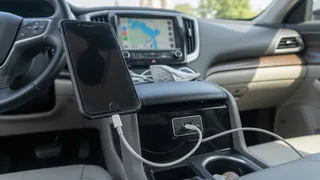
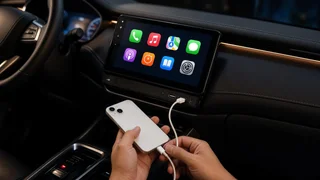
1) Find the correct USB port. Many vehicles have several USB ports, and only some carry data for CarPlay. The supported port is often marked with a CarPlay logo or a smartphone icon. Ports labeled for charging only will not work. 2) Connect the iPhone to that port with a data-capable cable. 3) Unlock the iPhone if prompted, and respond to the request to allow CarPlay, including any request to use CarPlay while the phone is locked. 4) If the vehicle offers wireless CarPlay, the iPhone may ask whether to use it wirelessly in future. Choose according to your preference. 5) Watch the car's display. CarPlay may launch automatically, or you may need to select a CarPlay or Apple CarPlay icon in the infotainment menu.
Step 3B: Connect Wirelessly (Wireless CarPlay)
Use this method only if your vehicle or head unit supports wireless CarPlay. If it does not, the steps below will not produce a connection, and you will need the wired method.
1) Make sure Bluetooth and Wi-Fi are on on the iPhone. 2) Press and hold the voice command button on the steering wheel. On many vehicles this starts CarPlay pairing. 3) Alternatively, put the car's infotainment system into wireless or Bluetooth pairing mode, then on the iPhone open Settings > General > CarPlay > Available Cars and select your vehicle. 4) Confirm the pairing code or prompts on both the iPhone and the car's display. 5) Allow CarPlay when asked, including the option to use it while the phone is locked. 6) Some vehicles require a wired connection for the very first setup and then switch to wireless for later drives. If wireless pairing does not start, try connecting by cable once.
Step 4: Customize the CarPlay Screen (Optional)
After the first connection, you can rearrange or hide app icons. On the iPhone, open Settings > General > CarPlay, select your vehicle, then choose Customize. Drag apps to reorder them, and remove or add supported apps. You can also manage or forget a saved vehicle from this same menu. Only apps that support CarPlay will appear on the car's display, and those apps show reduced, driver-oriented layouts rather than their full iPhone versions.
Completion Check: Confirm CarPlay Is Working
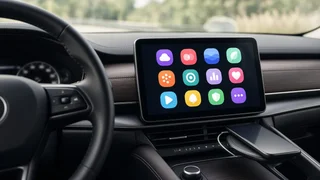
The CarPlay home screen, with app icons in Apple's layout, appears on the car's display. Activating Siri with the steering-wheel voice button or the on-screen control produces a Siri response through the car's speakers. A navigation app shows a map on the car's screen. Audio from a music or podcast app plays through the car's speakers. If you plan to use calls, a test call routes through the vehicle's microphone and speakers. After switching the vehicle off and on again, CarPlay reconnects when you plug in the phone (wired) or start the car with the phone nearby (wireless).
If CarPlay Doesn't Connect
Symptom | Likely cause | What to try; Nothing happens when the cable is plugged in | Charge-only port or charge-only cable | Use the port marked for CarPlay or data, and try a different data-capable cable; CarPlay prompt never appears | Siri disabled or CarPlay blocked by Screen Time | Turn on Siri and allow CarPlay under Screen Time restrictions; Vehicle not listed under Available Cars | Car not in pairing mode, or wireless CarPlay not supported | Hold the voice command button, check the infotainment pairing settings, or use the wired method; Connection drops repeatedly | Loose or damaged cable, or software issue | Replace the cable, restart the iPhone, and check for iOS updates; Worked before but stopped | Saved connection corrupted | In Settings > General > CarPlay, forget the vehicle and set it up again
If these steps do not help, restart both the iPhone and the infotainment system by switching the vehicle fully off and on. Some vehicles also need an infotainment software update to work reliably with newer iOS versions. Depending on the manufacturer, these updates may be delivered over the air, by USB, or only at a dealer. Check your owner's manual or contact the dealer to find out which applies to your vehicle.
When the Vehicle Doesn't Support CarPlay
If your vehicle did not come with CarPlay, a manufacturer software update or enablement may add it on some models, but this depends entirely on the model year, market and installed hardware. Confirm with the manufacturer or a dealer. Another option is an aftermarket head unit that supports CarPlay. Installing one involves removing dashboard trim, working with the vehicle's wiring, and sometimes integrating steering-wheel controls, cameras or vehicle data modules. That work is best done by a qualified installer, because incorrect wiring can disable other vehicle functions or cause electrical faults.
Using CarPlay Safely
CarPlay is designed to reduce handling of the phone while driving, but it can still distract. Do the initial setup, customization and destination entry while parked. On the road, use Siri or the steering-wheel controls. Local laws on device use while driving vary by state, so check the rules that apply where you drive.