Apple Play for Cars: What Apple CarPlay Is and How to Use It
The Short Answer
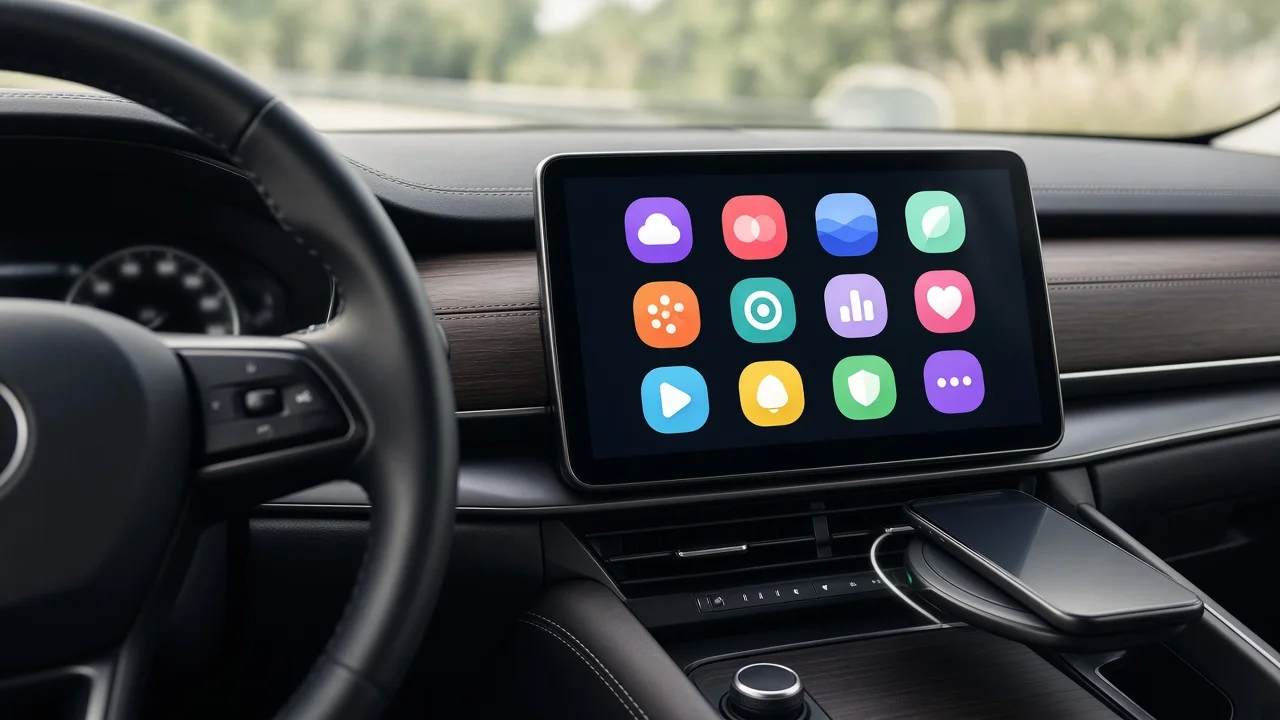
When people search for "Apple Play" for cars, they almost always mean Apple CarPlay. Apple has no separate product with that name. CarPlay is Apple's in-car system that shows a simplified version of your iPhone on the vehicle's built-in display, called the infotainment screen or head unit. Your iPhone runs the apps, and the car's screen, steering-wheel buttons, knobs and microphone control them. CarPlay only works if your vehicle or an aftermarket stereo supports it. Support varies by manufacturer, model year, trim level and market, so check your specific vehicle before you assume it is available.
What CarPlay Does
CarPlay gives you driver-friendly versions of common iPhone functions. Its icons are large and its menus are simplified. It relies heavily on Siri, Apple's voice assistant, so you can do many tasks without touching your phone. Typical uses include turn-by-turn navigation, phone calls, listening to and dictating messages, and playing music, podcasts and audiobooks. Third-party apps can appear on the car's screen if their developers support CarPlay and the apps are installed on your iPhone. CarPlay does not replace the car's own systems. Climate, vehicle settings and other built-in functions are still handled by the manufacturer's software, although some vehicles combine the two more closely than others.
What You Need
An iPhone running a version of iOS that supports CarPlay. iPads are not supported. A vehicle or aftermarket head unit that supports CarPlay. For a wired connection, a USB cable that matches your iPhone's port, plugged into the USB port the vehicle marks for CarPlay or data use. For a wireless connection, a vehicle or head unit that specifically supports wireless CarPlay. Many systems offer only the wired version. Siri turned on, because CarPlay relies on voice control for many functions.
How to Connect CarPlay Step by Step
Exact menu names and button locations differ between vehicles. Use these steps as a general sequence and check your owner's manual for details. Set up the connection while parked.
1) Start the vehicle and wait for the infotainment system to finish loading. 2) On your iPhone, make sure Siri is enabled in Settings. 3) Wired: connect the iPhone to the vehicle's CarPlay-capable USB port with a cable. Some cars have several USB ports, and not all of them carry data, so look for a smartphone or CarPlay icon near the port. 4) Wireless: hold the voice-command button on the steering wheel if your car uses one to start pairing, or start Bluetooth pairing from the car's phone or connectivity menu. Then follow the prompts on both screens. 5) On your iPhone, accept the prompt that asks whether to allow CarPlay, including while the phone is locked if you want that option. 6) If CarPlay does not open automatically, select the CarPlay icon or source on the car's screen. 7) Optionally, open the CarPlay section in your iPhone's general settings to rearrange app icons or manage connected cars.
How to Check That It Is Working
CarPlay is working when the car's screen shows Apple's app layout instead of the manufacturer's menus. To confirm, start navigation to a nearby location, play a song, and press and hold the steering-wheel voice button to see whether Siri responds rather than the car's own voice system. If calls and audio play through the car's speakers but the screen never switches to the CarPlay layout, the phone is probably connected only by Bluetooth. Bluetooth handles calls and audio on its own, so it does not mean CarPlay is active.
Common Reasons CarPlay Does Not Appear
The vehicle or trim does not include CarPlay, or it was an optional extra that was not installed. The cable is damaged, is not a data cable, or is plugged into a charge-only port. CarPlay has been restricted in the iPhone's Screen Time settings. Siri is turned off. The vehicle supports only wired CarPlay, but you are trying to connect wirelessly. The infotainment software is out of date. Some manufacturers offer updates through dealers or over the air, but this depends on the vehicle.
If Your Car Does Not Have CarPlay
Your options depend on the vehicle. Some manufacturers have added CarPlay to certain existing models through a software or hardware update, which a dealer can confirm for your exact vehicle. Many vehicles with a standard-size stereo opening can take an aftermarket head unit that supports CarPlay. How difficult and costly that is depends on the dashboard design and how closely the original stereo is tied to other vehicle functions. Standalone CarPlay screens that mount on the dashboard are another option for some drivers. No compatibility lists, prices or installation details were available for this guide, so confirm fit and features for your specific make, model and year before you buy anything.
Limits to Keep in Mind
CarPlay is designed to reduce distraction, but it does not make phone use risk-free. In the US, distracted-driving and handheld-device laws are set by each state and differ in what they allow, so check the rules where you drive. CarPlay also works only with iPhones. Android phones use a separate system, Android Auto, which many vehicles support alongside CarPlay. Finally, the CarPlay experience can vary between vehicles in screen size, wired or wireless support, and how much it integrates with the car's own displays.