Apple CarPlay Car Radio: What to Check Before You Buy
The Short Answer
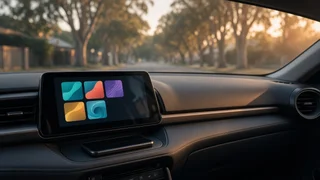
If you are searching for an "Apple play" car radio, the feature you want is Apple CarPlay. CarPlay mirrors a driver-friendly version of your iPhone's navigation, music, messages and calls on the car's screen. Most cars can get it through an aftermarket head unit, which is the radio and screen assembly in the dashboard. Whether your car is a simple swap depends on three things: the size and shape of the dash opening, how much of the car's other functions run through the factory radio, and whether you want a wired or wireless connection.
Before buying anything, check whether your vehicle already supports CarPlay or can add it through the manufacturer. Some model years and trims offer it from the factory, and some can enable it through a dealer software update or a factory upgrade kit. That support often differs by model year, trim level and infotainment package, so confirm it for your exact vehicle rather than for the model name alone.
Step 1: Confirm Whether Your Car Already Has an Option
Look in the infotainment settings for a CarPlay or phone projection menu, and check the owner's manual for your model year. If your car has a USB port labeled for data or with a phone icon, plug in your iPhone with a reliable cable and see whether a CarPlay prompt appears. If nothing happens, ask a dealer service department whether a software update or upgrade is available for your vehicle identification number. Staying with the factory system keeps the original look and avoids fitment problems, though availability and cost vary by brand.
Step 2: Identify Your Dash Opening
Aftermarket radios come in standard chassis sizes. The opening in your dash, or the opening you can create with an adapter kit, decides which units fit.
Format | What it means | Typical fit; Single-DIN | Short, rectangular slot about the height of an older CD player | Older vehicles; often paired with a flip-out or floating screen; Double-DIN | Twice the height of single-DIN | Many vehicles from the 2000s onward; allows a built-in touchscreen; Floating screen | A large display mounted on a single- or double-DIN chassis, sitting in front of the dash | Cars with small openings or owners wanting a bigger screen; Vehicle-specific unit | A head unit or kit shaped to replace a particular factory panel | Cars with integrated, non-standard dash designs
With a floating screen, check that it will not block air vents, hazard switches, climate controls or the view of the road. Also check that it clears the gear selector and any dash curves.
Step 3: Plan for the Parts Around the Radio
The head unit is only part of the job. A clean installation usually needs vehicle-specific supporting parts:
Dash kit: a trim panel and brackets that mount the new radio and fill gaps in the dash. Wiring harness adapter: connects the new radio to the factory plug so you do not cut original wires. Antenna adapter: lets the factory AM/FM antenna plug into the new unit. Steering wheel control interface: keeps your volume, track and call buttons working. Data or integration module: needed on many newer cars to retain chimes, warning sounds, factory amplifiers, backup cameras, parking sensors or vehicle settings. Microphone: included with most CarPlay units and needed for Siri and hands-free calls; plan where it will mount.
On some vehicles, the factory radio also controls climate settings, seat heaters, drive modes or other features. Replacing it then requires an interface that can relocate or display those controls. If no such interface exists for your car, a radio swap may cost you functions you rely on. In that case, a factory upgrade or a CarPlay adapter that works with the existing screen may be the better route.
Step 4: Choose Wired or Wireless CarPlay
Wired CarPlay connects through a USB cable. It charges your phone while in use and tends to connect quickly and reliably, but you plug in every trip. Wireless CarPlay connects automatically over Wi-Fi and Bluetooth once paired, which is convenient for short trips. It can drain the phone's battery faster unless you also have a charging pad or cable, and connection quality can vary between units.
If your car already has factory wired CarPlay, a plug-in wireless adapter can add wireless convenience without replacing the radio. Results depend on the adapter and the vehicle's system, so check compatibility notes for your make and model year before buying.
Step 5: Compare Head Unit Features That Matter
Screen type: capacitive touchscreens respond to light touches like a phone; resistive screens need firmer pressure and can feel less responsive. Screen visibility: check glare and brightness in daylight, and whether the display can dim at night. Android Auto support: useful if other drivers in the household use Android phones. Audio controls: equalizer settings, time alignment and preamp outputs matter if you plan to add amplifiers or a subwoofer. Camera inputs: confirm the unit supports your backup camera, or one you plan to add. Radio tuners: AM/FM is standard; HD Radio or satellite radio support varies by model. USB placement: a rear USB cable lets you route a port to the console or glovebox. Firmware updates: units from established brands are more likely to receive updates that keep CarPlay working smoothly as iOS changes.
Be cautious with unbranded units that advertise CarPlay at very low prices. Some use unofficial software, have slow startup times, or lose features after phone updates. Look for clear model numbers, a stated warranty and a support channel you can actually reach.
Step 6: Check Your iPhone
CarPlay works with iPhones that support it and run a compatible iOS version; wireless CarPlay generally needs a newer iOS release than wired. Keep your phone updated, and make sure CarPlay is not restricted under Screen Time settings. For wired use, a damaged or low-quality cable is a common cause of dropouts, so start troubleshooting there.
Step 7: Decide on Installation
Basic installations on older cars with standard openings are manageable for many owners with simple hand tools and the right harness and dash kit. Newer vehicles with data networks, factory amplifiers or integrated controls are more complex, and a mistake can trigger warning lights or lose features. Professional installation adds cost but usually includes the correct interface parts and a working result. If you are buying online, check whether the retailer provides vehicle-specific installation instructions or bundles the needed parts.
Quick Pre-Purchase Checklist
Confirm your exact year, make, model and trim, plus any premium audio or navigation package. Check for a factory or dealer CarPlay upgrade first. Identify whether your dash takes a single-DIN, double-DIN or vehicle-specific unit. List the factory features you must keep: steering wheel buttons, camera, amplifier, chimes, climate or vehicle settings. Confirm interface modules exist for those features on your vehicle. Choose wired or wireless based on how you drive and charge your phone. Verify screen type, audio outputs and camera support on the head unit. Budget for the dash kit, harness, adapters and installation, not just the radio.
Choosing Your Next Step
If your car can get CarPlay from the manufacturer, that is usually the most seamless option. If it already has wired CarPlay and you only want convenience, consider a wireless adapter. If your car has no CarPlay support and a standard dash opening, an aftermarket head unit with the right installation parts is the most common solution. If the factory radio controls essential vehicle functions, talk to an installer about integration options before buying a replacement.