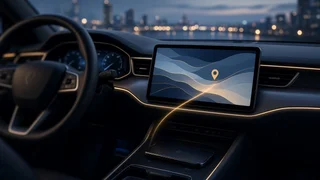
How to Connect Wireless Apple CarPlay
A wireless Apple CarPlay connection removes the Lightning or USB cable from the everyday driving routine, letting the iPhone project the familiar CarPlay interface over a short-range link. The phone still powers the experience, but the vehicle display and audio controls become the primary interaction points. Setting up the link is usually a quick pairing task, yet success depends on vehicle equipment, phone settings, and the way Bluetooth and Wi-Fi work together. When one of those pieces is missing or blocked, the connection may fail or drop even though the phone appears paired.
Direct answer
Connecting wireless Apple CarPlay generally begins with enabling Bluetooth and Wi-Fi on the iPhone, then starting the vehicle and opening the CarPlay or phone projection menu on the infotainment screen. The system typically discovers the phone, displays a pairing code, and asks the driver to confirm the code on both devices. Once accepted, the phone negotiates a Wi-Fi session that carries the higher-bandwidth CarPlay display and audio data. A Bluetooth pairing alone is not enough because CarPlay relies on Wi-Fi for its interactive screen content.
The procedure is most dependable in vehicles with factory wireless CarPlay support. A vehicle equipped only for wired CarPlay may require an aftermarket interface adapter that creates a wireless bridge between the phone and the existing USB input. Software compatibility also matters, because an older iOS version, a restricted vehicle data setting, or a stale infotainment profile can prevent the automatic handshake. When the initial connection completes correctly, later drives should reconnect without repeating the full setup as long as the phone remains discoverable and the vehicle is not paired to another active device.
How to proceed
Start with the vehicle parked and the infotainment system fully booted. Confirm that wireless CarPlay is enabled in the vehicle connection settings if the system exposes that option. On the iPhone, turn on Bluetooth and Wi-Fi, disable any active personal hotspot, and remove an old CarPlay profile if a previous vehicle is interfering. Open the phone projection or device list on the vehicle screen, select the iPhone, and compare the numeric confirmation codes shown on the phone and vehicle display. Approve the pairing prompt and allow CarPlay when iOS requests permission.
After approval, the screen should transition to the CarPlay home layout within a short period. Verify the result by opening a navigation or audio app and checking that touchscreen input, steering wheel controls, and sound output respond normally. If the connection does not appear, move the phone closer to the head unit, toggle Airplane Mode briefly, or restart the infotainment system while keeping the vehicle safely stationary. A wired-only receiver cannot gain wireless CarPlay through settings alone; it needs a compatible wireless adapter connected to the vehicle USB data port and paired according to the adapter manufacturer instructions.