Wired Android Auto Not Working: How to Find the Cause
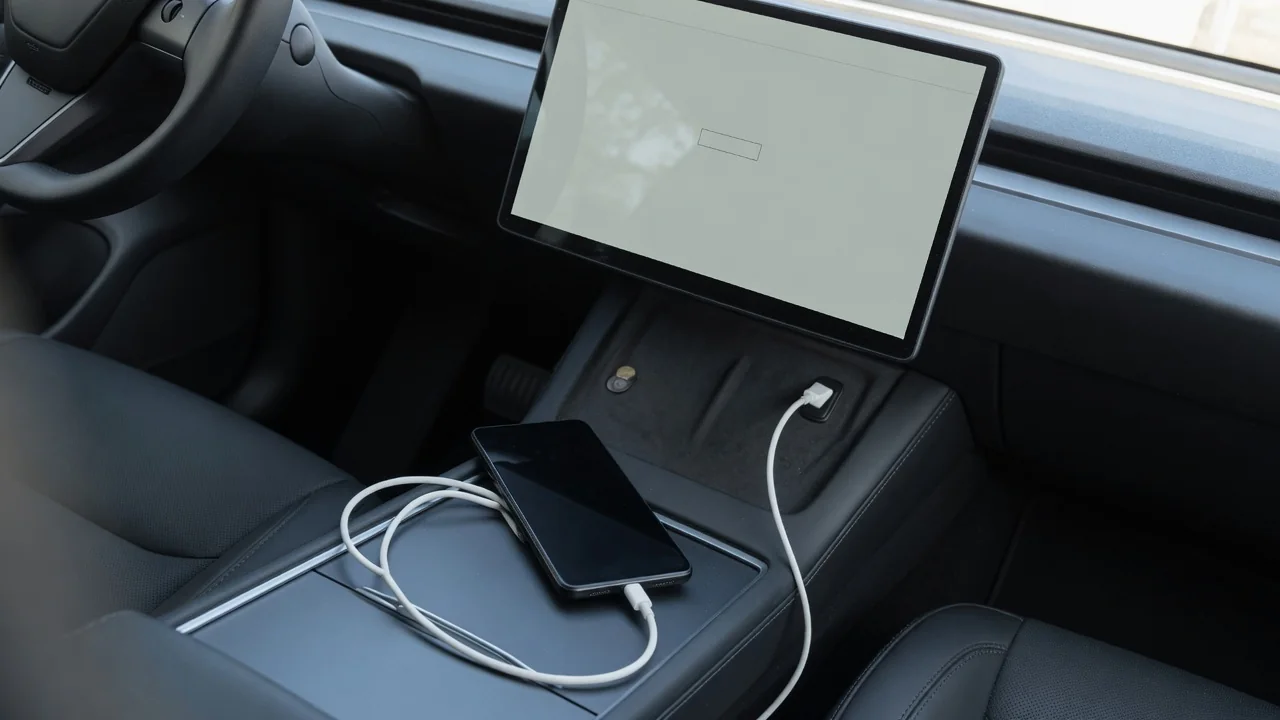
When Android Auto USB is not working, the cause usually sits in one of four places: the cable, the car's USB port, the phone, or the head unit. Wired Android Auto depends on a clean data connection, not just power, so a systematic approach beats guesswork. This guide works through each link in the chain so you can narrow down where the fault lives.
What Wired Android Auto Failure Looks Like When You Plug In
Wired Android Auto not working can show up in several distinct ways, and telling them apart matters. Sometimes nothing happens at all when the phone is connected. In other cases the phone charges but Android Auto never launches on the car screen. The projection may also start normally and then drop back to the native menu, or the infotainment system may display an error or a message suggesting the device is not supported. Each pattern hints at a different part of the connection.
Charging alone does not prove a healthy link, because power and data travel on separate wires inside the cable; one set can work while the other is broken or missing. Note exactly when the failure occurs: immediately on plug-in, after a few minutes, over bumps, or right after a phone update. Instant failures often suggest cable or port trouble, movement-related drops suggest a loose connector, and problems following an update lean toward software. Carry out every check while parked, never while driving.
Checking the USB Cable First, Including USB-C Cables
If Android Auto is not working when plugged in, the cable is the most practical first suspect because it is cheap to swap and frequently at fault. A charge-only cable lacks the data wires that smartphone projection needs, so the phone gains power yet the car never sees it. Worn connectors, long runs and poorly made cables can also weaken or interrupt the signal. Try a short, known-good USB data cable, ideally one that has already worked with Android Auto in another vehicle.
When an Android Auto USB-C cable is not working, look at fit as well as the cable itself. Pocket lint packed into the phone's port can stop the plug from seating fully, and adapters or extension cables add extra failure points. Whether you need a USB-C to USB-A cable or USB-C to USB-C depends on the port your car has. With the car parked, gently move the cable at each end; if the connection drops, a worn connector is likely. Never force a plug into the port.
Is the Car's USB Port the Problem?
An Android Auto USB port not working is sometimes simply the wrong port. Many vehicles have several USB sockets, and only some carry data for projection while others supply power alone. Check the owner's manual or the markings beside each port for your own vehicle rather than assuming. Then make a few safe observations: does the port charge the phone, does it read a USB music drive if the car supports that feature, and does a different phone behave the same way?
Shine a light into the car USB data port and look for debris or a socket that feels loose in its trim. Do not clean it with metal objects or liquids; only a gentle, dry, non-conductive approach is appropriate. If the port delivers power but no data with a USB cable that works elsewhere, or if Android Auto is not working in the car when plugged in yet the same phone and cable work in another vehicle, the fault points toward the vehicle side and may need dealer or shop diagnosis.
Phone Settings and App Checks for USB Android Auto
On the phone, the USB mode settings deserve a look. When connected, some phones default to charge-only, which blocks the data transfer an Android Auto wired connection needs. Keep the phone unlocked during the first connection so setup prompts can appear, and make sure every requested permission was accepted. Update both the Android Auto app and the phone's system software, since a mismatch after an update is one reason Android Auto may stop working with USB when it previously connected without complaint.
Clearing the Android Auto app cache removes temporary data and is a reasonable early step. If trouble persists, remove the vehicle from the connected cars list in the app and run the setup again from scratch. Battery savers, work profiles and developer settings can sometimes interfere, though no single one is a universal cause. Testing a second Android phone with the same cable and port is valuable: if the problem follows the phone, focus there; if it stays with the car, look at the vehicle.
Head Unit Settings and Resetting the Connection
The head unit has its own switches. Confirm that Android Auto or smartphone projection is turned on in the infotainment settings; menu names vary by manufacturer, so the option may sit under a connectivity, phone or apps menu. Next, delete the phone from the car's saved device list, including any Bluetooth phone pairing entry, and reconnect as if it were new. Turning the vehicle fully off, waiting until the screen shuts down, and starting again gives the infotainment system a chance to restart cleanly.
Some vehicles receive infotainment software updates, delivered through the manufacturer or installed by a dealer. Whether one is available, and whether it addresses a projection problem, depends on the specific vehicle, so confirm for yours instead of assuming an update is the cure. A factory reset of the head unit is a later step, not an opening move, because it erases saved settings, which may include paired phones and stored preferences. If you go that route, follow only the vehicle's own instructions.
When to Stop Troubleshooting and Get Professional Help
Home checks have a limit. Professional testing makes sense when the port has no power at all, when a USB cable not working for Android Auto has been ruled out by trying several known-good cables and phones, when the screen freezes or reboots, or when other infotainment functions fail too. Do not open the dash, pull fuses at random or probe wiring. Trim panels sit close to airbag components and electrical circuits, and mistakes there can cause injury or expensive damage.
Before visiting a dealer or car audio specialist, write down the symptoms and their timing, the phone model, the Android version, and every cable and port you tried. That record lets a technician skip the steps you have already covered and reproduce the fault sooner, which matters with intermittent problems that may not appear on demand. Whether any repair is covered depends on your own warranty terms, so check your documents or ask the service desk directly instead of assuming either way.