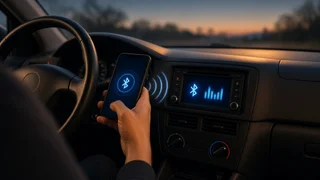
Joyroom Bluetooth Car Adapter Manual: Pairing, Calls and Troubleshooting
Most Joyroom Bluetooth car adapters set up the same way. Power the adapter from the car, connect its audio output to the car stereo, then pair your phone with it in the phone's Bluetooth settings. After that, the adapter carries music and hands-free call audio through the car speakers. How the audio reaches the stereo depends on which type you own. FM transmitter models broadcast on a radio frequency you tune both devices to. AUX receiver models plug into the car's 3.5 mm auxiliary input. Button layouts, display indicators and extra features differ between Joyroom models, so the printed leaflet for your exact model takes priority over any general instructions, including this guide.
Identify Which Type of Joyroom Adapter You Have
Joyroom sells several kinds of car Bluetooth devices. The setup steps depend on how your unit sends sound to the vehicle. Check the housing, the packaging or the model number printed on the device to confirm which type you have.
Adapter type | How it connects to the car | What you need in the vehicle; FM transmitter | Plugs into the 12V accessory socket (cigarette lighter) and broadcasts audio over FM radio | A working FM radio and a powered 12V socket; AUX Bluetooth receiver | Plugs into the 3.5 mm AUX input and is powered by USB or an internal battery | An AUX input on the stereo and, if required, a USB power source; Combination units | May offer both FM and AUX output, plus USB charging ports | Depends on which output you choose
Both types work as an interface adapter. They give an older stereo Bluetooth audio and calling it was never built to support. They do not connect to the car's own computer systems.
Before You Start
Turn the ignition to accessory or run mode so the 12V socket or USB port has power. Some vehicles cut socket power when the engine is off. Turn on Bluetooth on your phone. Disconnect your phone from other Bluetooth devices nearby, such as earbuds or another car kit, so it doesn't reconnect to them instead. If the adapter was paired with a different phone before, it may try to reconnect to that phone first. Turn off Bluetooth on the old phone or reset the adapter's pairing memory as your model's leaflet describes. Turn the car stereo volume down before the first connection so a sudden loud signal doesn't startle you.
Setting Up an FM Transmitter Model
1) Push the adapter firmly into the 12V socket. A display or indicator light should come on. If nothing lights up, try another socket or check whether that socket is switched with the ignition. 2) Find an empty FM frequency. Tune the car radio manually and look for a frequency with only static and no station, even a faint one. In the US, the FM band runs from 88.1 to 107.9 MHz. Frequencies near either end of the band are often less crowded, but this varies by area. 3) Set the adapter to the same frequency. Most models use a dedicated button, a rotary knob or a long press on a multifunction button to change the frequency shown on the display. The exact control varies by model. 4) Pair your phone. Open Bluetooth settings, find the adapter in the list of available devices and tap it. The device name usually includes the brand or model name. If the phone asks for a PIN, use the one in your leaflet. Many adapters pair without a PIN. 5) Wait for confirmation. The adapter may give a voice prompt, a tone or a change in its indicator light. Your phone will show the adapter as connected. 6) Play audio and set the levels. Start music on the phone and turn the phone's volume fairly high. Then use the car stereo volume as your main control. If the phone is too quiet, you have to turn the stereo up, which also raises the background hiss.
Setting Up an AUX Receiver Model
1) Plug the adapter's 3.5 mm cable into the car's AUX input. 2) Connect power to the adapter, usually from a USB port or USB car charger. If the model has an internal battery, charge it and switch the unit on. 3) Set the car stereo source to AUX. Depending on the head unit, this may be labeled AUX, Line In or similar. 4) On your phone, open Bluetooth settings and select the adapter from the list of available devices. 5) Once connected, play audio and set the levels the same way as with an FM model: keep the phone volume high and control loudness from the stereo.
Hands-Free Calls and Call Audio
Many Joyroom car adapters include a built-in microphone and a button for answering calls, so they can work as a hands-free kit. Incoming call audio plays through the car speakers on the same FM frequency or AUX connection as your music. Your voice is picked up by the adapter's microphone. The phone itself does not use its own microphone while connected.
To answer or end a call, most models use a short press on the main multifunction button. Rejecting a call or redialing the last number often uses a long press or a double press. These button assignments vary, so confirm them in your model's leaflet. For clear call audio, position the adapter so its microphone is not blocked by cables, cup holders or the gear lever, and so it isn't sitting directly in a vent airflow. On Android phones, open the adapter's settings within the Bluetooth menu and make sure both "Phone calls" (or "Call audio") and "Media audio" are turned on. If calls still come through the phone's earpiece, this setting is the most common cause. On iPhone, if call audio stays on the handset, tap the audio button on the call screen during a call and choose the adapter as the output. Voice assistant access, such as Siri or Google Assistant from a button press, depends on the model and the phone's settings.
How to Verify the Setup Worked
Your phone lists the adapter as connected in its Bluetooth settings. Music plays clearly through the car speakers with little or no static. On an FM model, a faint radio station mixing into the sound means you should pick a different frequency. Make a short test call to a friend or voicemail while parked. Confirm you can hear the caller through the speakers and that they can hear you clearly. Turn the car off and on again. The adapter should reconnect to your phone automatically within a short time. If it doesn't, check the auto-connect setting in your phone's Bluetooth options for that device.
Troubleshooting Common Problems
Problem | Likely cause | What to try; Adapter doesn't power on | Socket has no power, poor contact, or the socket fuse has blown | Turn the ignition on, reseat the adapter, try another socket, check the vehicle's fuse for the accessory socket; Phone can't find the adapter | Adapter is already connected to another device, or pairing mode isn't active | Turn off Bluetooth on other phones, restart the adapter, check the leaflet for how to enter pairing mode or reset; Static or interference (FM) | Frequency overlaps a local station, or reception is weak | Choose a different empty frequency and set both the radio and adapter to it. Change it again when you drive into a new area; Buzzing or humming (AUX) | Ground loop noise, often heard when the adapter is powered from the same car circuit | Try a different USB power source, or use a ground loop noise isolator between the adapter and the AUX input; Caller can't hear you | Microphone blocked, call audio routed to the phone, or high cabin noise | Clear the microphone, check call audio settings, close windows and reduce fan speed; No sound during calls but music works | Phone call profile turned off for the adapter | Turn on call audio in the device's Bluetooth settings, or remove the pairing and pair again; Audio drops out | Phone in a pocket or bag, interference, or a phone power-saving mode | Keep the phone in the open near the adapter, turn off aggressive battery optimization for Bluetooth; Adapter keeps connecting to the wrong phone | It reconnects to the last paired device by default | Remove old pairings from the adapter as your model allows, or turn off Bluetooth on the other phone
If none of these steps help, a full reset often fixes stubborn pairing problems. On your phone, choose to forget or unpair the adapter. Then reset the adapter using the method in its leaflet, which is usually a long press of a button or a button combination. Finally, pair it again as if it were new.
What These Adapters Can and Can't Do
A plug-in Bluetooth adapter is a simple add-on, not full vehicle integration. It sends audio to the stereo over radio or a cable and does not communicate with the car's electronics. In practice, this means:
Steering wheel interface: Factory steering wheel audio buttons generally won't control an FM or AUX Bluetooth adapter. You'll use the adapter's own buttons or your phone instead. Keeping wheel controls usually requires a replacement head unit with a steering wheel control interface module, or a vehicle-specific integration kit. Dashboard display: Track names and caller information appear only on the adapter's own display, if it has one, not on the car's screen. Software compatibility: These adapters use standard Bluetooth audio and hands-free profiles, so they generally work with current iPhones and Android phones without an app. Specific features, such as which codecs are supported or whether an optional app exists, vary by model, so check the packaging or leaflet for your unit. Sound quality: FM transmission adds some hiss and is limited by local radio congestion. An AUX connection usually sounds cleaner. If your car has a built-in AUX input, an AUX model is usually the better choice for audio quality.
Finding the Manual for Your Specific Model
Each Joyroom adapter normally ships with a printed instruction leaflet. If you've lost it, find the model number on the device housing, the original box or the purchase listing, then look for that model on the manufacturer's support pages or the retailer's product page. The model number matters because button functions, reset methods and extras like USB charging, memory card playback or bass boost differ from one Joyroom adapter to another. Use the steps in this guide for the general process, and use your model's leaflet for its specific controls.