How to Pair a Phone with Car Bluetooth
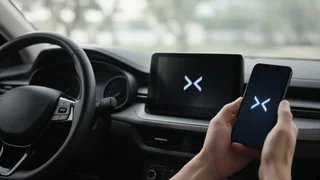
Pairing Bluetooth to a car means creating a trusted link between your phone and the vehicle's infotainment or audio system so it can handle hands-free calls and, on most systems, stream music and other audio. The process follows the same pattern in almost every vehicle: put the car's system into pairing mode, find the car in your phone's Bluetooth list, confirm a matching code on both screens, and approve the permissions the car requests. After that first pairing, the phone normally reconnects automatically whenever Bluetooth is on and the car is running. Two conditions change the answer. First, menu names, button locations and supported features differ by make, model year and trim, so the exact path on your screen may not match the general steps below; your owner's manual or the system's on-screen help is the authority for your vehicle. Second, many vehicles only allow pairing while parked, and some older or base-trim cars have no built-in Bluetooth at all, in which case an aftermarket adapter or replacement head unit is the route to hands-free use.
Key Terms Before You Start
Pairing: the one-time setup in which the phone and car exchange a security key and remember each other. Connecting: the automatic link that happens on later trips between devices that are already paired. Hands-free profile: the part of Bluetooth that carries phone calls, letting you talk through the car's microphone and speakers. Audio streaming profile: the part of Bluetooth that carries music, podcasts and navigation audio. Some older systems support calls but not streaming. Head unit: the car's central audio or infotainment unit, usually the screen or radio in the dashboard.
What You Need
A phone with Bluetooth turned on and enough battery charge to finish setup. A vehicle with built-in Bluetooth, or an aftermarket Bluetooth adapter if the car lacks it. The ignition on or the vehicle in accessory mode so the infotainment system is powered. The vehicle parked, with the parking brake set. Many systems lock out pairing menus while moving, and setting up a phone while driving is distracting regardless of what the system allows. A few minutes without other nearby devices trying to connect, which can make it harder to spot the right name in the list.
Step-by-Step: Pairing Your Phone with the Car
1) Prepare the Phone
Open your phone's settings and turn Bluetooth on. Leave the Bluetooth settings screen open, because many phones only make themselves visible to other devices while that screen is active. If the phone has a power-saving or low-battery mode that restricts wireless features, consider turning it off for the duration of setup.
2) Put the Car's System into Pairing Mode
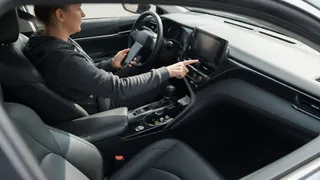
Start the car or switch to accessory mode and wait for the infotainment system to finish loading. On a touchscreen, look for a menu commonly labeled Phone, Connections, Bluetooth, Devices or Settings, then choose an option such as Add Device, Pair New Phone or Connect Phone. On systems without a touchscreen, pairing may be started with a phone button on the steering wheel interface, a voice command, or a button on the radio face. When the system is ready, it usually displays the car's Bluetooth name and a message that it is discoverable or searching.
Some systems work in the other direction and ask you to search from the phone first. If the car's screen tells you to select it from your phone, skip ahead to the next step.
3) Select the Car on Your Phone
In the phone's Bluetooth list, look under available or nearby devices for the name the car displayed. It is often the brand name, the model name or a generic term such as the system's name. Tap it to begin device pairing. If it does not appear within a minute or so, confirm the car is still in pairing mode, since many systems time out and need to be restarted.
4) Confirm the Pairing Code
Most modern systems show a numeric code on both the car screen and the phone. Check that the two codes match, then accept on both devices. Older systems and some adapters instead ask you to type a PIN; the car's screen or the device's instructions will show which code to use. If the codes do not match, decline and start again, because you may be connecting to a different nearby device.
5) Approve Permissions
After pairing, the phone typically asks whether the car may access your contacts, call history and messages, and whether to allow audio and notifications. Contacts and call history are what let you call people by name from the car's screen or by voice. Messages access enables text readout on systems that support it. You can grant only what you want; refusing contacts access still allows calls, but you may need to dial numbers manually. These choices can be changed later in the phone's connection settings for that device.
6) Check That Everything Works
The car screen shows your phone as connected, often with signal and battery icons. The phone shows the car as connected in its Bluetooth list. A test call, made while parked, plays through the car speakers, and the other person can hear you clearly through the car's microphone. Music or another audio app plays through the car when you select the Bluetooth audio source on the head unit. The steering wheel phone buttons answer and end calls, and the volume controls adjust call volume. After switching the car off and on again, the phone reconnects on its own.
If all of these work, pairing is complete. If calls work but music does not, the system may support only the hands-free profile, or the audio source on the head unit may need to be switched to Bluetooth.
Bluetooth Pairing Versus Phone Projection
Many newer vehicles also support phone projection systems such as Apple CarPlay and Android Auto, which display phone apps on the car's screen. These are a deeper form of vehicle integration than plain Bluetooth. Depending on the vehicle, they may connect by USB cable, wirelessly, or both, and wireless versions typically use Bluetooth during setup alongside Wi-Fi. If your car offers projection, it may prompt you to set it up during Bluetooth pairing. You can accept or decline; basic Bluetooth calling and audio work without it on vehicles that support both.
Troubleshooting Common Pairing Problems
The Car Does Not Appear on the Phone
Confirm the car is actually in pairing mode and has not timed out. Toggle the phone's Bluetooth off and on, and keep the Bluetooth settings screen open while searching. Make sure the car is not already busy connecting to another phone in the vehicle; temporarily turning off Bluetooth on other phones nearby can help.
Pairing Fails or the Code Is Rejected
Restart the process from the car's menu rather than retrying from the phone alone. If the phone or car has an old record of the other device from a previous attempt, delete it on both sides first: on the phone, choose the car in the Bluetooth list and select Forget or Unpair; in the car, remove the phone from the paired devices list. Then pair again from scratch.
The Device List Is Full
Many vehicles store only a limited number of paired phones. If the system refuses a new device, delete phones that are no longer used from the car's paired devices list. This is also good practice when buying a used car or selling your own, since stored devices may retain contacts and call history.
The Phone Connects but Drops or Will Not Reconnect
Check that the car is set as a trusted or auto-connect device on the phone, and that battery optimization settings are not shutting down Bluetooth in the background. Restarting the phone often clears temporary faults. If the problem started after a phone operating system update, software compatibility between the phone and the car's system may be the cause; unpairing and re-pairing frequently resolves it, and an infotainment software update may be needed in some cases.
Calls Have Echo, Poor Quality or No Sound
Confirm the head unit's volume is up and that call audio is routed to the car rather than the phone's earpiece; most phones show an audio output option during a call. Echo or muffled voices can come from a blocked or covered microphone, often located in the headliner or overhead console. Some systems offer call-quality or microphone settings in their connection settings.
Cars Without Built-In Bluetooth
If your vehicle has no Bluetooth, an aftermarket interface adapter can add it. Common options include adapters that plug into the auxiliary audio input, FM transmitters that broadcast phone audio to an unused radio frequency, visor-mounted speakerphones, and vehicle-specific interface modules that connect to the factory radio. Replacing the head unit with an aftermarket unit that includes Bluetooth is a more integrated option. Pairing these devices follows the same general steps described above, though the pairing button and any PIN code are defined by the adapter's own instructions rather than the car.
Plug-in adapters, transmitters and visor units are generally do-it-yourself installs. Vehicle-specific modules and head unit replacements may involve removing dashboard trim, connecting to the vehicle's wiring, and retaining steering wheel controls through a separate steering wheel interface module. Mistakes in that work can cause electrical faults or disable features, so it is reasonable to have a qualified car audio installer handle it if you are not comfortable working with vehicle wiring.
When to Seek Dealer or Professional Help
Most pairing problems are solved by deleting the old pairing on both devices and starting over. Consider contacting a dealer service department or qualified technician if the infotainment system will not enter pairing mode at all, the Bluetooth menu is missing or grayed out on a vehicle that should have it, the system freezes or reboots repeatedly, or multiple different phones fail to pair. These symptoms can point to a software issue that needs an update or a hardware fault in the head unit or connectivity module. Some manufacturers provide infotainment updates over the air or by USB, while others require a service visit; the owner's manual or manufacturer support will indicate which applies to your vehicle.
Using Bluetooth Safely and Legally
Do the pairing and permission setup only while parked. Once connected, use steering wheel buttons and voice commands rather than handling the phone. In the US, rules on phone use while driving are set by individual states and some localities, and many restrict handheld use; a Bluetooth connection helps you stay within hands-free requirements, but check the rules in the states where you drive, as they vary in what they allow.