Car Bluetooth Connection: How Phone Pairing and Call Audio Work
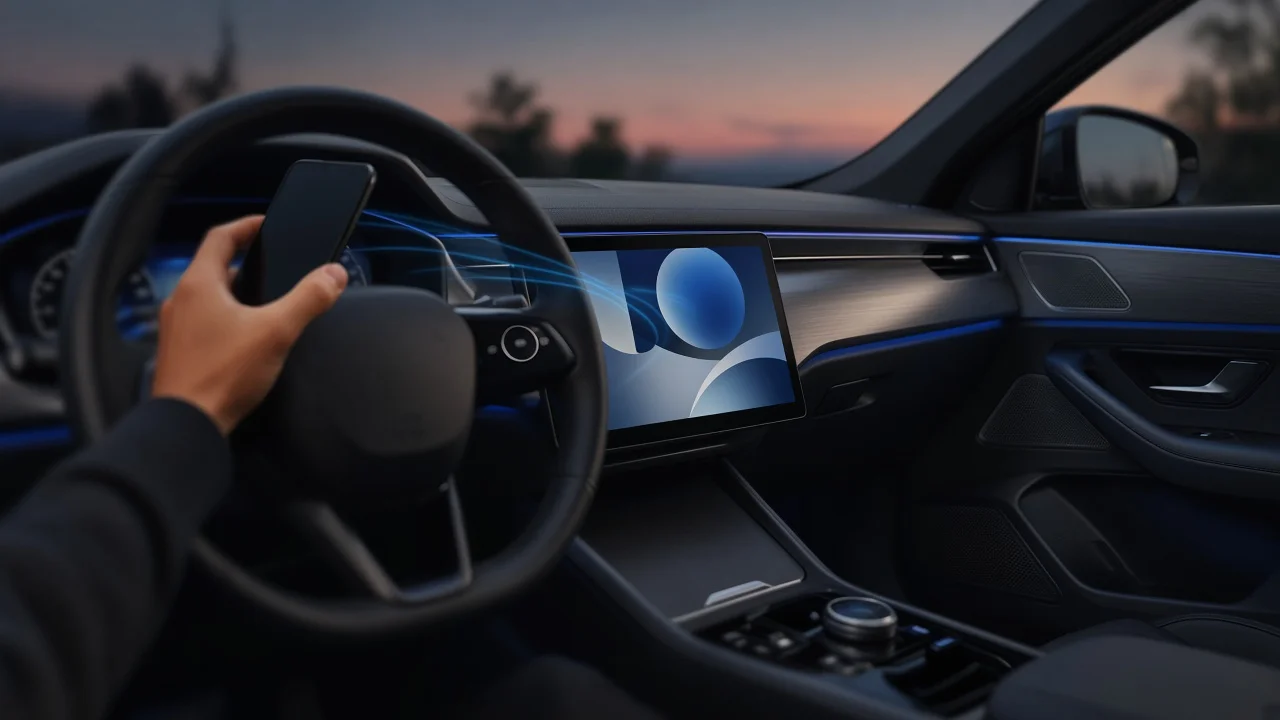
A car Bluetooth connection is a short-range wireless link between your phone and the vehicle's infotainment or audio head unit. Once the two are paired, the car can typically handle hands-free calls through its microphone and speakers, and, if the system supports it, play music and other audio streamed from the phone. Exactly which features you get depends on the vehicle's model year, trim, head unit and market, as well as on your phone, so the general answer always needs to be checked against your owner's manual.
The short answer
Connecting a phone to a car over Bluetooth usually means pairing the two devices once, after which the car reconnects automatically when the phone is nearby with Bluetooth switched on. Pairing creates a trusted link stored on both devices. Hands-free calling is the most widely supported function; audio streaming, on-screen track information, steering-wheel controls and contact or message access are common but not universal, especially on older or base-trim systems.
What Bluetooth actually does in a car
Bluetooth features are organized into profiles, which are standardized definitions of a specific task. A car and a phone can only use a feature if both support the relevant profile. The profiles most often involved in vehicles are:
Hands-Free Profile (HFP): carries two-way call audio, so you hear the caller through the car's speakers and they hear you through the car's microphone. Advanced Audio Distribution Profile (A2DP): streams music, podcasts and navigation prompts from the phone to the car's audio system. Audio/Video Remote Control Profile (AVRCP): lets the car's buttons or screen play, pause and skip tracks, and may show track details. Phone Book Access Profile (PBAP): lets the car display your contacts and recent calls. Message Access Profile (MAP): on systems that support it, lets the car show or read incoming text messages.
This is why some cars can take calls over Bluetooth but cannot stream music: the head unit may support HFP without A2DP. If a feature is missing, the vehicle's specification or manual is the place to confirm whether the hardware supports it at all.
How Bluetooth differs from other phone connections
Connection type | What it does | Typical trade-off; Bluetooth | Wireless calls and, where supported, audio streaming and basic controls | Convenient and widely available; the phone's apps and screen are not mirrored to the car display; USB cable | Wired audio, charging and, on many systems, phone projection | Requires a cable; feature set depends on the car's USB port and software; Apple CarPlay or Android Auto | Projects a car-optimized version of phone apps onto the car's screen | Requires vehicle support; wired or wireless depending on the system; Bluetooth is often still used alongside it for calls; AUX input | Analog audio from the phone's headphone output or an adapter | No calls through the car's microphone and no controls on most setups
Phone projection systems and Bluetooth are not mutually exclusive. Many vehicles use Bluetooth to set up or support a projection session, and some fall back to plain Bluetooth audio and calling when projection is unavailable. Whether your car supports wireless projection is a model- and trim-specific question.
How pairing generally works
Menu names and steps vary by manufacturer and head unit, but most systems follow the same overall pattern:
With the vehicle parked and the ignition or accessory mode on, open the phone, Bluetooth or connections menu on the car's screen, or use the voice-command button if the car has no touchscreen. Select the option to add or pair a new device so the car becomes discoverable. On the phone, open Bluetooth settings, make sure Bluetooth is on, and select the car's name from the list of available devices. Confirm that the pairing code shown on the phone matches the one on the car display, or enter the code the car provides. Approve any prompts on the phone to allow access to contacts, call history or notifications if you want those features in the car. Check that call audio and, if supported, media audio are both enabled for the car in the phone's Bluetooth device settings.
Many vehicles restrict pairing while the car is moving as a driver-distraction safeguard, so if the add-device option is unavailable, try again while parked.
Call audio: what to expect
During a hands-free call, the car mutes or lowers other audio and routes the conversation through its speakers and a cabin microphone, usually mounted near the headliner, mirror or steering column. Call quality depends on the microphone placement, cabin noise, the head unit's audio processing, the phone, and the cellular signal itself. A poor connection to the cell network will sound poor in the car as well, so it is worth separating Bluetooth problems from network problems before troubleshooting.
Common problems and general fixes
Phone will not appear or pair: confirm the car is in pairing mode, keep the phone close to the dashboard, and check whether the car has reached its limit of stored devices; deleting an unused device often frees a slot. Connected but no music: check that media audio is enabled for the car on the phone, and select Bluetooth as the audio source on the car. Calls work but contacts are missing: allow contact sharing on the phone, then wait for the car to finish downloading the phonebook. Frequent dropouts or failed auto-connect: remove the pairing on both the car and the phone, restart both, and pair again. Problems began after a phone update: check whether the vehicle maker offers a head unit software update, as compatibility can change with new phone software. Other passengers' phones grabbing the connection: set a priority or preferred device in the car's Bluetooth settings if the system offers it.
What this guide cannot confirm
No vehicle-specific evidence was supplied for this article, so it does not state which cars support particular profiles, how many phones a given system can store, which Bluetooth version a head unit uses, or how call quality compares between models. Those details vary by make, model year, trim and market. The owner's manual, the manufacturer's phone-compatibility information, or a dealer can confirm what your specific vehicle supports.
Bottom line
Bluetooth is the most broadly available way to link a phone to a car for hands-free calls and, on many systems, wireless audio. Pair once while parked, confirm that both call and media audio are enabled, and use the vehicle's documentation to check which features your particular system supports before assuming a fault.