How to Pair a Phone with MINI Bluetooth
The Short Answer
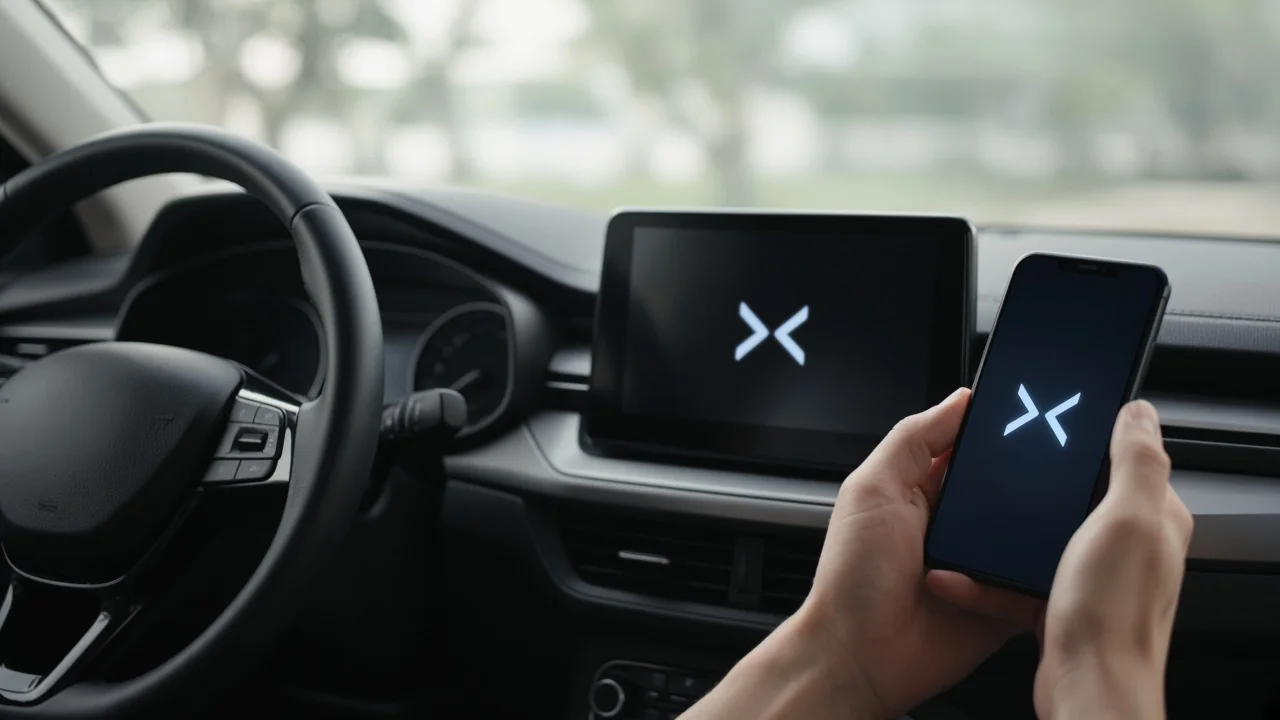
To pair a phone with a MINI, park the car with the infotainment system switched on. Turn on Bluetooth on your phone. On the car's display, open the phone or mobile devices menu and choose the option to connect a new device. Select your MINI from the phone's Bluetooth list, check that the pairing code shown on both screens matches, and confirm. Then allow any permissions you want, such as contact sharing. Pairing is a one-time registration that makes the phone and car trusted partners. After that, the phone should normally reconnect automatically whenever it is nearby with Bluetooth on.
One condition matters: MINI has used several generations of infotainment hardware and software. Menu names, controls and available features vary by model year, market and factory equipment. Some cars support hands-free calling and audio streaming, while others may not offer both. No model-specific evidence was available for this guide, so menu labels below are described in general terms. Your owner's manual or the car's built-in help is the authority for your exact vehicle.
Before You Start
Park the car in a safe place. Some systems block pairing menus while the vehicle is moving, and you should not attempt it while driving in any case. Switch on the ignition or the car's standby or accessory mode so the infotainment display is active. Make sure your phone is charged, Bluetooth is turned on, and the phone's operating system is reasonably up to date. If this phone was paired with the car before and is no longer working, delete the old pairing on both the phone and the car first. Turn off Bluetooth on other phones in the car so they do not connect automatically and confuse the process. Keep the owner's manual handy, either the printed copy or the digital version in the car, in case your menus differ from the general steps here.
Step-by-Step Pairing
1) With the car parked and the display on, open the main menu with the touchscreen or controller, depending on your model. 2) Go to the section for the phone, communication or mobile devices. The exact name depends on your system generation. 3) Choose the option to add or connect a new device. The car becomes visible to nearby phones, and may display its own Bluetooth name. 4) On your phone, open the Bluetooth settings and wait for the MINI to appear in the list of available devices. Tap it. 5) A pairing code appears. On most current systems, the same number shows on the car's display and on the phone. Confirm only if the two numbers match. 6) Approve or decline permission requests on the phone, such as sharing contacts, call history or messages. Calls can still work if you decline these, but the car may not show your contacts. 7) If the car asks which functions to use, such as telephone, audio streaming or phone mirroring, select the ones you want. 8) Wait for both screens to show that the devices are connected before leaving the menu.
Understanding the MINI Bluetooth Pairing Code
Most modern phones and vehicle systems use a method called numeric comparison. Each device displays a number, and you confirm that the numbers are identical. This protects you from accidentally pairing with the wrong device. If the numbers do not match, cancel and start again. A mismatch can mean you selected a different car or device.
Some older systems instead ask you to type a passkey into the phone. In that case, the code normally appears on the car's display or is described in the owner's manual. No confirmed default code for MINI vehicles was available for this guide. Do not rely on generic codes found online unless your manual specifies one.
Bluetooth and Phone Mirroring
If your MINI supports Apple CarPlay or Android Auto, setup may begin with the same Bluetooth pairing. The car may then offer to enable mirroring as part of the process. Whether this works wirelessly or needs a USB cable depends on the model year and equipment, so check your manual. Basic Bluetooth calling and audio usually work without mirroring.
Confirm the Connection Works
Check that the car's display lists your phone as connected, and that your phone's Bluetooth settings show the MINI as connected. While still parked, place a short test call. Confirm the other person's voice comes through the car speakers and that they can hear you clearly through the car's microphone. If you allowed contact sharing, check that your contacts appear on the car's display. The first sync can take a moment. If your car supports audio streaming, play some music from the phone and confirm it plays through the car's audio system. Switch the car off and back on to confirm the phone reconnects automatically.
If Pairing Fails
Switch Bluetooth off and on again on the phone, then retry. Delete the MINI from the phone's Bluetooth list and remove the phone from the car's device list, then pair from scratch. Restart the phone. Check whether the car's list of stored devices is full. Many systems limit how many phones can be saved, though the limit for your model was not available for this guide. Remove devices you no longer use. Keep the phone in the cabin, close to the dashboard, during pairing. Install any pending phone software updates. Updates sometimes change Bluetooth behaviour. Check whether your phone model is listed as compatible in MINI's official compatibility information for your vehicle.
If none of these steps work, the cause may be the car's infotainment software or hardware rather than the phone. Diagnosing and updating vehicle software is best left to a MINI dealer or qualified service technician. If your system offers a factory reset in its menus, be aware that it usually erases saved devices and personal settings, so use it only as a last resort.