How to Pair a Phone With a Car's Bluetooth System
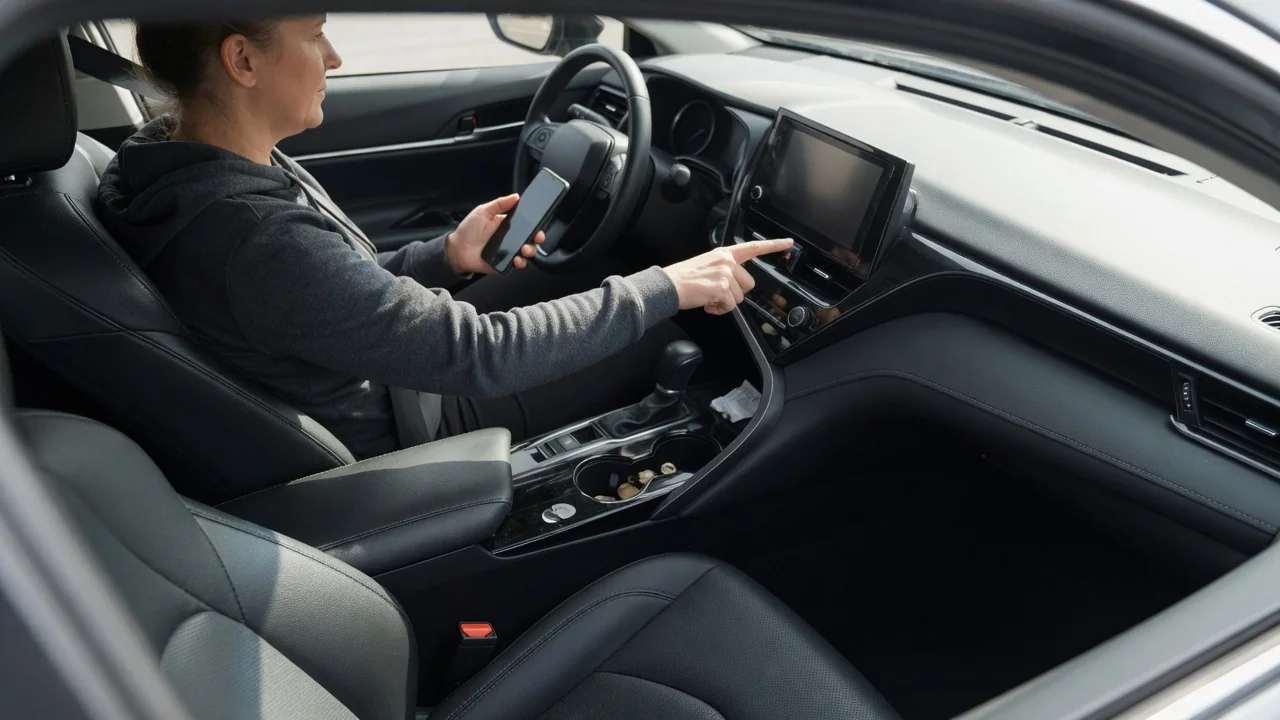
Learning how to pair a phone with a car's Bluetooth system takes only a few minutes, yet the menus differ enough between vehicles that a clear, brand-neutral routine helps. This guide walks through preparing both devices, confirming the connection, clearing out old pairings, and protecting personal data such as contacts and call history when a vehicle is sold, returned, or shared with other drivers.
Prepare both devices
Start with the vehicle parked and the ignition in accessory or run mode, because many infotainment systems lock their pairing menus while the car is moving. On the phone, open the Bluetooth settings and switch the radio on so the handset becomes visible to nearby devices. Leaving that settings screen open matters, since some phones stop being discoverable once the screen is closed or the display times out partway through the search.
On the vehicle side, look for a menu labeled Phone, Connections, Bluetooth, or Devices on the touchscreen, or press a phone button on the steering wheel or dash. Choose the option to add a new device, which places the head unit in discovery mode for a limited time. Older radios without a screen may rely on voice prompts instead, and the exact wording and menu path depend on the make, model year, and trim, so the owner's manual is the reliable reference.
Confirm pairing
Once both devices are searching, the car's name should appear in the phone's list of available devices, or the phone's name will show on the vehicle display. Select it from either side, and most systems then present a numeric passkey on both screens. Check that the digits match before accepting on each device. Some older units instead ask for a fixed code to be typed in, which is normally listed in the vehicle's documentation.
After the passkey is accepted, the phone usually asks whether the car may access contacts, call history, and messages. Granting access enables caller names and voice dialing, while declining still permits basic calls and audio streaming on most systems. A successful pairing typically shows a phone icon, signal bars, or battery level on the display. Place a short test call and play a song to verify that both the hands-free and media audio profiles connected.
Remove stale connections
Pairing failures often trace back to old records rather than faulty hardware. Head units store a limited number of devices, and a full list can block a new phone from being added. Likewise, a phone that remembers a previous entry for the same car may attempt to reuse outdated security keys. Deleting the car from the phone's saved devices and the phone from the vehicle's device list, then pairing fresh, resolves many stubborn connection problems.
Privacy cleanup matters just as much when a car changes hands. Before selling, trading in, or returning a rental or lease vehicle, delete your phone from the device list and clear any downloaded phonebook, call logs, text messages, and navigation history such as a saved home address. Many systems offer a factory reset or a clear personal data option in the settings menu. On the phone, forget the vehicle too, so it no longer attempts to connect.
Everyday Use and Observations
After the first pairing, most cars reconnect automatically within several seconds of startup, provided Bluetooth is enabled on the phone. If two paired phones are in the cabin, the system generally follows a priority order or connects to whichever device it finds first, which explains why a passenger's phone sometimes takes over calls. Many vehicles let you set a primary device or switch between phones manually from the device list.
A few behaviors are worth noticing in daily driving. Music may pause while navigation prompts play, and call audio might route to the handset if the phone's output selection changed. Volume for calls, media, and voice guidance is often stored separately, so adjust each while it is active. Brief dropouts can come from interference, a low phone battery, or power-saving settings that restrict background activity, and occasional stutter does not necessarily indicate a failing head unit.
Limits and Next Steps
Bluetooth has boundaries that pairing cannot overcome. Feature support depends on which profiles both devices share, so an older radio might handle calls but not music streaming, text message display, or album artwork. Smartphone projection systems are separate technologies with their own setup, even where they begin with a Bluetooth handshake. Software versions also matter, and an update to either the phone or the vehicle can change behavior that previously worked without issue.
If pairing still fails after clearing both device lists, restart the phone and cycle the ignition, then try again with other nearby Bluetooth devices switched off. Testing a second phone helps show whether the problem follows the handset or stays with the car. When the vehicle refuses every device, check with a dealer or qualified audio specialist about available infotainment software updates, since procedures and reset options are vehicle-specific and best confirmed in the owner's manual.