How to Check MINI Bluetooth Compatibility

The Short Answer
To check whether a phone works with a MINI's Bluetooth system, you need to confirm three things: that the car is equipped with Bluetooth hands-free (the built-in system that routes calls through the car's speakers and microphone), that the phone and the car's infotainment software are reasonably current, and that the two pair and handle a test call cleanly. The most reliable check is a combination of MINI's own documentation for your specific vehicle and a hands-on pairing test.
The answer depends heavily on your MINI's model year, market and installed equipment. MINI has used several generations of infotainment hardware and software, and the menus, supported features and phone-related options differ between them. A phone that works fully in one MINI may offer only partial features in another. Treat any general guidance, including this article, as a starting point and confirm details against the owner's manual for your exact car.
What Compatibility Actually Covers
Bluetooth compatibility is not a single yes-or-no result. A phone can pair successfully yet support only some functions. When checking compatibility, it helps to test each feature separately:
Hands-free calling: making and receiving calls through the car's microphone and speakers. Audio streaming: playing music or podcasts from the phone through the car's audio system. Contact and call-history transfer: showing your phone's address book and recent calls on the car's display. Message display or read-aloud: showing or reading incoming text messages, where the car supports it. Phone projection: Apple CarPlay or Android Auto, which are separate from basic Bluetooth and are only available on certain MINI models, years and equipment levels.
If your main concern is call audio, focus on the hands-free calling test. If projection services matter to you, confirm separately that your specific vehicle supports them, because a successful Bluetooth pairing does not guarantee it.
Before You Start
Your MINI, parked in a safe location with the ignition or standby mode on so the infotainment system is active. The phone you want to check, charged, with Bluetooth enabled. The owner's manual for your vehicle, either printed or in the digital format MINI provides for your car. Your vehicle identification number (VIN), useful if you need to ask a MINI dealer about installed equipment. A second phone or a willing contact, so you can place and receive a test call.
Safety note: carry out all pairing and settings changes while the vehicle is parked. Many vehicles restrict some phone and settings menus while moving, and adjusting them while driving is a distraction hazard.
Step-by-Step Compatibility Check
Step 1: Confirm the Car Has Bluetooth Hands-Free
Not every MINI was built with the same phone equipment, particularly older vehicles. Look for a phone or voice button on the steering wheel and a telephone, communication or mobile devices section in the infotainment menu. The owner's manual and the vehicle's equipment list will confirm whether Bluetooth hands-free is fitted. If you cannot find any phone-related menu, a MINI dealer can check the factory equipment using your VIN.
Stop condition: if the car has no factory Bluetooth equipment, adding it is a retrofit job. Retrofitting or reprogramming vehicle electronics should be handled by a MINI dealer or a qualified specialist, as it can involve module installation and software coding that is specific to the vehicle.
Step 2: Check MINI's Official Compatibility Information
MINI has offered phone compatibility information through its official channels, typically organized by vehicle and phone model. Check what is currently available for your market, along with the connectivity section of your owner's manual. If you cannot find a listing for your phone or vehicle, a MINI dealer's service department can advise. Bear in mind that official lists may not include every recent phone, so absence from a list does not automatically mean a phone will not work.
Step 3: Prepare the Phone
Install any pending operating system updates. Turn Bluetooth on and keep the phone unlocked during pairing. If the phone was previously paired with this car, remove the old pairing from the phone's Bluetooth list first. Temporarily disconnect other Bluetooth devices, such as headphones, that might grab the connection.
Step 4: Pair the Phone With the Car
Exact menu names vary by infotainment generation, so follow your owner's manual for the precise path. The general sequence is:
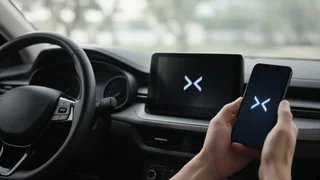
On the car's display, open the telephone, communication or mobile devices settings. Choose the option to add or connect a new device. On the phone, open the Bluetooth settings and select the car when it appears in the list. Compare the passkey or code shown on both screens and confirm only if they match. Accept any prompts on the phone to allow access to contacts, call history or messages if you want those features. Wait for the car to confirm the connection.
Step 5: Test Call Audio
With the car still parked, place a call to your test contact using the car's controls or voice command, then have them call you back. Check that you can hear them clearly through the car's speakers and that they can hear you clearly through the car's microphone. Ask them specifically about echo, dropouts or muffled sound, because those problems are easier to detect from the other end of the line.
Step 6: Test the Remaining Features
Play audio from the phone and confirm it comes through the car's speakers and that track controls work. Check whether contacts and recent calls appear on the car's display. If supported, check message notifications. If your car supports Apple CarPlay or Android Auto, confirm it launches with this phone.
Step 7: Confirm Automatic Reconnection
Switch the car off, lock or leave it briefly, then return and switch it back on with the phone nearby and Bluetooth enabled. A compatible, correctly paired phone should reconnect on its own. If it does not, the pairing may be incomplete or a phone setting may be preventing automatic connection.
How to Know the Check Is Complete
Your phone can be considered compatible for your purposes when it pairs without errors, both sides of a test call are clear, the features you care about work, and the phone reconnects automatically after the car is restarted. Note any features that do not work, as this is useful information if you contact a dealer.
If the Check Fails
Delete the pairing on both the phone and the car, restart both, and pair again. Remove unused devices from the car's paired list, as infotainment systems typically limit how many devices they store. Check phone permissions for contacts and messages if those features are missing. Test a different phone in the same car to determine whether the issue lies with the phone or the vehicle. Ask a MINI dealer whether an infotainment software update is available for your vehicle. Vehicle software updates should follow MINI's official process.
If a second phone also fails to connect, or if call audio is poor with every device, the issue may involve the car's hardware, such as the microphone or the connectivity module. Diagnosis and repair of those components should be done by a MINI dealer or a qualified technician.
Limits of This Guidance
No confirmed compatibility lists, supported Bluetooth versions, model-year cutoffs or feature tables were available for this guide, so it does not state which specific phones or MINI models are compatible. Menu names, available features and update procedures vary across MINI generations, markets and equipment levels. For a definitive answer about your vehicle, rely on the owner's manual, MINI's current official compatibility information and a MINI dealer, combined with the hands-on test described above.