Car Stereo with Phone Bluetooth: How to Choose One That Handles Calls and Music
The short answer
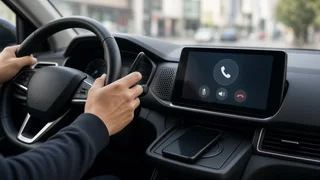
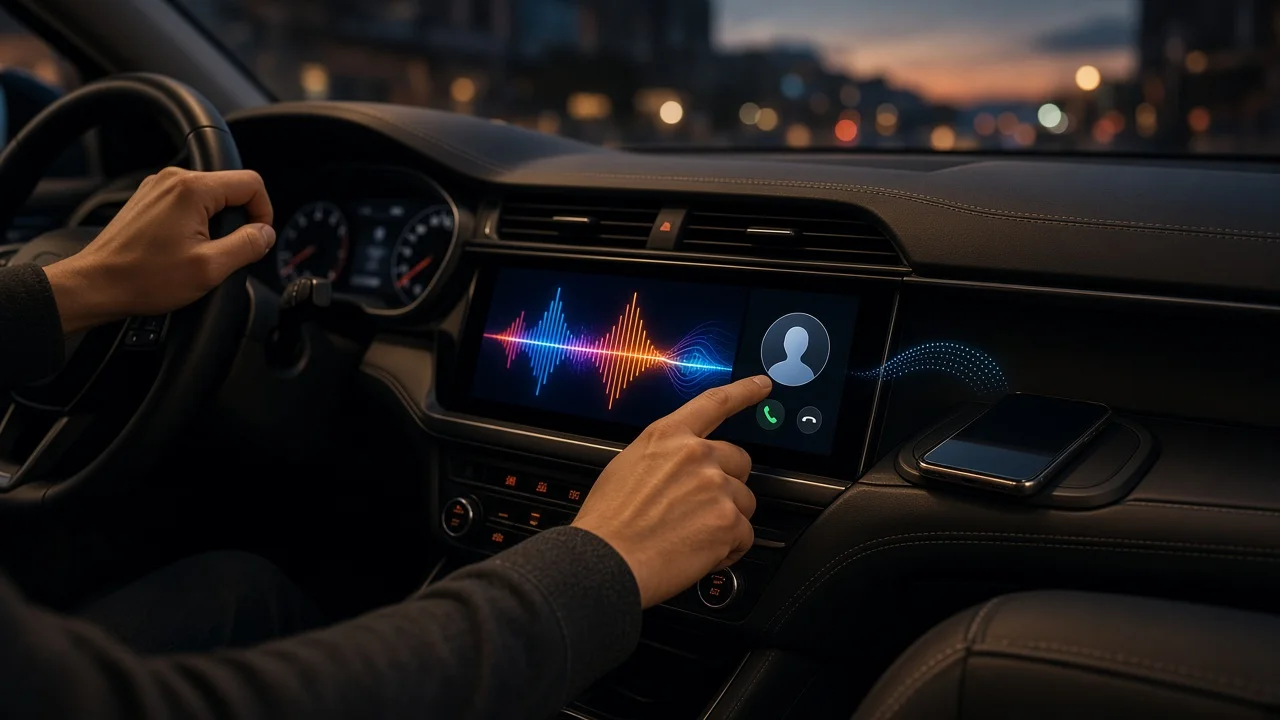
A car stereo with phone Bluetooth (also called a head unit, the radio or receiver mounted in the dash) connects wirelessly to a smartphone so the car can play the phone's music and act as a hands-free speakerphone for calls. Choose one by checking three things: whether it supports both calling and music streaming, whether it physically and electrically fits your vehicle, and whether it includes a usable microphone for call audio. Fit is the condition that most changes the answer. Some vehicles accept a standard aftermarket unit with an adapter kit, while others integrate the factory radio with climate controls, steering-wheel buttons or vehicle settings, which makes replacement harder or requires extra interface parts.
Bluetooth terms that decide what the stereo can do
"Bluetooth" on a spec sheet does not guarantee both calls and music. Bluetooth functions are defined by profiles, which are standardized sets of capabilities. Look for these by name in the product specifications:
HFP (Hands-Free Profile): enables phone calls through the car speakers and the stereo's microphone. Without it, the unit cannot handle calls. A2DP (Advanced Audio Distribution Profile): enables stereo music streaming from the phone. AVRCP (Audio/Video Remote Control Profile): lets the stereo's buttons play, pause and skip tracks, and often show track information. PBAP (Phone Book Access Profile): lets the stereo display your contacts and call history.
A unit that lists only A2DP is a music streamer, not a hands-free calling system. For calls and music, HFP and A2DP are the minimum; AVRCP and PBAP make daily use easier.
Step-by-step: choosing a Bluetooth car stereo
1) Identify your vehicle's make, model, model year and trim, and whether it has a factory amplifier or premium audio system. Fit and wiring depend on these details. 2) Determine the dash opening size. Aftermarket units commonly come in single-DIN (shorter) and double-DIN (taller, often touchscreen) formats. Confirm which your vehicle accepts, or whether it needs a dash kit to adapt the opening. 3) Check what the factory radio controls. If it also runs climate, vehicle settings, backup camera or steering-wheel controls, you will need a compatible interface module or may decide replacement is not practical. 4) Confirm the Bluetooth profiles listed above, with HFP and A2DP as the baseline. 5) Check the microphone arrangement. Units with an external microphone that mounts near the driver, such as on the headliner or steering column, generally pick up voice more clearly than a microphone built into the faceplate. 6) Decide whether you want smartphone projection. Apple CarPlay and Android Auto mirror navigation, messaging and calling apps on the stereo screen. They require a compatible screen-based unit, and wireless versions need explicit support for wireless operation; many units offer them only over USB. 7) Confirm phone compatibility. Check the manufacturer's compatibility notes for your phone model and operating system, and whether the unit can remember multiple phones or connect two at once if more than one driver uses the car. 8) Plan installation: the wiring harness adapter, dash kit, antenna adapter and steering-wheel control interface your vehicle needs, and whether you will install it yourself or have it professionally installed.
How to verify the result after installation
Pair the phone: put the stereo in pairing mode, select it in the phone's Bluetooth settings, confirm the matching code if one appears, and allow contact and call-history access if you want them displayed. Test a call in both directions: place and receive a call, and ask the other person whether your voice is clear and whether they hear an echo. Test with the car moving: road and fan noise expose weak microphone placement that a parked test can miss. Test music streaming: check that audio plays in stereo and that play, pause and skip work from the stereo and, if fitted, the steering-wheel controls. Test reconnection: turn the car off and on again and confirm the phone reconnects automatically. Check call priority: confirm that music pauses or mutes when a call comes in and resumes afterward.
If call quality is poor, move the external microphone closer to the driver and away from air vents, then lower the stereo's microphone gain if the other party hears echo. If pairing fails, delete the old pairing on both the phone and the stereo, then pair again.
Legal note on phone use while driving
In the US, rules on handheld phone use and texting while driving are set by individual states and some localities, and they differ. A Bluetooth stereo supports hands-free calling, but it does not by itself make every type of phone use legal everywhere. Check the current rules for the state where you drive.
What this guide does not cover
No verified product data was available for this guide, so it does not recommend specific models, prices, Bluetooth version numbers or vehicle-specific fitment. Before buying, confirm those details in the stereo maker's specification sheet and a fitment guide for your exact vehicle.