How to Connect a Phone to a Pioneer Car Radio via Bluetooth
The short answer
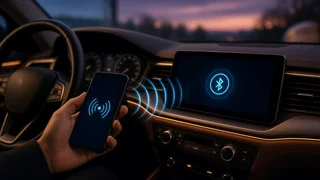
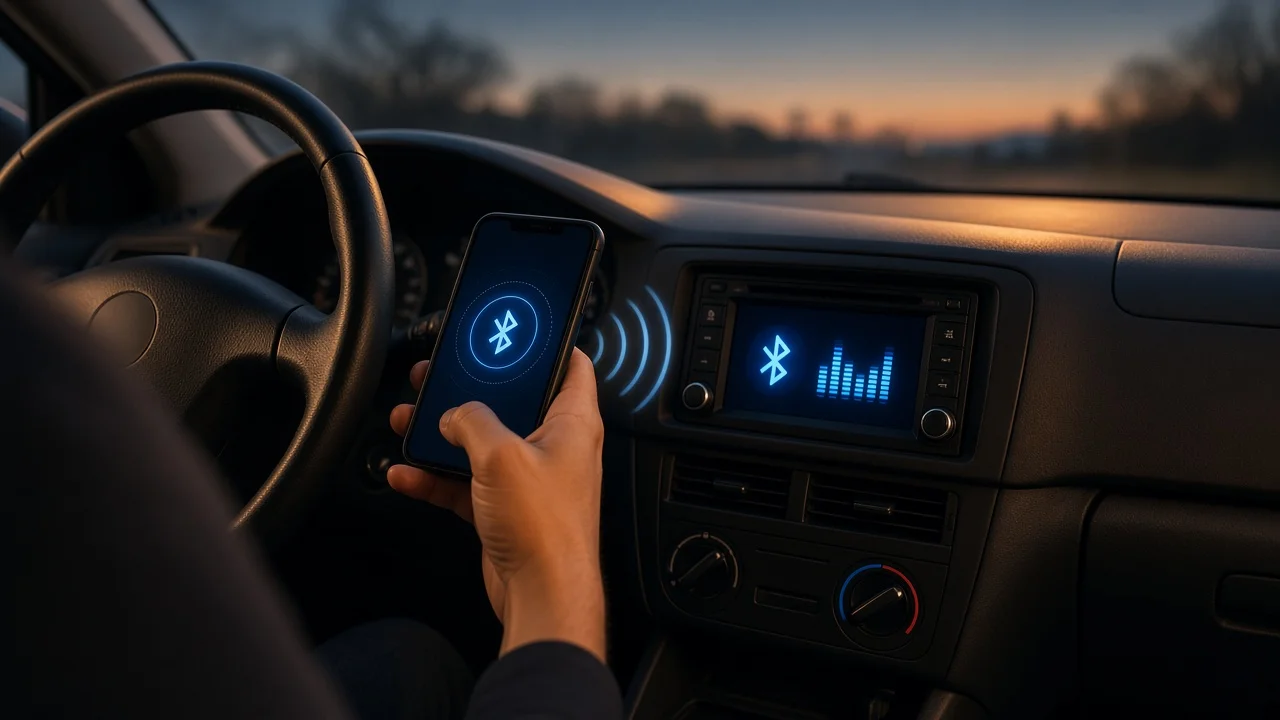
If your Pioneer head unit has built-in Bluetooth, connect your phone by pairing the two devices. Turn on Bluetooth on the phone, open the Bluetooth or connection settings on the radio and make it discoverable or start an add-device search, then select the radio's name in your phone's Bluetooth list. Confirm the passkey on both screens if asked, and allow the requested permissions. After the first pairing, the radio should reconnect automatically whenever the phone's Bluetooth is on and the stereo is powered.
Pairing means the two devices store each other's identity so they can connect securely without repeating setup. One condition changes the answer: not every Pioneer receiver has Bluetooth. If yours does not, a Bluetooth connection isn't possible without an add-on adapter. In that case, use a wired connection such as USB or an auxiliary input, if the unit has one. Your model's owner's manual or the labels on the faceplate will confirm which features it has.
Terms worth knowing
Head unit: the stereo or receiver installed in the dashboard. Passkey or PIN: a short numeric code that confirms you are pairing the intended devices. Depending on the model, the radio either shows a code to match on the phone or asks for a code listed in its manual. Hands-free profile (HFP): the Bluetooth function that carries phone calls through the car speakers and the radio's microphone. Audio streaming profile (A2DP): the Bluetooth function that plays music and other media from the phone. A phone can be connected for calls, for audio, or for both, so check that both are enabled if you want both.
Before you start
Park the vehicle in a safe place. Setting up pairing takes your attention away from the road, and many units restrict setup menus while the vehicle is moving. Switch the ignition to accessory or run mode so the head unit stays powered. Find your Pioneer model number, usually on the faceplate or in the original paperwork, so you can match the steps to the correct manual. Menu names and button layouts differ between models and product generations. Make sure the phone's Bluetooth is turned on and the phone is close to the dashboard. If the radio supports calls, check whether it uses an external microphone. Many aftermarket units rely on a separate microphone wired in during installation. If none was fitted, calls may not work properly until one is installed.
Step-by-step pairing
1) Turn on the Pioneer head unit and select a source so the display is active. 2) Open the main menu or settings. Depending on the model, this may be a menu or settings button, a long press on the control knob, or a settings icon on a touchscreen. 3) Go to the Bluetooth, connection or phone section. Choose the option to add a device, pair, or make the unit visible or discoverable. Some units start pairing automatically the first time you open the phone menu. 4) On the phone, open Bluetooth settings and search for devices. Wait for the radio's name to appear. It usually matches the name shown in the head unit's Bluetooth settings. 5) Tap the radio's name on the phone. 6) If a passkey appears, confirm that the codes match on both screens and accept them. If the radio asks you to enter a code instead, use the one given in that model's manual. 7) When the phone asks, decide whether to allow access to contacts and call history. Allowing this lets the radio show caller names and phonebook entries. Declining still allows basic calling on most setups. 8) Wait for the head unit to confirm the connection. A Bluetooth or phone icon on the display typically indicates success.
Check that it works
Music: select the Bluetooth audio source on the radio and play something on the phone. Sound should come through the car speakers, and basic playback controls on the radio should respond. Calls: while still parked, call the phone from another number or place a test call from the radio. Confirm that you can hear the caller through the speakers and that the other person can hear you clearly. Reconnection: turn the radio off and back on, or restart the vehicle, and confirm that the phone reconnects without pairing again.
If call audio is poor or missing
Other person can't hear you: check that the microphone is plugged into the correct input on the back of the head unit and that it is mounted where it isn't blocked or pointed away from the driver. Accessing the rear connections means removing the radio from the dash, which may be best left to a car audio installer. Calls play through the phone, not the car: in the phone's Bluetooth settings for the radio, make sure phone or call audio is enabled. During a call, check that the phone's audio output is set to the car. Music works but calls don't, or the reverse: one profile may be disabled. Turn both media and call options on in the phone's device settings. Echo or background noise: lower the call volume slightly, close the windows, and reduce fan speed. If your model has microphone or echo settings, the manual explains how to adjust them.
If the phone won't pair or keeps disconnecting
Make sure the radio is actually in pairing or discoverable mode. On some units, this mode times out after a short period. Delete the old pairing on both the phone and the radio, then pair again from the beginning. This fixes many repeated connection failures, especially after a phone software update. Check whether the radio has reached its limit of stored devices. If it has, remove an unused device from its list. Turn off Bluetooth on other nearby phones that may be connecting to the radio first. Restart the phone, and switch the vehicle off and on to restart the head unit. If problems continue, check whether Pioneer offers a firmware update for your specific model. Follow the manufacturer's update instructions exactly, and do not interrupt power during an update.
When to get help
Pairing is a settings task that doesn't require tools. If the problem turns out to be physical, such as a missing or faulty microphone, a loose wiring harness, or a unit that loses power or settings, consult a qualified car audio installer. The same applies if your radio has no Bluetooth and you want to add an adapter that connects behind the dashboard. Working behind the dash involves vehicle wiring and, in some vehicles, trim around airbag or climate components, so it should be handled by someone familiar with your vehicle.
Pioneer's product range spans many models and years, and menu wording varies between them. Use the manual for your exact model number when a menu name or button in this guide doesn't match your screen.