How to Answer Phone Calls Through Your Car Stereo
The Short Answer
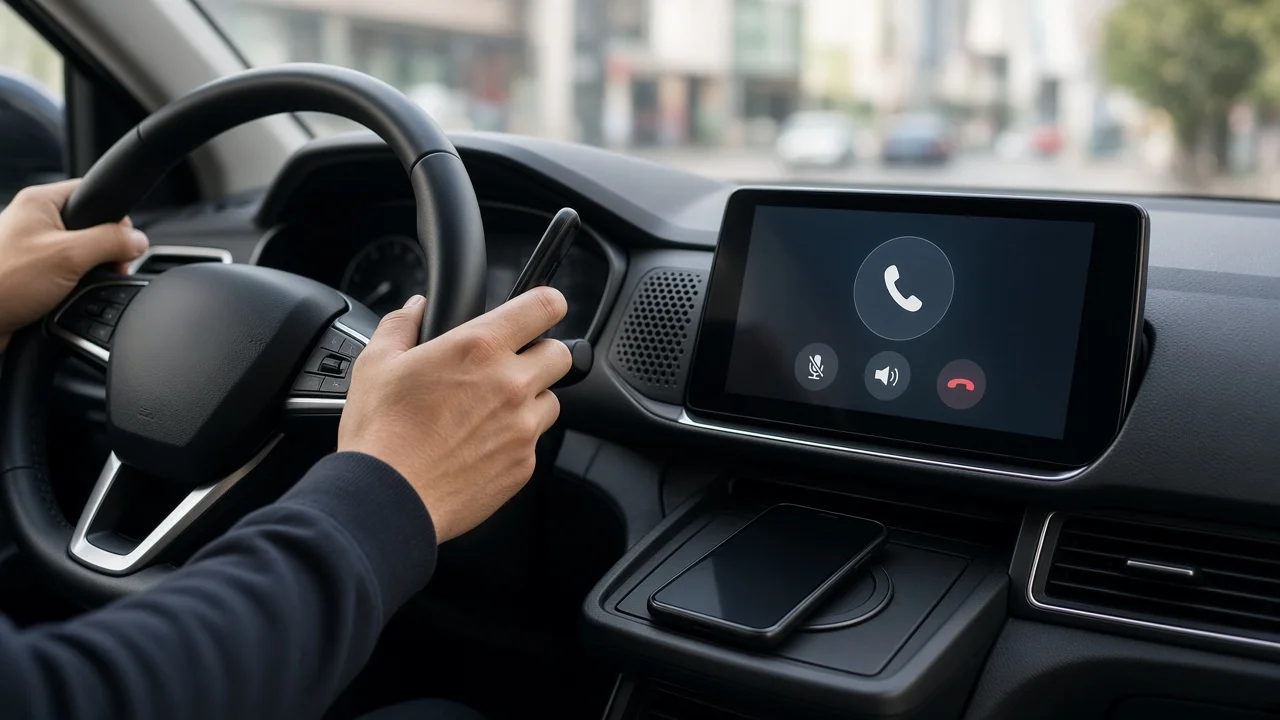
To answer calls through your car stereo, the stereo (often called the head unit) needs hands-free calling support. This usually comes through Bluetooth, the short-range wireless link between your phone and the car. Once your phone is paired, incoming calls appear on the stereo screen or play a ring through the speakers. You answer with the steering-wheel phone button, the on-screen answer button, or a button on the stereo. You hear the caller through the car speakers and talk into a microphone built into the car or the stereo.
Two conditions change this answer. First, Bluetooth audio for music is not the same as Bluetooth calling. Calls rely on a separate Bluetooth feature called the Hands-Free Profile (HFP), and some stereos stream music but do not support calls. Second, calling needs a microphone. A unit without a built-in or plug-in microphone cannot carry your voice to the caller, even if you can hear them.
Check Whether Your Stereo Supports Calls
Support depends on the vehicle's model year, trim level, market and installed equipment, or on the specific aftermarket stereo fitted. No model-specific information was available for this guide, so confirm support for your car using the steps below.
Look for a phone or handset icon on the stereo menu or on the steering-wheel controls. Check the owner's manual or the stereo's manual for hands-free calling, the Hands-Free Profile, or a phone section. Look for a small microphone near the dome light, rear-view mirror, headliner or steering column. On aftermarket units, look for a microphone on a wire clipped near the driver. If your car offers Apple CarPlay or Android Auto, calls can also be handled through those systems, which connect by USB cable or, on supported vehicles, wirelessly.
Pair Your Phone With the Stereo
Menu names differ between manufacturers, but the process is broadly the same. For safety, do this while parked.
1) Turn on the ignition or accessory power so the stereo is on. 2) On the stereo, open the phone, Bluetooth or connections menu and choose the option to add or pair a new device. Some systems show the car's name and make it discoverable at this point. 3) On your phone, open the Bluetooth settings and turn Bluetooth on. 4) Select the car's name from the list of available devices on your phone. 5) Confirm the pairing code. Most systems show a matching number on both screens for you to approve. Older units may ask for a PIN, which is listed in the stereo's manual. 6) Approve any requests on the phone to share contacts, call history or notifications. Contact sharing is optional, but without it the stereo may show only numbers rather than names. 7) In the phone's Bluetooth settings, open the car's entry and make sure the calls or phone audio option is enabled, not just media audio.
Answer and Manage a Call
Answer: press the phone or call button on the steering wheel, tap the answer button on the stereo screen, or press the stereo's call button. Decline or hang up: press the hang-up button. On many cars, this is the same phone button pressed again or held down. Check your manual for your car's controls. Volume: adjust it with the normal volume knob or steering-wheel controls during the call. Call volume is often set separately from music volume. Switch to the handset: most phones and stereos let you move an active call back to the phone's own speaker if you need privacy. Use the audio or output option on the phone or stereo screen. Voice commands: many systems let you answer or place calls by voice after pressing a voice button. Availability varies by vehicle and phone.
Verify That It Works
While parked, ask someone to call you, or call a number you trust. Confirm four things: • The ring plays through the car speakers. • The caller's name or number appears on the stereo. • You can answer from the car's controls. • The caller can hear you clearly. Then hang up from the car's controls to confirm that works too.
Fix Common Problems
Problem | Likely cause | What to try; Music plays but calls stay on the phone | Phone audio is turned off for this connection, or the stereo lacks hands-free calling | Enable calls in the phone's Bluetooth settings for the car. If there is no such option, check whether the stereo supports the Hands-Free Profile. Caller cannot hear you | Microphone missing, unplugged or blocked | Check that a microphone is fitted and connected. On aftermarket units, check the microphone plug and its placement. Phone will not pair | Stereo not in pairing mode, or too many saved devices | Restart pairing from the stereo menu and delete old paired devices on both the stereo and the phone. Phone pairs but will not reconnect automatically | Automatic connection disabled, or another phone connected first | Turn on automatic connection in the stereo's device settings and set your phone as the priority device if that option exists. Echo or poor call quality | Volume set too high, cabin noise, or microphone placement | Lower the call volume, close the windows and, on aftermarket units, move the microphone closer to the driver. Contacts do not appear | Contact sharing was not approved | Allow contact access in the phone's Bluetooth settings for the car, then reconnect.
If none of these steps help, a software update for the phone or stereo may resolve compatibility problems. Check with the stereo or vehicle manufacturer for update availability.
If Your Stereo Cannot Handle Calls
Older or basic stereos may have no Bluetooth or no calling support. Common options include: • An aftermarket head unit with Bluetooth hands-free calling. • A Bluetooth adapter that connects through the auxiliary input or an FM transmitter and has its own microphone. • A standalone Bluetooth speakerphone that clips to the sun visor. Adapters that use the auxiliary input or an FM transmitter vary widely in call quality. Not all of them include a microphone, so check this before buying.
A Note on Driving Laws
In the US, rules on phone use while driving are set by individual states and sometimes local governments. Hands-free calling is generally treated differently from holding a phone, but the exact rules vary. Some states restrict all phone use for certain drivers, such as those with learner or provisional licenses. This guide could not verify current rules for any specific state, so check your state's official traffic laws. Do pairing and settings changes while parked.