Do You Need an App to Connect Your Phone to a Car Radio?
The short answer
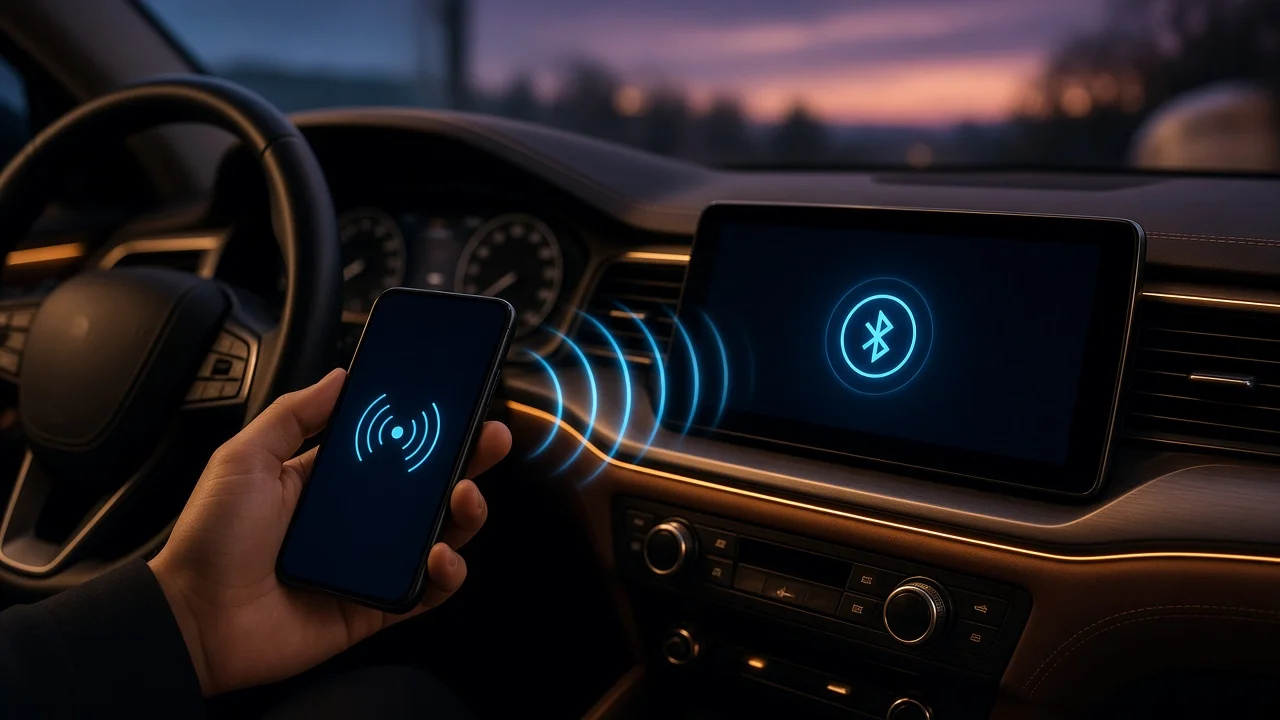
For basic Bluetooth pairing, hands-free calling and music streaming, you usually do not need a separate app. Bluetooth support is built into modern phone operating systems and into Bluetooth-equipped car radios (also called head units), so pairing happens through the phone's settings menu and the radio's own menus.
Whether an app is needed depends on what you want the connection to do and on the specific vehicle or radio. Factory systems vary by manufacturer, model year, trim and market, and aftermarket radios vary by brand and model. No model-specific evidence was supplied for this guide, so menu names, feature availability and app requirements for any particular car should be confirmed in its owner's manual or the radio maker's documentation.
When an app is and is not involved
Connection type | Typical purpose | Separate app needed? Bluetooth pairing | Hands-free calls, music streaming, track controls, contact sync | Generally no; handled in phone and radio settings; Apple CarPlay | Phone-style interface on the car screen for iPhone | Generally no; built into iOS, but the car or radio must support it; Android Auto | Phone-style interface on the car screen for Android | Built into many recent Android versions; older phones may require downloading it; Manufacturer companion app | Remote features such as vehicle status or remote commands, where offered | Yes, but it is not required for basic call or music audio; Aftermarket radio app | Settings, equalizer or screen mirroring on some units | Depends on the radio model; check its documentation; AUX cable or FM transmitter | Audio for radios without Bluetooth | Generally no
An app can also be the cause of confusion. App stores list many third-party "car connect" apps, but installing one does not add Bluetooth capability to a radio that lacks it. If the radio has no Bluetooth, the options are a wired connection, an add-on adapter or a replacement head unit.
How Bluetooth handles calls and music
Bluetooth uses separate profiles, which are standardized feature sets, for different jobs. The Hands-Free Profile (HFP) carries phone calls, including the car's microphone input. The Advanced Audio Distribution Profile (A2DP) streams music and other media. The Audio/Video Remote Control Profile (AVRCP) lets the radio or steering-wheel buttons skip tracks and pause playback. The Phone Book Access Profile (PBAP) lets the radio display contacts and call history.
Not every radio supports every profile. An older or basic unit may handle calls but not music streaming, or the reverse. If calls work but music does not, or contacts never appear, the radio may not support that profile, or the matching permission may be switched off on the phone.
Before you start
Confirm the radio supports Bluetooth, using the owner's manual, the radio's settings menu or a Bluetooth or phone button on the unit. Park the vehicle in a safe place. Some systems block pairing while the vehicle is moving, and pairing requires attention to both screens. Turn on the ignition or accessory mode so the radio is powered. Charge the phone or plug it in, and turn on Bluetooth. Check whether the radio has a maximum number of stored devices. If it is full, you may need to delete an old pairing first.
Steps to pair a phone with a car radio
1) On the radio, open the phone, Bluetooth or connections menu and choose the option to add or pair a new device. This puts the radio in discoverable mode. Exact wording varies by system. 2) On the phone, open Bluetooth settings and wait for nearby devices to appear. 3) Select the radio's name from the list. It is often the vehicle brand, the radio brand or a name shown on the radio screen. 4) Compare the passkey or PIN shown on both screens. If they match, confirm on both devices. Some older radios ask you to enter a fixed code instead; the manual lists it. 5) When the phone asks, choose whether to allow access to contacts, call history and notifications. Allowing contacts enables name display and voice dialing on supported systems. 6) On the phone, check the device's Bluetooth details and make sure both call audio and media audio are enabled for the car, if the phone offers those toggles.
Checking that it worked
The radio shows the phone as connected, often with signal and battery icons. Place a test call. You should hear the other person through the car speakers, and they should hear you clearly through the car microphone. Play music on the phone and switch the radio source to Bluetooth audio. Sound should come through the car speakers. Try the radio or steering-wheel controls to skip or pause a track. Turn the car off and on again. The phone should reconnect automatically when Bluetooth is on.
If calls or audio do not work
No sound on calls: during a call, check the phone's audio output selector and make sure the car, not the handset or earbuds, is selected. Music plays from the phone speaker: confirm media audio is enabled for the car in the phone's Bluetooth device settings, and set the radio source to Bluetooth. Contacts missing: allow contact sharing in the phone's Bluetooth device settings. Some radios need time to download a large phonebook. Will not pair or keeps dropping: delete the pairing on both the phone and the radio, restart both, and pair again. Disconnect other phones or earbuds that may connect first. Other side hears echo or poor quality: this can relate to the car microphone, cabin noise or the radio's own settings. If it persists after re-pairing, consult the dealer or radio maker.
If the radio has no Bluetooth
An AUX cable can carry music from phones that have a headphone output or an adapter, but it does not provide hands-free calling through the car's microphone. Plug-in Bluetooth adapters and FM transmitters can add wireless audio, and some include their own microphone for calls. Call quality and features depend on the specific product, and no test findings were supplied for any particular device.
Replacing the head unit with a Bluetooth, CarPlay or Android Auto model is the more complete option. Installation can involve dashboard disassembly, wiring harness adapters, steering-wheel control interfaces and, in some vehicles, integration with other systems. If you are not comfortable with vehicle wiring, or the car's radio is tied into climate, camera or safety functions, a professional installer is the safer route.
What this guide cannot confirm
No vehicle-specific or radio-specific data was supplied, so this guide does not state which models support which Bluetooth profiles, CarPlay or Android Auto, device limits, or exact menu paths. Those details depend on manufacturer, model year, trim, market and software version, and should be checked against the manufacturer's documentation for your vehicle or radio.