App to Connect Phone to Car Radio: What You Actually Need and How to Set It Up
Many drivers search for an app to connect their phone to the car radio, expecting a download to be the missing piece. In most cases, it isn't. Whether your phone can connect depends mainly on the car's head unit, the radio and infotainment system in the dashboard. An app can add features, but it cannot add wireless hardware that the car doesn't have. This guide explains which connections need an app, which don't, and how to get audio and calls working in your car.
The Short Answer
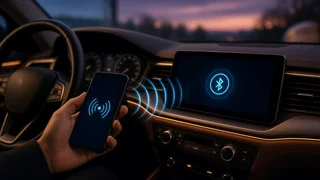
If your car radio has Bluetooth, you don't need a separate app. Pairing uses the Bluetooth settings already built into your phone and the head unit. Apps matter in three situations: phone-projection systems like Apple CarPlay and Android Auto, manufacturer or head unit companion apps that add remote or customization features, and some aftermarket adapters that come with a control app. If your radio has no Bluetooth, no phone app can create a wireless link. You need hardware such as a Bluetooth receiver, an FM transmitter or a new head unit.
Ways to Connect a Phone to a Car Radio
The right method depends on what your car's audio system supports. Features vary by model year, trim and market, even within the same model line. Check the head unit's menus or the owner's manual to see what your car offers.
Method | App required? | What it needs | Typical use; Bluetooth pairing | No | Bluetooth-equipped head unit | Calls and music streaming; Apple CarPlay | Built into iPhone; no separate download | CarPlay-compatible head unit, USB cable or wireless support | Maps, messages, music and calls on the car screen; Android Auto | Built into most recent Android phones; older phones may need the app | Android Auto-compatible head unit, USB cable or wireless support | Maps, messages, music and calls on the car screen; Manufacturer or head unit app | Yes | Supported vehicle or aftermarket unit | Settings, remote features, sometimes media control; USB or AUX cable | No | USB media or 3.5 mm AUX input | Wired music playback; Bluetooth-to-AUX receiver | Usually no; some include an optional app | AUX input and a power source | Adds wireless audio to an older radio; FM transmitter | Usually no | Power outlet and a working FM radio | Wireless audio for radios without inputs
Bluetooth: The Default Option That Needs No App
Bluetooth is the most common way to make the phone an audio source for the car stereo. Most head units with Bluetooth support two connection types, often called profiles. The hands-free profile carries phone calls through the car's microphone and speakers. The audio streaming profile carries music, podcasts and navigation prompts. A phone can be connected for calls but not for media, or the reverse, which explains many cases where calls work but music doesn't.
How to Pair Your Phone Over Bluetooth
Before you start, park the car safely. Many vehicles block pairing while moving. Keep the phone unlocked and close to the dashboard. Menu names differ between manufacturers, so use these steps as a general guide.
1) Turn on the ignition or accessory mode so the head unit powers up. 2) On the head unit, open the phone, Bluetooth or connections menu and choose the option to add or pair a new device. 3) On your phone, open Bluetooth settings and make sure Bluetooth is on. 4) Select the car's name from the list of available devices on the phone. 5) Confirm that the PIN or passkey shown on both screens matches, then accept on both devices. 6) Allow contact and call history access if you want to see contacts and recent calls on the car screen. 7) In the phone's Bluetooth settings for the car, make sure both calls and media audio are enabled.
Completion check: play a song and confirm the sound comes through the car speakers with the head unit set to Bluetooth audio as its source. Then make a short test call and confirm the other person can hear you clearly through the car's microphone.
Apple CarPlay and Android Auto
CarPlay and Android Auto do more than Bluetooth. They show a simplified version of phone apps on the car's display, including navigation, messaging, music and calling, with voice control. They work only if the head unit supports them. Many newer cars and aftermarket units include one or both, but support depends on the model year, trim and the specific head unit.
CarPlay is built into iOS, so iPhone users don't download anything. Android Auto is built into recent Android versions, while older phones may need the Android Auto app from the Google Play Store. Some systems need a USB cable; others support a wireless connection. A wired-only head unit can sometimes go wireless with a third-party wireless adapter, though compatibility varies by vehicle.
How to Set Up CarPlay or Android Auto
1) Confirm that your car's head unit supports CarPlay or Android Auto, using the infotainment menu or owner's manual. 2) For a wired connection, use a good-quality data cable and plug it into the USB port meant for phone projection. Some cars have charge-only ports that won't work. 3) For wireless setup, make sure Bluetooth and Wi-Fi are both on, since wireless projection usually uses both. 4) Follow the prompts on the phone and the car screen, and accept the requested permissions. 5) On iPhone, check that CarPlay isn't restricted in Screen Time settings. On Android, update Android Auto and Google services if the connection fails. 6) Confirm that the projection interface appears on the car display and that audio plays through the car speakers.
Manufacturer and Head Unit Companion Apps
Many automakers offer connected-car apps that handle features like remote locking, remote start, vehicle status or trip planning, depending on the vehicle and any required subscription. These apps usually connect to the car through a cellular service built into the vehicle, not through the radio itself. They don't replace Bluetooth pairing for music and calls.
Some aftermarket head unit brands and Bluetooth adapters also offer companion apps for sound settings, equalizer adjustments or source switching. These apps are optional extras. The basic audio connection still relies on Bluetooth or a cable.
Older Car Radios Without Bluetooth
Be cautious about apps that claim to connect any phone to any car radio. If the radio has no Bluetooth receiver, a phone app has nothing to connect to. For older cars, these hardware options are more practical:
Bluetooth-to-AUX receiver: plugs into the radio's 3.5 mm AUX input and is powered by USB or the 12-volt outlet. It usually offers better sound quality than an FM transmitter, and some models include a microphone for hands-free calls. FM transmitter: plugs into the 12-volt outlet and broadcasts phone audio on an FM frequency you tune the radio to. It works with almost any FM radio, but sound quality depends on signal reception. USB or AUX cable: a simple wired option if the radio has a suitable input, though it doesn't support wireless calling on its own. Cassette adapter: an option for radios that only have a cassette deck. Replacement head unit: an aftermarket stereo with Bluetooth, CarPlay or Android Auto offers the most complete upgrade.
Getting Clear Sound From an FM Transmitter
An FM transmitter shares the airwaves with local radio stations, so interference is its main weakness. Find a frequency with only static on your car radio, then set the transmitter to the same frequency. In cities with crowded airwaves, or on long drives that pass through different broadcast areas, you may need to retune. The car's antenna and its connection also affect reception, so a damaged or loose antenna can worsen sound quality.
Troubleshooting Common Connection Problems
Calls work but music doesn't: enable media audio for the car in the phone's Bluetooth settings, and switch the head unit's audio source to Bluetooth. The phone won't pair: delete the car from the phone and the phone from the car, restart both, and pair again. Some head units limit how many devices they can store. The connection drops often: check for phone software updates and head unit updates, and turn off aggressive battery-saving settings that may close background connections. CarPlay or Android Auto won't start: try another data cable and USB port, and check that the feature is enabled on both the phone and the car. Callers hear echo or poor audio: reduce cabin noise, check that nothing is covering the car's microphone, and lower the volume slightly during calls.
When to Get Professional Help
Pairing, projection setup and plug-in adapters are easy to do yourself. Replacing the head unit is a different job. It can involve removing dashboard trim, using vehicle-specific wiring harness adapters, connecting speaker wiring, adapting the antenna connection and keeping integration features like steering-wheel controls, factory amplifiers, backup cameras or chimes. In many modern cars, the radio is closely tied to other vehicle systems. Unless you're comfortable with car electronics, a professional installer is the safer choice for a head unit swap.
Which Option Fits Your Car
If your radio has Bluetooth, use your phone's built-in Bluetooth settings. No app is needed. If your head unit supports CarPlay or Android Auto, set that up for the most complete experience on the car screen. Install a manufacturer or head unit app only for the extra features it offers. If your radio has no Bluetooth, choose a Bluetooth-to-AUX receiver when there's an AUX input, an FM transmitter when there isn't, or a replacement head unit for a long-term upgrade.