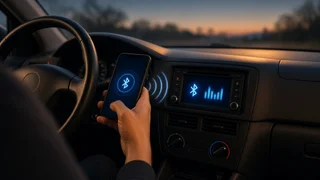
How to Connect Your Phone to Your Car Radio
You can connect almost any smartphone to a car radio. The best method depends on what your radio supports. Most cars from roughly the last decade support Bluetooth, which handles both music and hands-free calls. Many also support Apple CarPlay or Android Auto through a USB cable or wirelessly. Older radios without Bluetooth can usually still play phone audio through an AUX input, a plug-in Bluetooth adapter, an FM transmitter or a cassette adapter. This guide shows how to work out which option your car has, how to set it up, and how to confirm it is working.
The short answer
In this guide, the car radio is called the head unit. That is the screen or control panel in the dashboard that selects the audio source and sends sound to the speakers. To connect your phone, choose one of the methods your head unit supports, then select that source on the radio. Bluetooth is the most common choice. Turn on Bluetooth on your phone, put the radio into pairing mode, choose the car from your phone's Bluetooth list, and confirm the matching code. If the radio has no Bluetooth, an AUX cable or an add-on adapter will connect your phone's music to the car instead.
Identify what your head unit supports
Check this before buying anything. Features vary by model year, trim level and market, and two cars of the same model can be equipped differently. Look for these signs:
A Bluetooth logo, a phone icon, or a Phone or Setup menu on the radio screen; CarPlay or Android Auto logos on the screen, in the menus, or near a USB port; A USB port in the dash, center console or armrest, sometimes marked with a data or media symbol rather than only a charging symbol; A 3.5 mm AUX jack, often labeled AUX or Line In; A cassette slot, which suggests an older radio with no built-in phone connection; The owner's manual or the infotainment section of the vehicle's settings menu, which lists supported features
Method | Music | Hands-free calls | What you need; Bluetooth | Yes | Yes, if the head unit supports the hands-free profile | Bluetooth-equipped radio; Apple CarPlay / Android Auto | Yes | Yes | Compatible head unit and a data cable or wireless support; USB media | Often | Usually no | USB port that supports media playback; AUX cable | Yes | Only through an adapter with a microphone | AUX jack, plus a headphone adapter if your phone has no 3.5 mm port; Bluetooth AUX receiver | Yes | Some models | AUX jack and power for the receiver; FM transmitter | Yes | Some models | Working FM radio and a 12-volt power socket; Cassette adapter | Yes | No | Working cassette player
Before you start
Park the car somewhere safe. Many vehicles block pairing while moving, and setting up a phone while driving is dangerous. Turn the ignition or accessory mode on so the head unit is powered. Charge your phone and update its operating system if an update is waiting. Turn the radio volume down before you switch sources to avoid a sudden loud burst of sound. If you use a cable, choose one that carries data, not just power. Charge-only cables will not work for CarPlay, Android Auto or USB media.
Method 1: Pair your phone with Bluetooth
Bluetooth connects your phone to the head unit without cables. Once paired, most cars reconnect automatically each time you start the car. Menu names vary between manufacturers, so look for close equivalents of the labels below.
1) On your phone, open Settings and turn on Bluetooth. Stay on the Bluetooth screen so the phone can see nearby devices. 2) On the head unit, open the Phone, Bluetooth, Connections or Setup menu and choose an option such as Add Device, Pair Phone or Connect New Device. Some cars use a phone button on the steering wheel or a voice command instead. 3) Wait for the car's name to appear in your phone's list of available devices, then tap it. 4) Compare the code shown on the phone with the code on the car screen. If they match, confirm on both. Some older systems instead ask you to type a PIN. Common defaults are 0000 or 1234, but check your manual. 5) Allow the requests to share contacts, call history or notifications if you want those features on the car screen. You can decline them and still stream music. 6) On the radio, select Bluetooth, BT Audio or Phone as the audio source. 7) Play music on the phone and raise the radio volume slowly.
Some head units can store several phones but connect only one or two at a time. If another phone in the car connects first, disconnect it or set your phone as the priority device in the Bluetooth menu.
Method 2: Use Apple CarPlay or Android Auto
CarPlay (iPhone) and Android Auto (Android) show a simplified version of your phone's apps on the car screen. You get navigation, music, messages and calls through the car's controls. Support depends on the specific head unit. Some systems need a USB cable, and others also work wirelessly.
1) Make sure the feature is enabled on the phone. On iPhone, CarPlay is built in and controlled in Settings under General and CarPlay. On many Android phones, Android Auto is built into the system. On others it is a separate app. 2) Connect the phone to the USB port that supports data, using a data cable. For wireless systems, start pairing from the car's CarPlay or Android Auto setup option, which usually uses Bluetooth for the first connection. 3) Unlock your phone and accept the prompts that appear on the phone and on the car screen. 4) Wait for the CarPlay or Android Auto interface to appear on the head unit, or select it from the car's main menu. 5) Open a music or podcast app and confirm the sound plays through the car speakers.
Method 3: Connect with a USB or AUX cable
A wired connection is simple and does not depend on wireless reception. With a USB media connection, the radio may show track names and let you browse your music. With AUX, the radio only plays the sound, so you control playback on the phone.
1) Plug the cable into the phone and into the car's USB port or AUX jack. Phones without a headphone port need a USB-C or Lightning to 3.5 mm adapter for AUX. 2) Select USB, iPod, Media or AUX as the source on the radio. 3) Start playback on the phone. For AUX, set the phone's volume fairly high and use the radio volume knob as the main control. This usually gives cleaner sound than turning the phone up only a little.
Method 4: Add Bluetooth or phone audio to an older radio
If your radio has no Bluetooth or phone integration, add-on devices can still connect your phone to the car. They differ in sound quality and convenience.
Bluetooth AUX receiver: a small receiver that plugs into the AUX jack and gets power from USB or the 12-volt socket. Pair the phone to the receiver, not to the car, then set the radio to AUX. Models with a built-in microphone can also handle calls. FM transmitter: plugs into the 12-volt socket and broadcasts your phone's audio on an FM frequency. Pair your phone to it or connect it by cable, find an empty FM frequency with only static, set the transmitter and the radio to that same frequency, then play music. Sound quality depends on signal reception and the car's antenna, and interference can increase in areas with many stations. Cassette adapter: insert the adapter into the tape deck and plug its cable into the phone, or use a Bluetooth version. Set the radio to tape mode. Replacement head unit: a new aftermarket radio with Bluetooth, CarPlay or Android Auto gives the most complete vehicle integration. Installation involves the dash trim, the wiring harness, speaker wiring and the antenna connection, and sometimes adapters to keep steering wheel controls working. If you are not comfortable with car electrics, have a qualified installer do this. Mistakes can damage the wiring or disable features linked to the radio.
Check that the connection works
Music plays through the car speakers, not the phone speaker, and the radio shows the correct source. The radio volume controls the sound level, and pause or skip works from the radio or steering wheel if your method supports it. For Bluetooth or CarPlay and Android Auto, make a short test call while parked. Confirm you can hear the other person through the speakers and that they can hear you clearly through the car microphone. Turn the car off, wait briefly, and start it again. A paired phone should reconnect on its own within a short time of the head unit starting up.
Fix common connection problems
Car does not appear on the phone: make sure the head unit is in pairing mode, keep the phone close, and turn Bluetooth off and back on. Pairing fails or keeps dropping: delete the car from the phone's Bluetooth list and delete the phone from the car's device list, then pair again from the start. Restarting both the phone and the car also helps. Calls work but music does not: check that media audio is turned on for the car in the phone's Bluetooth settings, and set the radio's source to Bluetooth audio. No sound or very quiet sound: check the phone's media volume, the radio volume and the selected source. For AUX, make sure the plug is fully inserted. CarPlay or Android Auto does not start: try another data cable or USB port, unlock the phone, check that the feature is not disabled or restricted in the phone settings, and accept any pending prompts. FM transmitter static: try a different empty frequency and change it again when you drive into a new area. Hum or whine that changes with engine speed on a wired or adapter setup: this often points to a ground loop in a powered adapter. A ground loop isolator may help. If the noise continues, have the wiring checked.
Choosing the right method
If your head unit has Bluetooth, use it first. It is free, wireless and handles calls. Use CarPlay or Android Auto when available if you want navigation and apps on the car screen. For an older radio with an AUX jack, a Bluetooth AUX receiver is usually the best low-cost upgrade. An FM transmitter suits cars with no auxiliary input. If you want full hands-free calling and app integration in an older car, consider a replacement head unit installed by a professional.