Auto Connect to Car Bluetooth: How It Works and How to Set It Up
The Short Answer
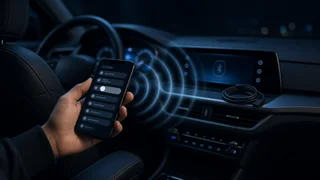
Most cars with Bluetooth reconnect to your phone automatically once the two have been paired. Pairing is a one-time step that saves a trusted link on both the phone and the car's infotainment system (the head unit). After that, when the car is switched on and the phone's Bluetooth is enabled, the car usually looks for known phones and reconnects without any action from you.
Several things change this answer. Reconnection can depend on which features you allowed during pairing, how many phones the car has stored, which phone the car treats as its first choice, and your phone's power-saving settings. Menu names and options vary by automaker, model year, infotainment generation and phone software version. No model-specific specifications or menu paths were available for this guide, so the steps below describe the general process. Check your owner's manual for the exact wording in your vehicle.
Pairing Versus Connecting
Pairing and connecting are separate steps. Pairing introduces the phone and car to each other and stores the link, usually after you confirm a matching code on both screens. Connecting is the session that starts each time you get in the car. Auto-connect means the stored pairing lets the connection start without repeating the setup.
Bluetooth also handles different jobs through separate functions called profiles. One profile carries hands-free calls, another streams media audio, and others share contacts or let the car control playback. A phone can reconnect for calls but not music, or the other way around, if one of these functions is switched off for the car. This is a common reason auto-connect seems to work only partly.
Wireless Apple CarPlay and Android Auto add another layer. In supported vehicles, they typically use Bluetooth for the initial handshake and then run over a Wi-Fi link. If those systems fail to start automatically, the cause may lie in the CarPlay or Android Auto settings rather than basic Bluetooth pairing. Support for these systems depends on the vehicle and trim.
Before You Start
Park the vehicle in a safe place. Many cars block pairing menus while moving, and setup should never be done while driving. Turn the ignition or accessory mode on so the infotainment screen is active. Have your phone unlocked, with Bluetooth turned on and enough battery charge. Keep the owner's manual nearby, because menu names differ between brands and model years. If you have already tried pairing without success, be prepared to delete the old pairing on both the phone and the car.
Steps to Set Up Automatic Connection
1) On the car's screen, open the phone or Bluetooth settings and choose the option to add or pair a new device. 2) On your phone, open the Bluetooth settings and select the car's name from the list of available devices. 3) Confirm that the pairing code is the same on both screens, then accept it on both devices. 4) Approve the permission prompts on your phone, such as contact sharing, call access and media audio, if you want those features. Declining a permission can limit what reconnects later. 5) On the phone, open the settings for the car within the Bluetooth device list. On many Android phones, this includes toggles for phone calls, media audio and contact sharing. Make sure the features you want are on. iPhones show fewer options per device, and the main controls are in the car's settings and any sharing prompts. 6) In the car's device list, set your phone as the preferred, favorite or priority device if that option exists. This matters most when more than one phone is paired. 7) If your car limits how many devices it stores and the list is full, remove phones that are no longer used.
How to Confirm It Works
Turn the vehicle off and wait for the infotainment system to shut down completely. On some cars, this can take a short time after you open a door or lock the vehicle. Restart the car with the phone's Bluetooth on and the phone left untouched. The connection icon or phone name should appear on the car's screen without input from you. While still parked, make a short test call to check that the call audio plays through the car's speakers and that your voice is picked up by the car's microphone. If you use media audio, start playback and confirm that it also plays through the car.
If It Stops Reconnecting Automatically
Check that Bluetooth is still on. Airplane mode, low-power modes or battery optimization can turn it off or limit it in the background. Confirm that call and media permissions for the car are still enabled in the phone's Bluetooth settings. If another phone in the car connects first, set your phone as the priority device or remove the other phone. Restart the phone, then turn the car off and on again. Delete the pairing on both the phone and the car, then pair again from the beginning. Removing it from only one side often leaves a mismatched record. Install any available phone software updates. Phone updates can change how Bluetooth behaves with some head units.
Infotainment software updates may be available as over-the-air updates, through a USB download, or only at a dealer, depending on the automaker and model year. If the car will not save any pairing, loses all paired devices repeatedly, or shows errors after the steps above, the issue may need dealer diagnosis or a head-unit software update rather than more home troubleshooting.
What This Guide Could Not Confirm
No vehicle-specific evidence was available for this guide. That includes menu paths, device limits, compatibility lists, and which models support wireless CarPlay or Android Auto. Phone compatibility and the exact name of settings such as device priority vary by automaker, infotainment generation, model year, trim and market. Use your owner's manual, or the automaker's phone compatibility information for your vehicle, to confirm these details.